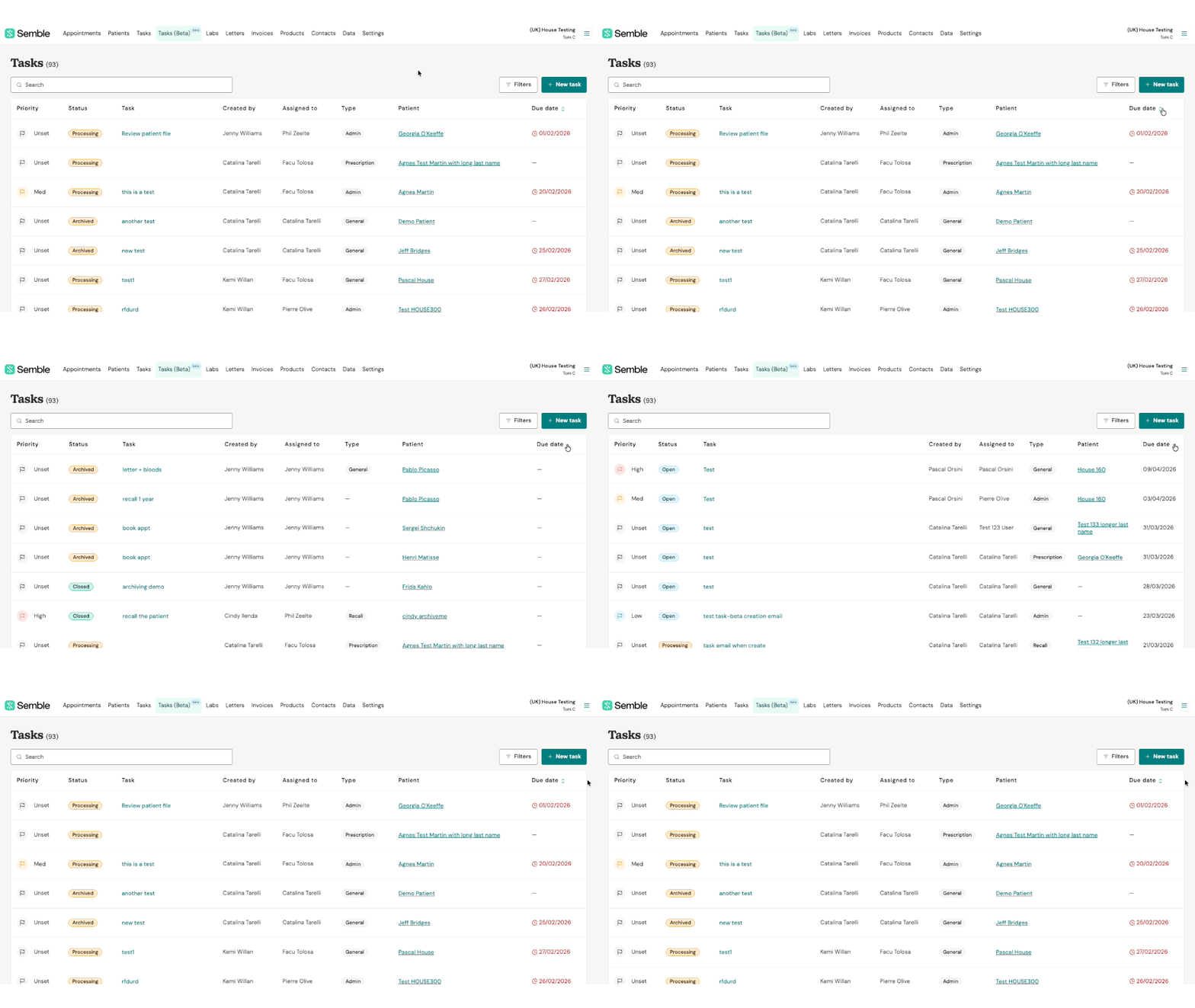
Tasks are a way for your practice to note down and track things that need doing for your day-to-day running of Semble. You can view and manage your practice's tasks from the Tasks page in Semble.
Note: To view and manage tasks you must have a role assigned to you that gives you editing permissions for Tasks.
In this article:
Smart Navigation in Tasks (AI Beta)
Create a Task
You can create a task at any time from the Tasks page:
1. Click '+ New Task'
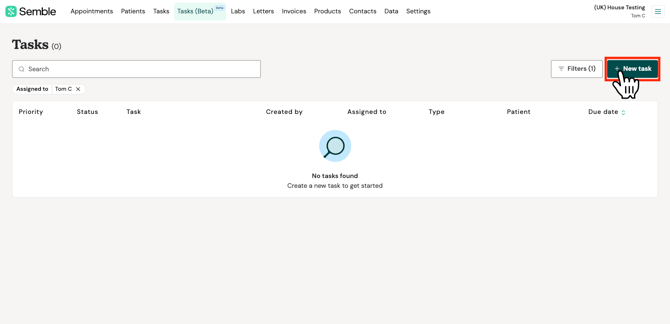
2. Fill in the compulsory details of the task in the New task window:
-
Task name
-
Assign to - select the user who will do the task
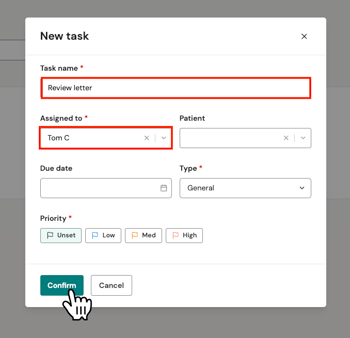
3. (Optional) Complete the other task details:
-
Patient - Link the task to a patient
-
Due date - Set a date for when the task needs to be completed by
-
Type - Select what type of task it is
-
Priority - Give the task a priority
-
Comments - Type any additional notes about the task
4. Click 'Confirm' to save the task.
The task is assigned to the user and will appear on their Tasks page. They will also receive an email notification if they have activated it in their settings. For more information on how to activate it click here.
Edit a Task
You can edit a task at any time from the Tasks page:
1. Click on the task name.
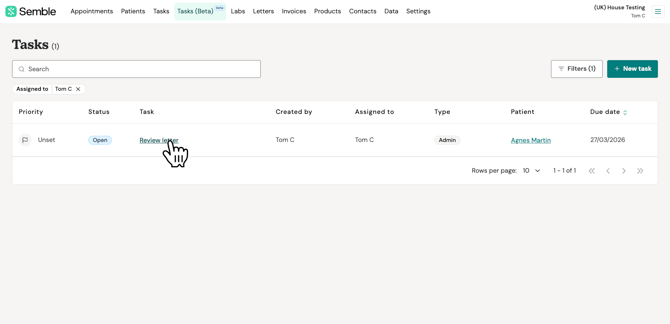
2. Make the changes you want in the editing window.
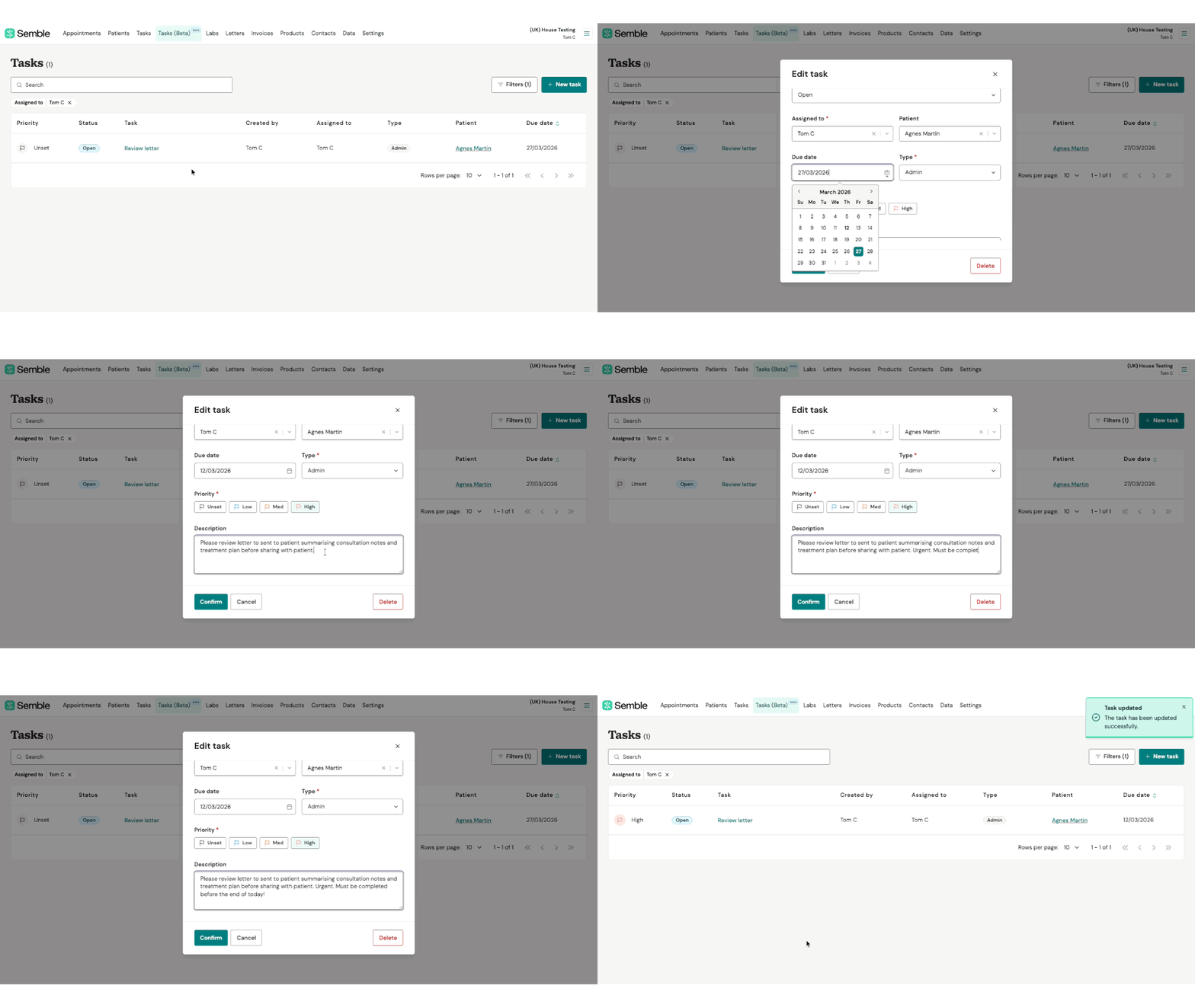
3. Click 'Confirm' to save changes, or click on the cross ( X ) in the top-right of the window or 'Cancel' to discard changes without saving.
You can edit the task again at anytime by following the same steps as above.
A log of task updates will be available in the Logs tab of the patient's profile (only available when a task is associated with a patient):
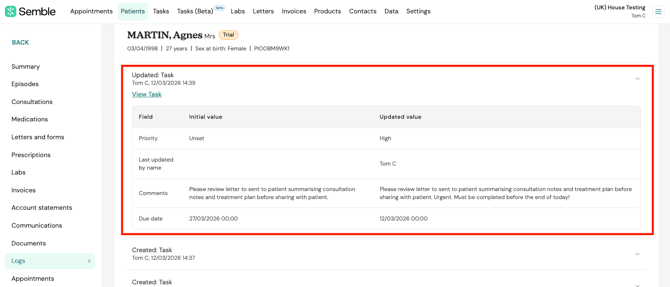
You can see which user edited the task with a date and time stamp, as well as the initial and updated values to review which changes were made.
Delete a Task
You can delete a task at any time from the Tasks page:
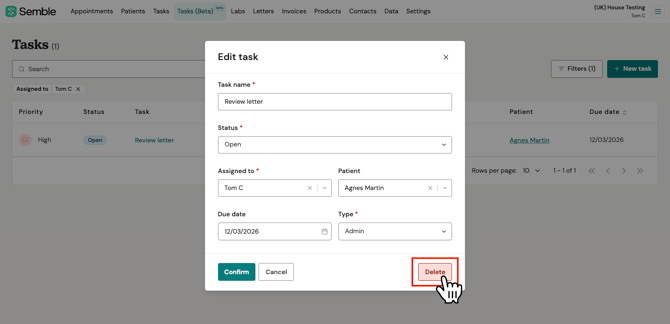
1. Click on the task name.
2. Click 'Delete' at the bottom of the window.
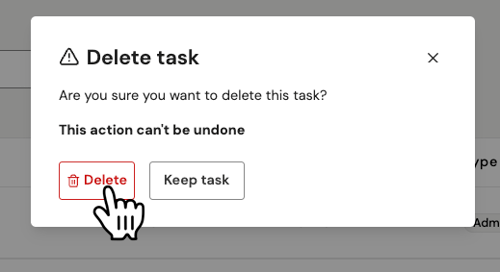
3. Select 'Delete' again to confirm the deletion.
The task is deleted from your practice. You can create a new task at any time by following the steps here.
View Other User's Tasks
Note: By default, when you go to the 'Tasks' tab, you will only see your own tasks. However, you can follow the steps below to view tasks assigned to others
See all tasks
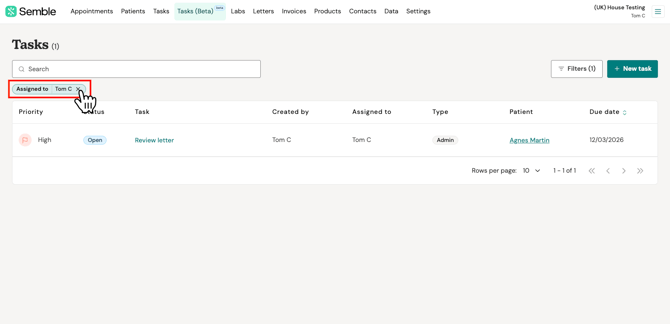
You can see the tasks for all other users by removing the 'Assigned to' filter below the search bar:
See specific user's tasks
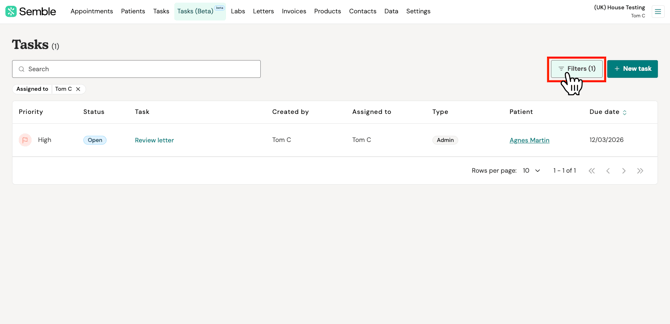
1. Click on 'Filter' in the top-right corner.
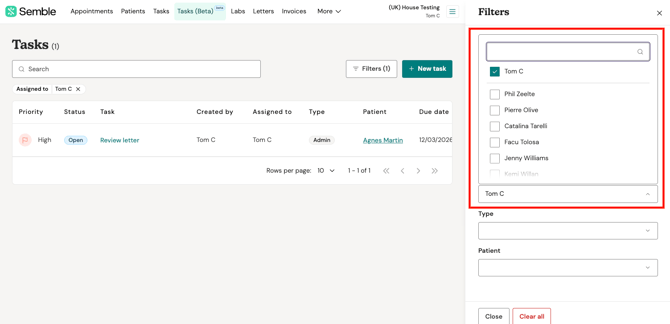
2. Tick the other users who you want to view the tasks of.
3. Click 'Close'.
The tasks of the selected users appear. You can change this filter at any time by following the same steps as above.
Update a Task's Status
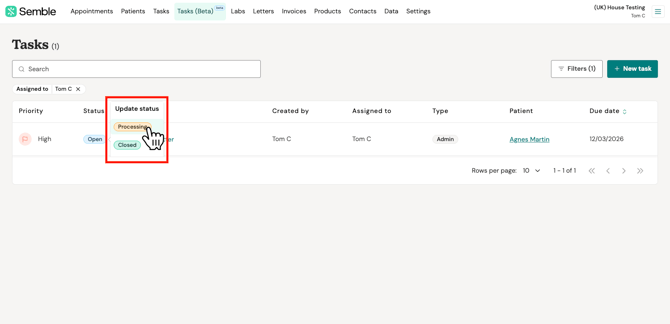
You can update a task's status to mark it as 'Processing' or 'Closed' at any time from the Tasks page:
1. Click the status button next to the task that you want to update.
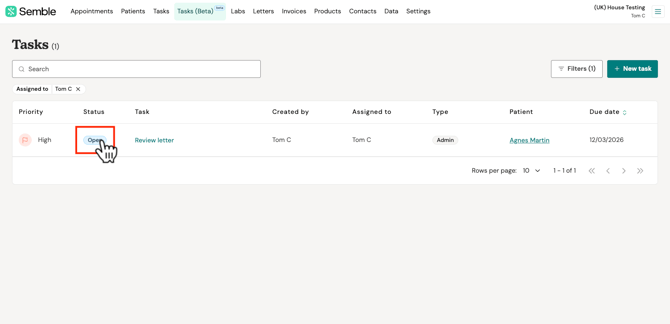
2. Choose a status.
-
Open - the task has not been started
-
Processing - the task is being worked on
-
Closed - the task is marked as complete
The task updates with the new status:
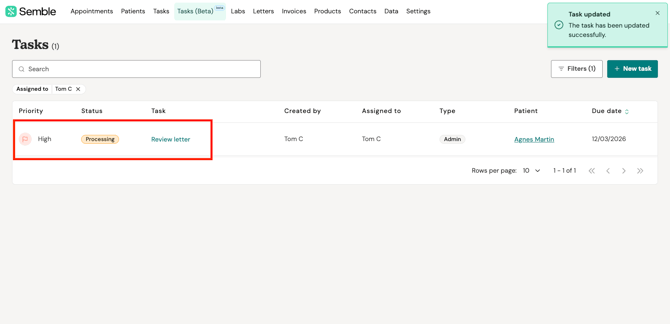
You can change the task's status at any time by following the same steps as above and selecting a different status.
Note: If a patient has been archived, the status will be 'Archived', regardless of the task's status before. You cannot edit any archived task until the patient has been unarchived. See more about archived patients here.
Smart Navigation in Tasks (AI Beta)
When working on a task in Semble, you'll now see a Navigation panel labelled AI Beta at the top of the task detail view. This is Semble's first AI-powered feature, designed to help your team act on tasks faster without losing their place in the application.
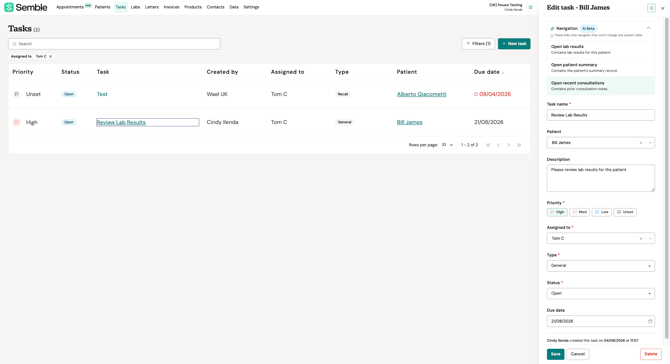
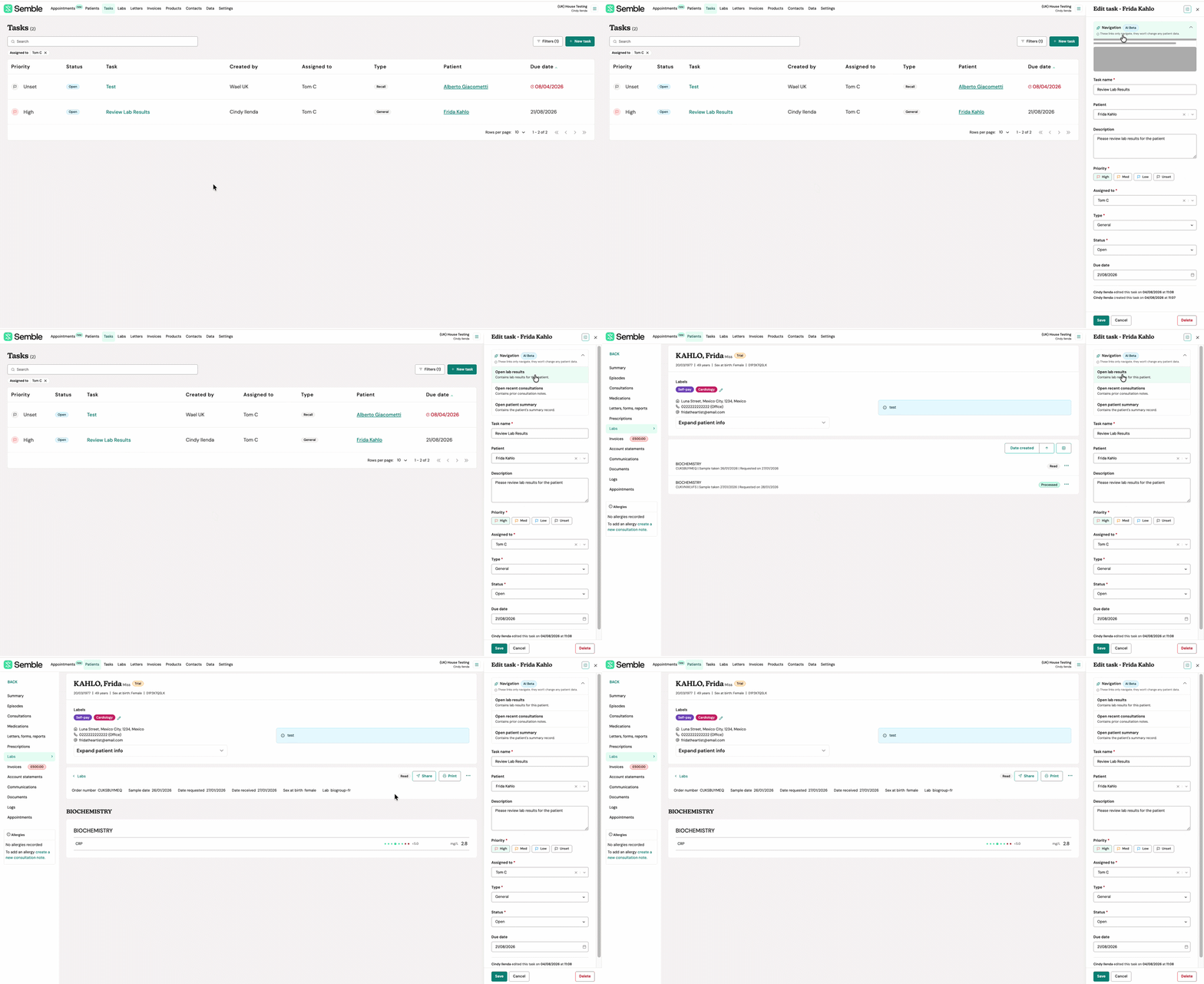
The Navigation panel analyses the details of the open task — the task name, patient, type, priority, and any comments — and surfaces relevant shortcuts directly into the patient record. Instead of closing the task, navigating manually to find the right screen, and coming back, the relevant links are suggested for you.
Navigation links will be generated based on the content of the task such as the task subject, description and patient.
For example, if a task is titled "Review Lab Results", the panel might suggest:
- Open lab results — Contains lab results for this patient
- Open patient summary — Contains the patient's summary record
- Open recent consultations — Contains prior consultation notes
NOTE: Navigation links are generated when you save the task. On a new task, the panel will display once the task has been saved for the first time.
What it doesn't do
The AI Navigation feature is a navigation helper only. It does not:
- Read, display, or interpret patient medical records
- Make clinical decisions or recommendations
- Take any action on your behalf — you remain in full control of every step
NOTE: The Navigation panel is labelled AI Beta so you always know when you are using an AI-powered feature. These links only navigate — they will not change any patient data.
Your data
The AI uses only task metadata to generate suggestions — the task name, patient name, task type, priority, and comments. No clinical or medical records are sent to or processed by the AI.
See also: AI in Semble
Search, Filter and Sort Tasks
The filters and search function will allow you to find the most relevant tasks that you need to work on or review, and helps you to keep on top of what is being assigned.
Filter options
If you need to find a specific task or group of tasks, you can use a range of filters available:
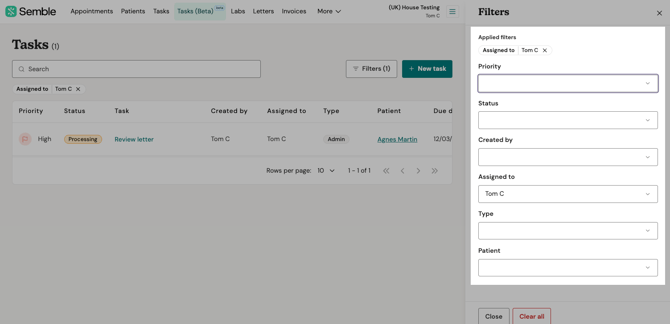
- Priority - view tasks set to either high, medium or low priority
- Status - view tasks that are open, processing, closed, or a combination
- Created by - find tasks that were created by a specific user(s)
- Assigned to -find tasks assigned to a specific user(s) or clear filter to view tasks assigned to all users
- Type - filter by category to see only admin-based or clinician-based tasks
- Patient - locate all tasks associated to a certain patient's profile
Search and quick filters
You can also use the search bar by typing a task name or key word. When clicking on the search bar, you will see a list of your most recently worked on tasks, and some quick filters:
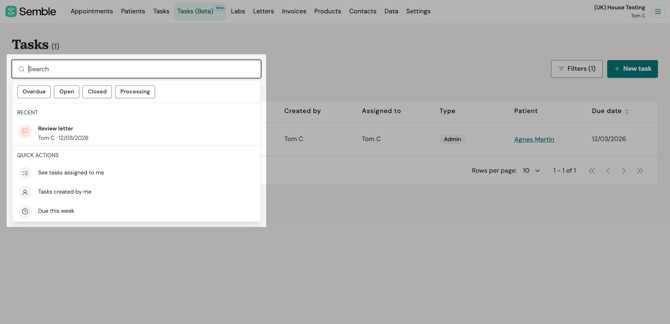
- Status - select from Overdue, Open, Closed or Processing status types
- Recent - quickly refer back to a task you recently created or updated
- See tasks assigned to me - quickly apply your name to the 'Assigned to' filter
- Created by me - quickly apply your name to the 'Created by' filter
- Due this week - see tasks by due date that should be closed soon
Sort by due date
You can use the sorting function on the 'Due date' column to rearrange the order of tasks in your list to show oldest to newest, or newest or oldest.
All overdue tasks will show the due date in red to highlight that the due date has passed.
Within the patient file, tasks are ordered by status first (open, closed, etc), then by due date.