
This article is for users who need to create questionnaires for patients to fill out before they have a consultation. Answers given in a patient questionnaire are automatically uploaded to the relevant places in the patient record.
Note: To manage patient questionnaires, you must have a role assigned to you that gives you the relevant permissions.
In this article:
Create a Patient Questionnaire
Delete a Patient Questionnaire
Receiving a Patient Questionnaire
Reordering Questionnaires or Adding Sections
Receiving Documents from Patients
Set up Notifications for Completed Questionnaires
Linked Articles:
Share and Embed Patient Questionnaires
Create a Patient Questionnaire
Please note: When creating a questionnaire, kindly do save your work regularly, every 10 minutes or so at least.
You can create a patient questionnaire from the Settings page:
1. Go to the Questionnaires tab.
2. Click New in the top right-hand corner.

3. Fill out the General information section.

Note: Users cannot fill out the Confirmation Message and Redirect URL at the same time. Users can only use one of the two options.
4. Enter your Branding options.
5. Choose the Patient information that you want the patient to be asked for, by ticking the boxes.

Note: It is recommended to keep Date of birth ticked, as otherwise this could cause a patient to be duplicated if they are later fully added to your Semble.
6. Click on Add a section

7. Fill out the section details, then click Add question to add the custom question.
For security and compliance reasons, clinics must never request or collect patient payment card details (including card number, expiry date, CVV, or billing information) through Semble questionnaires or any other free-text form fields.
Questionnaires are not designed to securely process or store sensitive payment data, and doing so may expose patients and clinics to unnecessary security and regulatory risks.

Note: If you'd like Semble to automatically update certain patient information from the questionnaire, you must select the correct dropdown. See below for more information.
8. Choose whether you want the question to be required or not.
Ticking this box will make the patient unable to submit the questionnaire until they have provided an answer to the question.

9. Fill out the rest of your questionnaire with as many sections and questions as you want.
10. Click Save in the top right-hand corner.
The questionnaire appears in the Questionnaires tab. You can now share the questionnaire with your patients before they attend a consultation.
Note: When a patient fills out a questionnaire, the answers they provide are automatically uploaded to the relevant places in their patient record.
Edit a Patient Questionnaire
You can edit a patient questionnaire at any time, from the Settings page:
1. Go to the Questionnaires tab.
2. Select the questionnaire that you want to edit.

3. Make the edits that you want.
4. Click Save in the top right-hand corner.

You can now share or embed your patient questionnaire in your emails
Delete a Patient Questionnaire
You can delete a patient questionnaire at any time, from the Settings page:
1. Go to the Questionnaires tab.
2. Click the more options icon next to the questionnaire that you want to delete.

3. Select Delete.

4. Click Delete to confirm the deletion.

The questionnaire is deleted from your practice.
Note: Remember to remove the link from any communication sent to your patients
Question Types
You can add different type of questions to your questionnaires:
-
Multiple choice: Configure a question where a patient can select one or more answers
-
Text: A question where the patient can type a short answer
-
Multiline text: A question where the patient can type a longer answer using multiple lines
-
Medical term: Add a question where you can ask the patient about current and past medical conditions, as well as family history. When a patient answers this custom question, the information they provide will automatically update their patient summary in Semble
-
Signature: Give the patient the opportunity to provide a digital signature for the questionnaire. This signature will be automatically added to their patient summary in Semble
-
Date: Ask the patient a question relating to a specific date
-
Relationship: Give the patient the opportunity to provide any external contacts that are relevant to their health or treatment (e.g an emergency contact, or insurance provider). Depending on what type of relationship you select, the information is automatically uploaded to the correct space in the patient's Summary
-
File upload: Give the patient the opportunity to upload a file for the questionnaire.

Smart Questions
Some question types in Semble do more than simply record a patient's answer — they automatically update the relevant section of the patient's file. These are known as Smart Questions.
Rather than responses sitting only within a consultation note (where important details could be missed), Smart Questions push information directly into the patient record, ensuring it is clearly visible and accessible whenever the file is opened.
Medical Term Questions
The Medical term question type allows you to ask a patient about their medical history directly within a questionnaire. When the patient submits their answer, Semble automatically adds the information to the correct section of their patient summary — no manual data entry required.

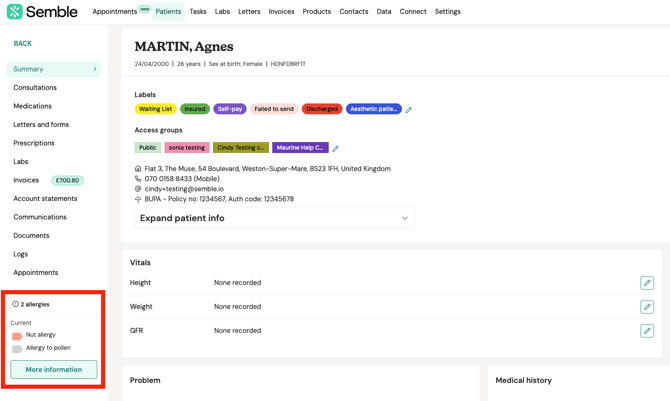
Example: If you ask a patient about allergies using the Medical term question "Allergy", their answer will be recorded under the Allergies section of their patient file — not buried in a consultation note where it might be overlooked. This ensures clinical information is clearly flagged and easy to find at any point in the patient's care.
| Medical Record Type | Where it appears in the patient file |
|---|---|
| Diagnosis | Diagnoses section |
| Examination | Examinations section |
| Allergy | Allergies section |
| Family history | Family history section |
| Medical history | Medical history section |
| Social | Social history section |
| Medication | Medications section |
To set up a Medical term question:
-
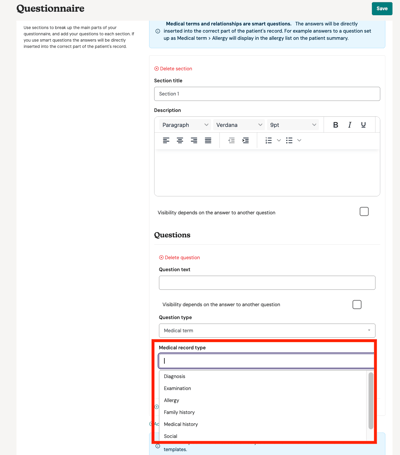
When adding a question to your questionnaire, open the Question type dropdown and select Medical term.
-
A Medical record type dropdown will appear. Select the category that matches the information you are collecting (e.g. select Allergy for an allergy-related question).
-
Enter your Question text.
-
Click Save.
Use the correct Medical record type carefully — it determines where the patient's answer will be stored in their file. For example, selecting Allergy will ensure the response is flagged under allergies, rather than recorded as a generic medical history entry.
Relationship Questions
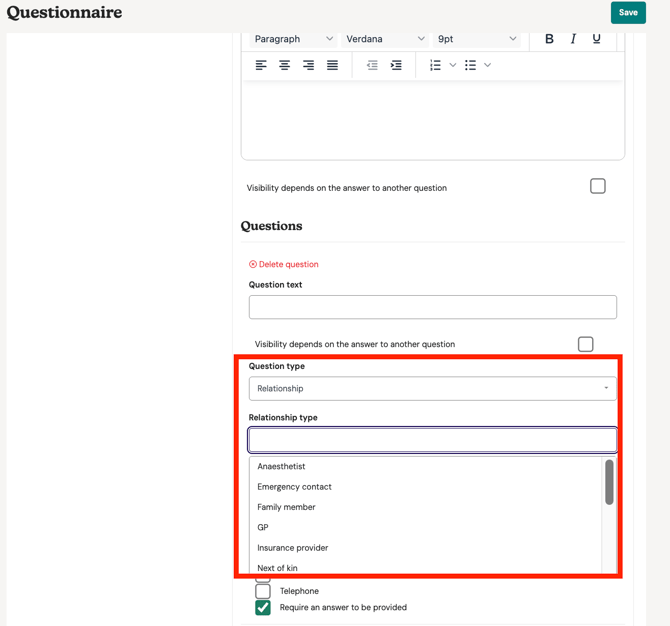
The Relationship question type allows patients to provide details of external contacts relevant to their care — such as an emergency contact, a GP, or an insurance provider.
When the patient submits the questionnaire, Semble automatically adds this information to the Relationships and emergency contacts section of their patient summary.This removes the need for staff to manually add relationships to a patient's file after the fact.
NOTE: Relationships can also be added manually from within a patient's record at any time. See Add Patient Relationships for more information.
NOTE: Smart Questions will only update the patient’s file if the patient’s full name and date of birth on the questionnaire exactly match the details recorded in Semble.
If the details do not match, a new patient file will be created. You will then need to merge the duplicate patient records.
For instructions on merging patients, see: https://help.semble.io/merge-patients#merg
Add a Conditional Question
To add a conditional question to a patient questionnaire:
1. Go to the Settings page, then the Questionnaires tab.
2. Select the questionnaire that you want to edit.

3. Scroll down to the Sections section.
4. Click Add question under the section or question you want.

5. Give the question a name and type as you normally would.
6. Tick Visibility depends on the answer to another question.

7. Fill in the visibility details of the question.
-
Select a question: Use the dropdown menu to select the question that must be answered before this question appears in the questionnaire
-
Must / Must not match: Choose whether the answer given must match or not
-
Answer: Use the dropdown menu to select the answer that will trigger this question to appear

8. Finish filling in the details of the question as you normally would.
9. Click Save.
The configured question will now only appear when a previous question is answered in a certain way. For example, if you tick Yes to this question on the questionnaire outlined above:

The follow-up question appears:

Receiving a Patient Questionnaire
When a patient completes a questionnaire, their answers will automatically transfer into the Consultations tab within their Semble patient record
This is given that the full name and DOB provided by the patient on the questionnaire, match with what you have recorded for them on Semble:


Only then will the system recognise a match and deposit the questionnaire answers into the already existing patient record.
If neither of these details match, a new patient record will be created and the answers will be found there. In this situation, you would merge the duplicate patient records.
What Happens to Updated Patient Details?
For security reasons, Semble does not automatically update a patient's profile when different demographic details are submitted via a questionnaire, to prevent unauthorised or accidental changes from an unverified submission.
How discrepancies are flagged
If an existing patient submits a questionnaire with details that differ from their current record:
- A Patient Demographics section will appear in the consultation notes highlighting the differences
- The questionnaire notification email will include a prompt advising that the submitted details differ from those on the patient's profile
Please note:
How blank fields are handled
If an existing patient's record only contains their first name, last name and date of birth, some demographic information provided in the questionnaire may be automatically added to their profile if those fields are blank.
The questionnaire can automatically populate:
- Address
- Gender
- Phone number
However, certain identity-related fields are not automatically updated, even if they are currently blank. These include:
- Title
- Email address
- Birth surname
These fields require manual review and update by the practice.
This is a security measure designed to help protect patient identity and prevent sensitive identifying information from being changed automatically based solely on questionnaire responses.
Reordering Questionnaires or Adding Sections
Currently, within your Semble account, it is not possible to reorder questionnaires or add sections between existing ones directly through the platform interface.
If you need to make these changes, please contact us via email at support@semble.io. With the below information.
In your email, please include the following information:
-
The exact changes needed
-
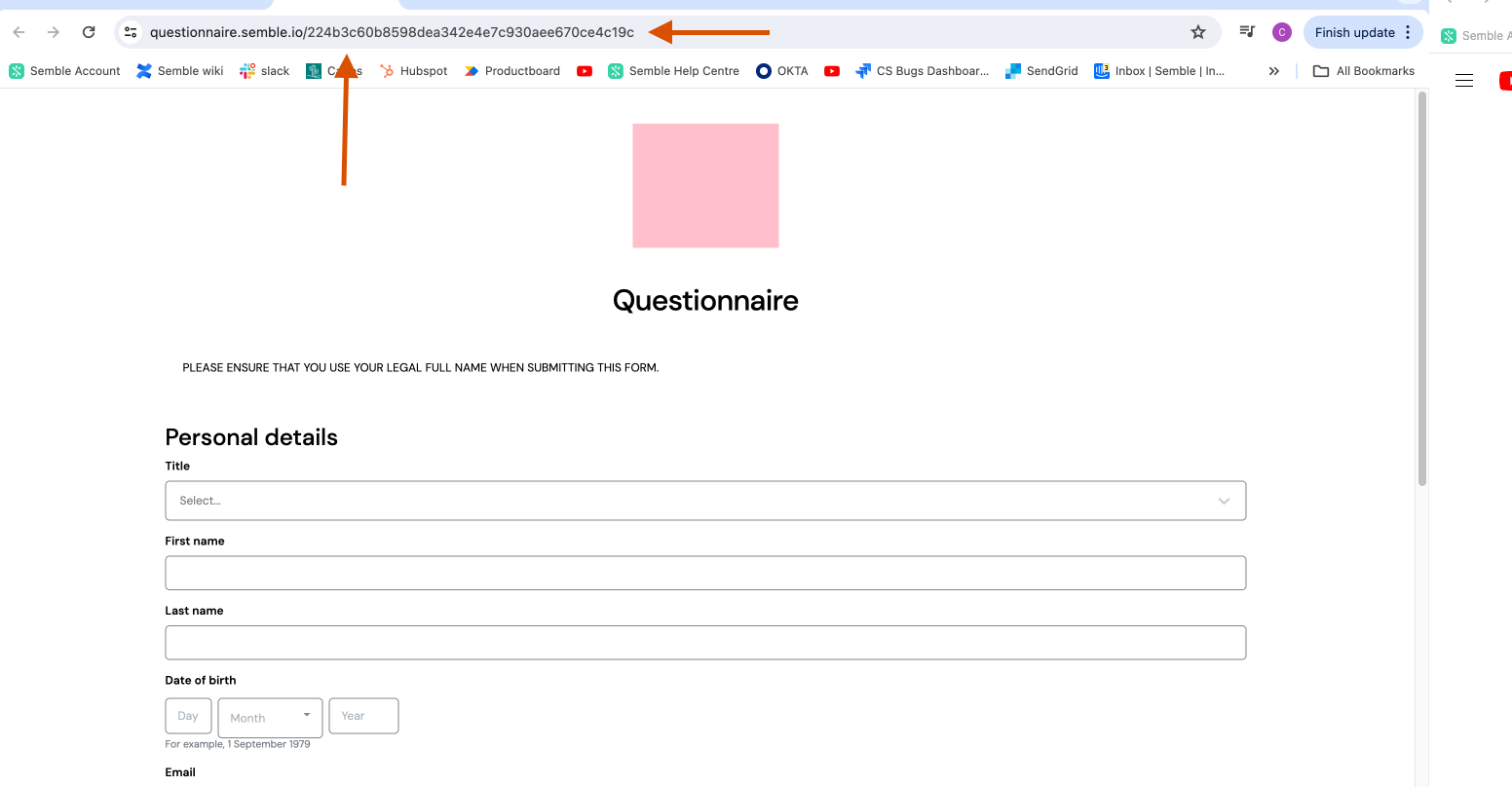
A link to the questionnaire from within Semble (URL)

-
The link shared with patients (URL)
Our support team will assist you with the required updates.
Receiving Documents from Patients
To add a documentation upload to a questionnaire, you must create a custom question.
✅ Accepted File Types
- Modern Office:
.pdf,.docx,.xlsx,.pptx - Open formats:
.odt,.ods,.odp - Text files:
.txt,.csv,.rtf
- Common formats:
.jpg,.jpeg,.png,.gif,.bmp,.webp - Advanced formats:
.svg,.tiff,.heic,.heif,.avif
- Audio:
.mp3,.wav,.ogg,.m4a,.flac - Video:
.mp4,.webm,.avi,.mov,.wmv
1. Go to the Settings page, then the Questionnaires tab.
2. Create a new questionnaire, or edit an existing questionnaire.
3. Add a new question to the questionnaire by clicking Add section at the bottom.

4. Give the section a title and description.
5. Click Add question.

6. Open the Question type dropdown, then select File upload.

7. Enter the Question text.
8. When you have finished creating or editing the rest of your questionnaire, click Save in the top right-hand corner.
The question with the file upload will appear like this:

View uploaded documentation
You can view a patient's uploaded documents at any time from the Patients page:
1. Select the patient who you want to view a document for.

2. Go to the Documents tab.
3. Select the document that you want to view. Documents that have been uploaded from a patient questionnaire are labelled Uploaded by Questionnaire.

Set up Notifications for Completed Questionnaires
When a patient completes a questionnaire before an appointment, you can set up Semble to automatically send an email notification to your practice.
1. Go to the Settings page, then the General tab.
2. Scroll down to the Incoming email section.
3. Enter the email address that you want the questionnaire notifications to go to into the Questionnaire email alert field.
4. Click Save.
The assigned email will now receive notifications whenever a patient completes a questionnaire