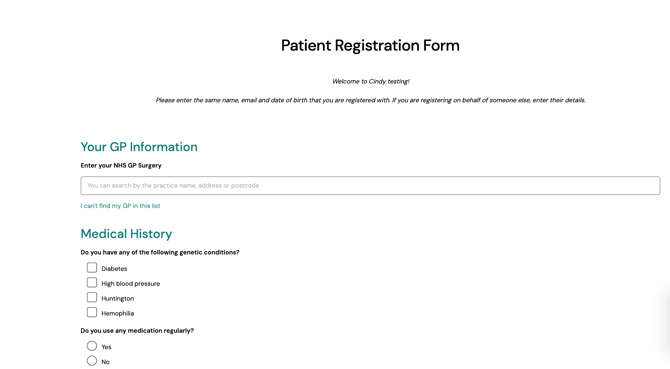
This article is for clinicians and medical secretaries who want to find out how to share or embed an existing patient questionnaire. For information on how to create, edit, and delete questionnaires for your practice, see here.
Note: To embed a questionnaire into a confirmation email or other channel, you must have a role assigned to you that gives you the relevant permissions.
In this article:
Share a patient questionnaire
You can share the URL of a patient questionnaire with anyone:
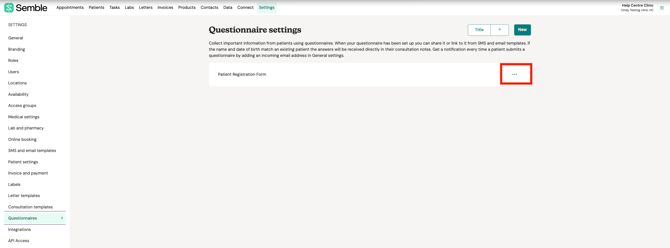
1. Go to Settings, then the Questionnaires tab.
2. Click the more options icon (...) next to the questionnaire that you want to share.
3. Select View.
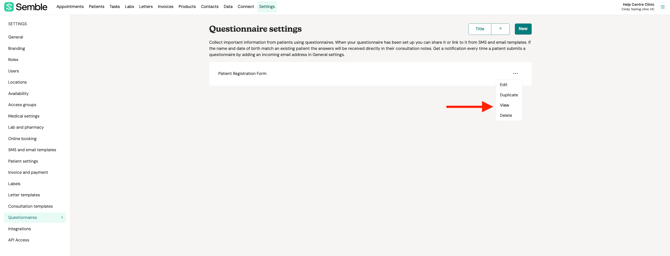
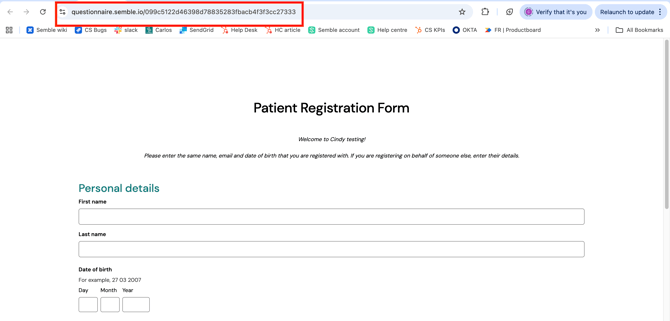
The questionnaire opens in a new tab in your browser.
4. Copy the URL of the questionnaire.
5. Paste the URL into the email, message, or channel you want.
Embed a link into an email
Embed a URL using a hyperlink
The Hyperlink button in the email template editor is a formatting tool. It creates a clickable piece of text (a hyperlink) that points to any URL you choose.
To embed a link into a confirmation or reminder email as a clickable link:
1. Copy the URL of the link (eg. patient questionnaire) that you want to embed. For information on how to do this, see above.
2. Go to Settings, then to the SMS and email templates tab.
3. Select the confirmation or reminder email template that you want to embed the questionnaire into.

4. Scroll down to the Content section and type the text that you want to introduce the patient questionnaire with.
Click the "Hyperlink" button as shown on the bottom left and the placeholder will appear:
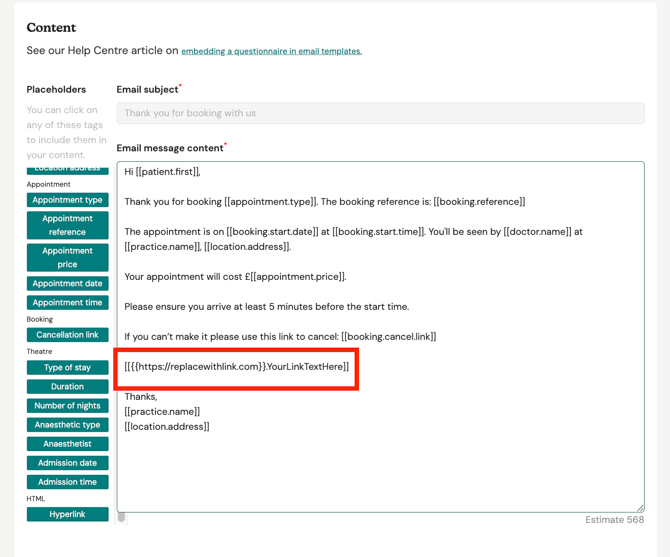
5. Paste your questionnaire link where it says "replacewithlink.com" and free type the text you want your patient to see in the section where it says "YourLinkTextHere", it should look similar to the example below:
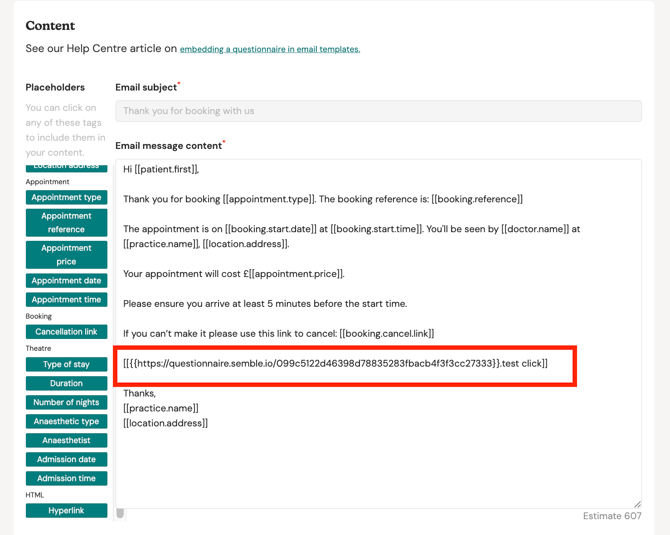
IMPORTANT: It is very important not to remove any of the brackets or other characters used and only replace exactly as specified above.
Using the example above, this is what your patient will see in the email they receive. They will see the words "test click" which they will click and that will lead them to the questionnaire you inserted above:

Send a pre-identified questionnaire link using an integration token
Normally, when a patient clicks a questionnaire link, they'd need to type in their name and date of birth so the form knows who they are. There's a way to skip this step, so the questionnaire opens already knowing who the patient is.
This works by adding a special code to your link. When the email is sent, Semble automatically swaps this code for a unique, secure identifier for that specific patient and that specific message. When they click the link, Semble uses this to recognise them instantly — no typing required.
NOTE: The integration token is valid for 7 days from the time the message is sent. If the token has expired or is invalid, the patient will see: "Failed to load questionnaire." and will be prompted to request a new link.
- Go to Settings, then the SMS and email templates tab.
-
Open the template you want to edit — for example, Appointment Confirmation.
-
Scroll down to the Content section and type the text for your email.
4. Put your cursor where you want your link to appear then click the "Hyperlink" button as shown on the bottom left in the placeholder panel and the placeholder will appear
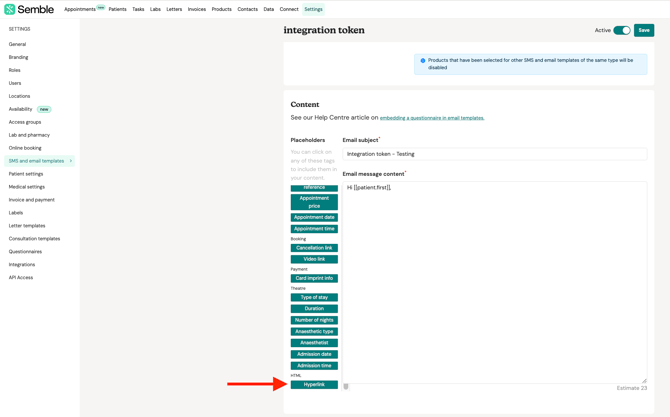

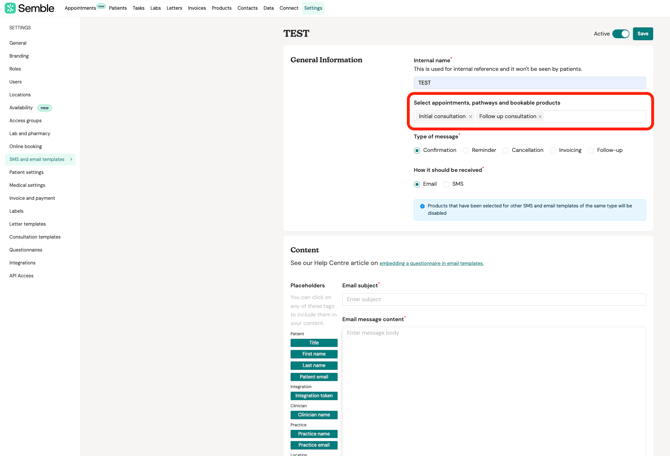
Note: If you can't see the "Hyperlink" placeholder, please make sure you've first linked your products to the template, as the placeholder will only appear once products have been added.
5. If this is not done already, open your questionnaire in a new tab and copy the URL of the relevant questionnaire.
Return to your SMS and email templates
6. Paste your questionnaire link where it says "replacewithlink.com" and free type the text you want your patient to see in the section where it says "YourLinkTextHere",

7. Right after the questionnaire link, add a forward slash "/"

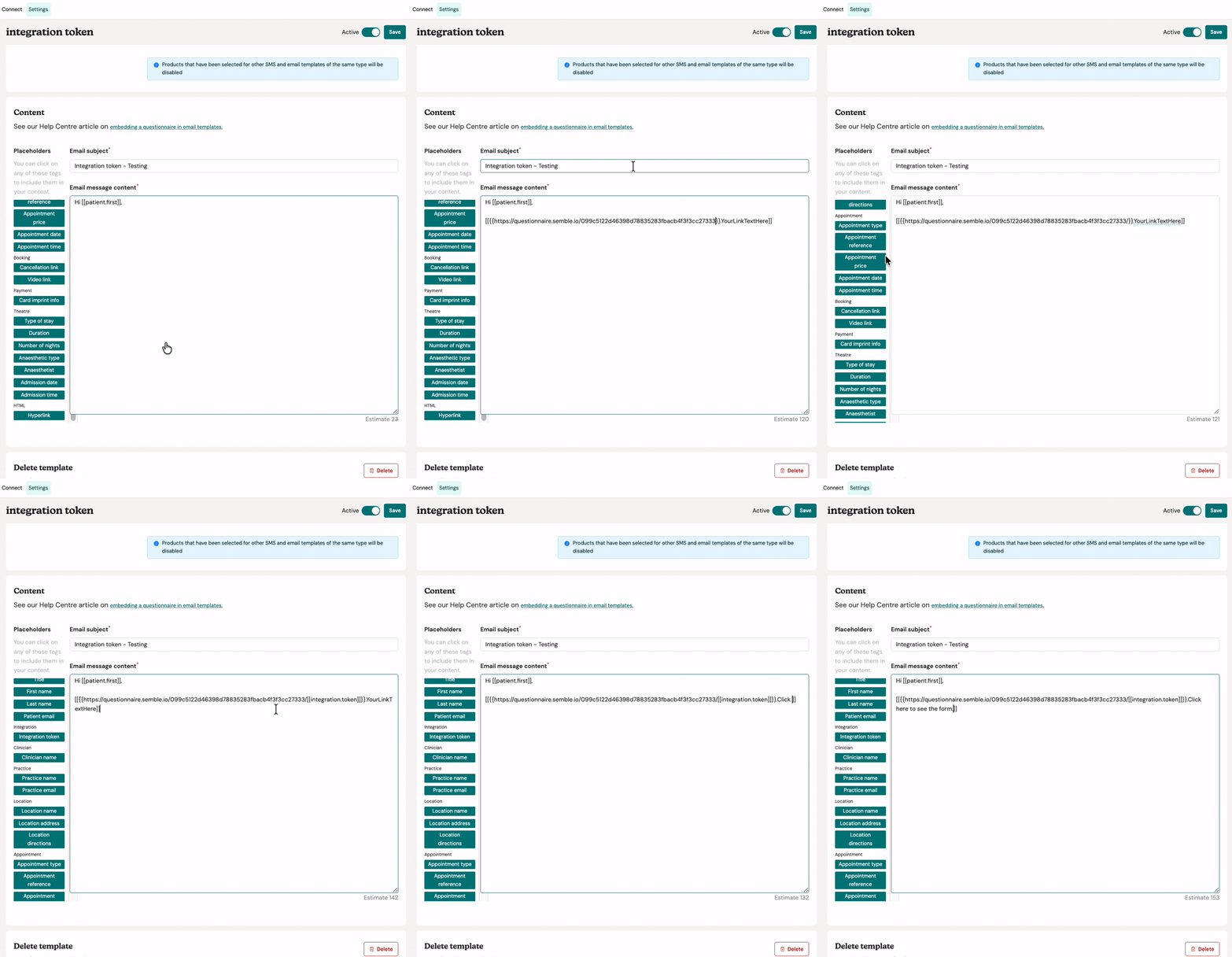

9. The link will look like the below: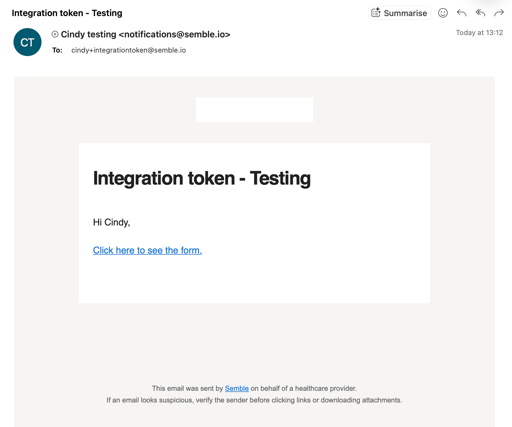
10. Your patient won't be prompted to use basic demographic information: