
Overview
Before a clinician can view a patient's NHS GP record using ORB Connect, the patient must verify their identity via NHS Login and give their explicit consent. Semble provides three ways to send patients their consent invite, so you can build up coverage across your patient list efficiently.
This guide covers all three invite methods, how Semble handles patient eligibility, and what happens when a patient declines or is ineligible.
Patients must be aged 18 or over and registered with a GP in England to be eligible for the NHS GP Record Viewer. Semble checks these criteria before sending an invite.
In this article:
How the consent process works for patients
Method 1: Automated consent link in appointment reminder emails
Method 2: Individual invite from the patient profile
What happens when a patient declines
Consent link expiry
Related articles:
NHS GP Record Viewer (ORB Connect) - Practice Manager Guide
How to View a Patient's NHS GP Record in Semble
Prerequisites
- ORB Connect must be activated for your practice before any invites can be sent. See NHS GP Record Viewer (ORB Connect) - Practice Manager Guide
- The patient consent email template must be configured and set to Active in your Settings > SMS and email templates
- Patients must have a valid email address on their Semble record — patients without an email address on file cannot receive a consent invite
How the consent process works for patients
When a patient receives their consent invite email, they are directed to a secure, clinic-branded ORB Connect page where they:
- Verify their identity using NHS Login
- Review what information will be shared with your practice
- Explicitly grant consent
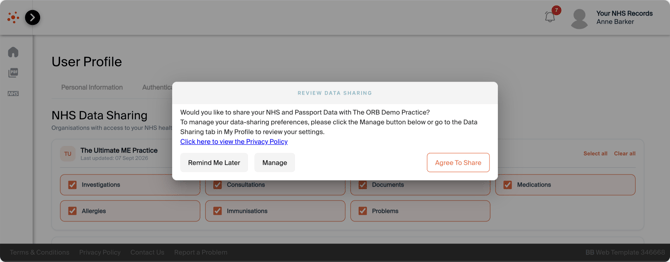
Once they have completed this process, their NHS GP record becomes available to your clinicians within Semble.
Until then, no record can be accessed.
Patients give consent per practice. If a patient has already consented to share their record with another clinic using ORB Connect, they will still need to complete the consent process for your practice separately. This protects patient privacy by preventing any clinic from seeing where else a patient has shared their record.
Method 1: Automated consent link in appointment reminder emails
Once active, the consent link is included automatically in your appointment reminder emails, so patients receive their invite at the right moment, ahead of an upcoming appointment.
Activating the automated consent email:
1. Go to Settings > SMS and email templates.
2. Select ORB patient consent email.
3. Review and edit the template content as needed.
4. Ensure the consent link placeholder is present in the message body — this is required. Semble will not allow you to save the template without it.
5. Set the template to Active at the top of the screen.
6. Click Save.
Linking the template to appointment types:
To control which patients receive the automated consent link:
1. Go to your auto-email reminder settings in Semble.
2. Check that the ORB consent email is linked to the relevant appointment types and products for your practice.
3. Adjust the trigger timing if needed (for example, 48 hours before an appointment).
Only select appointments that are linked to the clinicians who were granted access to ORB Connect.
Most practices start by linking the consent email to all upcoming appointment types to build coverage quickly. You can refine this over time.
Method 2: Individual invite from the patient profile
You can also send a consent invite directly from an individual patient's record. This is useful for patients who were missed by the bulk invite or whose link has expired, and for clinicians who want to request consent at the point of booking.
1. Open the patient's profile in Semble.
2. In the header at the top of the patient record, click the ORB Connect button.
3. Select Email Patient.
4. Review the preview of the email that will be sent.
5. Confirm to send.
The patient will receive the same clinic-branded consent invite email, with a unique personalised consent link.
The individual invite option is only available for patients who have not yet been invited, consented, or declined. If a patient has already declined, the invite option will not be available.
What happens when a patient declines
If a patient declines to share their NHS GP record, their status in Semble is updated to Declined.
-
The patient cannot be re-invited — the invite option is disabled for declined patients.
-
Clinicians can see the declined status in the patient record header and should continue the consultation as they normally would, for example by using a pre-appointment questionnaire or asking the patient during the appointment.
Patients can also withdraw consent they have already given at any time, by revoking their permissions through ORB Connect. If a patient withdraws consent, their record will no longer be accessible to your clinicians.
Consent link expiry
The consent link included in the invite email is valid for 7 days from the date it is sent.
If a patient does not complete the consent process within this window, the link will expire. You can send a new invite using Method 2 (individual invite from the patient profile).
To reduce expired links, send the automated appointment reminder consent email a few days before the appointment — this gives patients enough time to complete the process before they come in.