
The NHS GP Record Viewer, powered by ORB Connect, is a paid add-on that allows clinicians at your practice to view a patient's full NHS GP record. Including medications, allergies, GP consultation notes, hospital letters, and investigation results directly inside Semble.
This new integration gives your clinicians the full clinical context they need before a consultation begins, without relying on GP surgeries or your patient input.
This guide walks you through activating ORB Connect in your Semble settings, signing ORB's terms and conditions, and understanding how billing works.
You will need manager permissions in Semble to complete these steps.
In this article:
Step 1: Activate ORB Connect in Settings
Step 2: Sign ORB's Terms and Conditions
Step 3: Select your clinicians
Step 4: Set up the patient consent email template
Related articles:
How to View a Patient's NHS GP Record in Semble
Invite Patients to Consent to the NHS GP Record Viewer
NOTE: Only users with manager permissions can activate ORB Connect. Clinicians do not need to take any action during setup. They will be prompted to accept ORB's terms the first time they open the record viewer.
For more information please see Overview of Roles.
Activate ORB Connect in Settings
1. Go to Settings in the top menu.
2. Select the Integrations tab in the left-hand navigation.
3. Scroll down to the ORB section and click Activate ORB Connect.
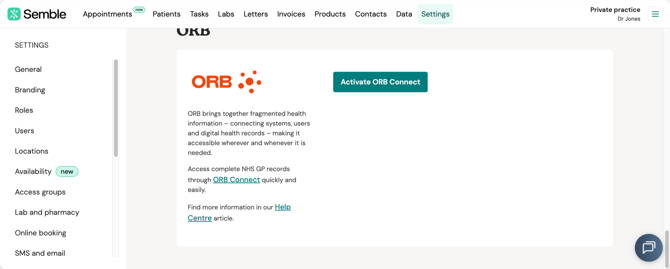
4. Click Validate.
Sign ORB's Terms and Conditions
You will be prompted to review and sign ORB's terms and conditions directly within Semble.
1. Review the NHS Records agreement presented in the embedded contract widget.
2. Check that your signer details are correct (these are pre-filled from your Semble account information).
3. Accept the terms.
4. Click Submit signature.
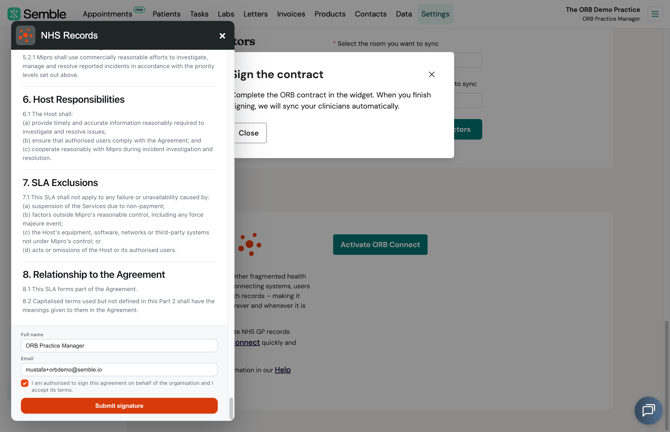
Semble will confirm that ORB Connect is now active for your practice.
TIP: Once you have submitted your signature, ORB will send a PDF copy of the signed contract to your registered email address for your records. Please keep this in a safe place.
By signing, you are agreeing on behalf of your practice. Each individual clinician will be required to accept ORB's terms and conditions separately the first time they open the record viewer.
Select your Clinicians
Only users who are set up as clinicians in Semble can access ORB records.
When setting up, you will be directed to select which clinicians do or do not have access to view ORB records on a patient's profile. By default, all clinicians will be pre-selected. You can select or deselect and you need.
You can manually enable or disable access for specific clinicians later at any time. You will only be billed for clinicians that you have enabled (see Understanding billing for more information).
1. Go to Settings and then Integrations.
2. From your ORB integration section, click on Manage access.
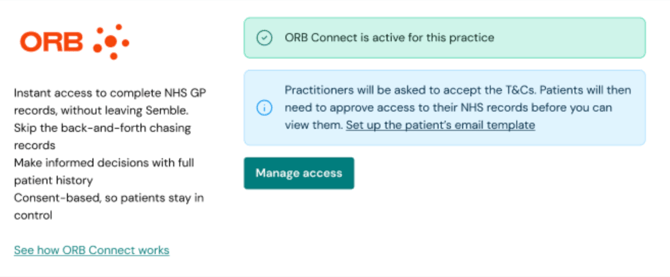
3. Select the clinicians you want to grant access to from the list.
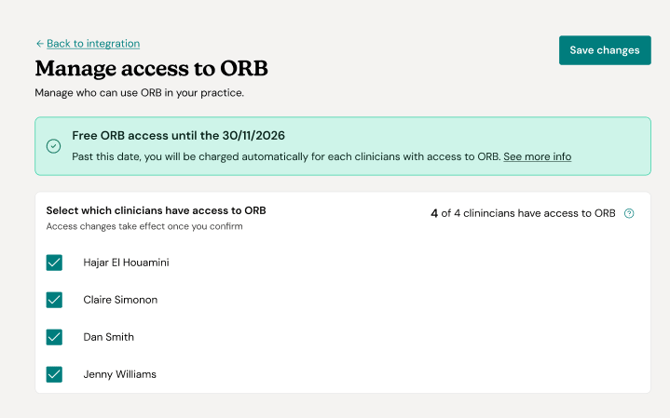
4. Click Save to apply changes.
Set up the patient consent email template
After activation, you will be prompted to set up the patient consent email template. This is the email your patients will receive asking them to share their NHS GP record with your practice.
Tip: Before activating, check that the automated reminder emails are linked to the correct appointment types in your Semble auto-email reminder settings. This ensures the consent request is sent to the right patients at the right time — ideally 48 hours before their appointment.
1. Click Set up email template (or go to Settings > SMS and email templates at any time).
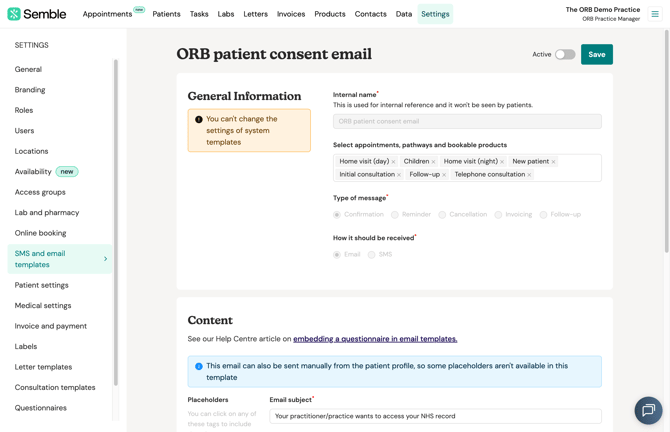
2. Select ORB patient consent email.
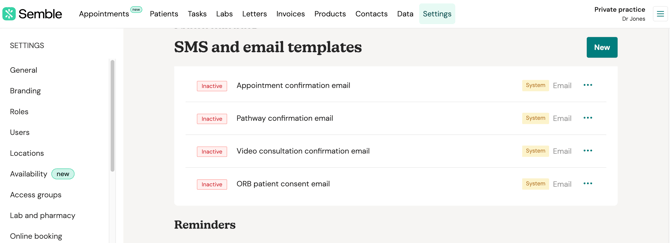
3. Review the default subject line and message body. You may edit the content to suit your practice's tone.
Do not remove the consent link placeholder — this is the unique link that directs each patient through NHS Login to complete their consent. Semble will prevent you from saving the template if the placeholder is missing.
4. When you are satisfied with the content, set the template status to Active at the top of the screen.
5. Click Save.
Only selected appointments linked to the clinicians who have access to ORB should be included in the templates.
Note: The consent link placeholder must remain in the email body at all times. If it is removed, patients will not be able to complete the consent process. Semble will alert you if the placeholder is missing and allow you to restore it via the Integration placeholders panel.
For more general information on managing automated emails, please see our other Help Centre guides: Overview of SMS & email templates
Understanding billing
The NHS GP Record Viewer is a paid add-on, priced at £20 + VAT per clinician, per month. Semble bills your practice on a separate ORB invoice.
As a Semble customer, you benefit from ORB Connect at 60% off the direct price of £50 per clinician per month.
-
Billing is triggered automatically when you activate ORB Connect.
-
Only clinicians that you've enabled on your Semble account at the point of activation are included in the billing from that date.
-
Any clinicians added to your practice after activation will be billed from the date they are added.
-
ORB works as a monthly-rolling subscription with no minimum term.
How monthly billing works:
Monthly charges: You are charge in advance for each calendar month on the 1st of each month based on the number of clinicians enabled on that day.
If your practice is joining the ORB Connect integration mid-month, your practice will receive an initial invoice calculated pro-rate then regular monthly billing starts on the 1st of the following month.
Adding clinicians immediately starts access and the charge for the remaining days of the month is added to your next monthly invoice.
Removing clinicians immediately stops access. There is no refund for the remaining days of the month and any charge already incurred remain payable. Removed clinicians will not be included in the following months' charges unless re-enabled.
To cancel your ORB Connect subscription, please contact your customer success manager at accountmanagement@semble.io.
You cannot cancel directly from Settings.
What happens after activation
Once you have activated ORB Connect and signed the terms and conditions, the following happens automatically:
Semble sends your clinician list and practice branding to ORB, so the record viewer is ready to use straight away.
All clinicians at your practice gain access to the ORB Connect widget in the patient record. They will be prompted to sign ORB's terms and conditions the first time they open the viewer — this is a one-time step per clinician.
When a new clinician joins your practice, a practice manager must enable their ORB access in Manage users. Deactivating or deleting a clinician’s Semble account automatically removes their ORB access.
Admin-only users cannot access the NHS GP Record Viewer. The record viewer is available exclusively to users with a clinical role in Semble.
Troubleshooting
I cannot see the ORB section under Integrations.
Check that you are logged in with manager-level permissions. If the section is still not visible, please confirm your role with your practice manager.
I did not receive the PDF copy of the signed contract.
Check your spam or junk folder. If you still cannot find it, contact ORB Support at support@orbforhealth.com
A clinician has left the practice — will they still have access?
No. Semble syncs clinician changes with ORB automatically. When a clinician is removed from your Semble account, their access to the NHS GP Record Viewer is revoked.