
Overview
The NHS GP Record Viewer, powered by ORB Connect, allows you to view a consented patient's NHS GP record directly inside Semble, without leaving the patient record or contacting their GP surgery.
This gives you the clinical context you need:medications, allergies, lab results, clinical letters and more, before or during a consultation.
This guide explains how to use the record viewer, what the patient consent status indicators mean, and what to do if you encounter any issues.
The NHS GP Record Viewer is available only for patients who are aged 18 or over and registered with a GP in England. Only users with a clinical role in Semble can access the viewer — admin-only staff cannot view NHS GP records.
In this article:
Understanding patient consent status indicators
Accepting ORB's terms and conditions on first use
Viewing a patient's NHS GP record
If ORB Connect is temporarily unavailable
Related articles:
NHS GP Record Viewer (ORB Connect) - Practice Manager Guide
Invite Patients to Consent to the NHS GP Record Viewer
Prerequisites
-
Your practice manager must have activated ORB Connect for your practice. If you cannot see the ORB Connect button in the patient record header, contact your practice manager.
-
The patient must have consented to share their NHS GP record with your practice via NHS Login. You can see the patient's current consent status in the sticky header of their record (see below).
Understanding patient consent status indicators
At the top of every patient record in Semble, you will see the ORB Connect status indicator in the header.
This shows the current state of that patient's consent at a glance and tells you what action, if any, is available.
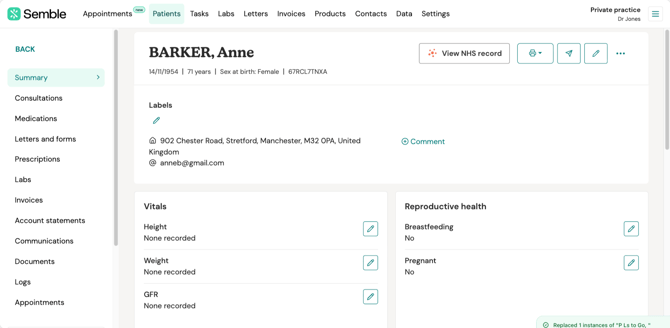
If the page needs refreshing to show an updated status, simply reload the patient record.
There are four possible states:
| Status | What it means | What you can do |
| The patient has not yet been sent a consent request. | Click the ORB Connect button to send an individual invite from the patient profile. | |
| Invited | A consent invite has been sent but the patient has not yet completed the process. | The consent link is valid for 7 days. If it has expired, you can send a new invite. |
| Consented | The patient has verified their identity via NHS Login and given consent. | Click the ORB Connect button to open the record viewer. |
| Declined | The patient has declined to share their record. | No further action is available. Carry on as you normally would. |
Accepting ORB's terms and conditions on first use
The first time you click the ORB Connect button to open a patient's record, you will be asked to review and accept ORB's terms and conditions. This is a one-time step, you will not be prompted again after you have accepted.
See NHS GP Record Viewer (ORB Connect) - Practice Manager Guide
1. Click the ORB Connect button in the patient record sticky header.
2. Review the terms and conditions presented in the overlay.
3. Accept the terms to proceed.
Once accepted, the record viewer will open directly for all future uses.
Each clinician must accept ORB's terms individually. Your practice manager's sign-off during setup does not cover individual clinicians. This is a requirement from ORB to ensure individual clinical accountability.
Viewing a patient's NHS GP record
Once a patient has consented, you can open their NHS GP record at any time from within Semble.
1. Open the patient's record in Semble.
2. Check the ORB Connect status indicator in the sticky header — it should show Consented.
3. Click the ORB Connect button.
4. The NHS GP record will open as an overlay within Semble, so you do not need to leave the patient record or open a new window.
5. Browse the record sections as needed during or before your consultation.
6. Close the overlay when you are finished to return to the patient record.
The NHS GP Record Viewer is read-only. You cannot edit, annotate, download, or send anything back to the NHS record from within Semble. Nothing you do in the viewer affects the patient's NHS record in any way.
We do not recommend routinely copying NHS record content directly into your Semble clinical notes. There are compliance considerations around importing NHS data into a private clinical record. Use the information to inform your clinical decisions and document your own assessment in the usual way.
What the record displays
When you open the NHS GP record viewer, you will be able to see the following information (where available on the patient's record):
-
Medications — current and past
-
Allergies — including adverse reactions
-
Problem list — active and resolved conditions
-
GP consultation notes
-
Hospital and specialist letters
-
Investigation and lab results — including trends over time
-
Immunisations
The information available depends on what is held on the patient's NHS GP record and what their GP practice has made accessible.
Records from before 2020 may be incomplete — patients can request full access from their GP surgery if needed. Treat the viewer as additional clinical context, not a guaranteed complete history.
Semble does not store or cache any NHS GP record data.
All clinical data remains within the ORB Connect and NHS infrastructure. Every time you open the viewer, you are seeing a live read from the patient's NHS record.
If ORB Connect is temporarily unavailable
Occasionally, ORB Connect's services may be temporarily unavailable. If this happens:
A clear message will be displayed in the overlay to let you know that the service is currently unavailable.
You will not be prevented from continuing the consultation — simply close the overlay and proceed as you would normally.
Try again later in the same session or at a subsequent appointment.
Semble will communicate any known service disruptions. If you experience a persistent issue, contact Semble support at support@semble.io.
Requesting an audit trail
Every time a clinician views a patient's NHS GP record via ORB Connect, the access is automatically logged.
Semble keeps a patient log of which clinician accessed ORB and when, but not the details. ORB keeps a log of exactly which information was viewed by that clinician, which can be accessed on request by contacting ORB directly.
ORB holds this audit log securely for a minimum of seven years.
To request a copy of your practice's audit trail:
1. Contact Semble support at support@semble.io.
2. Include your practice name and the date range you require.
3. The Semble support team will facilitate the request with ORB on your behalf.
If a treatment decision is ever questioned, the ORB Connect audit log provides evidence of exactly what clinical information was viewed and when — far more robust than viewing a patient's NHS app on their phone during an appointment.
Self-serve access to the audit trail is not available at this time. All audit trail requests must be made via Semble support.