
Note: To edit a user's signature, you must have a role assigned to you that gives you editing permissions for User settings.
In this article:
Image requirements
Uploaded images for electronic signatures must be:
-
In .png format
-
No wider than 200 pixels
-
No larger than 100KB in file size
Add a signature
You can add an electronic signature to a user's account from the Settings page.
1. Go to the Users tab.
2. Select the user who you want to add a signature to.
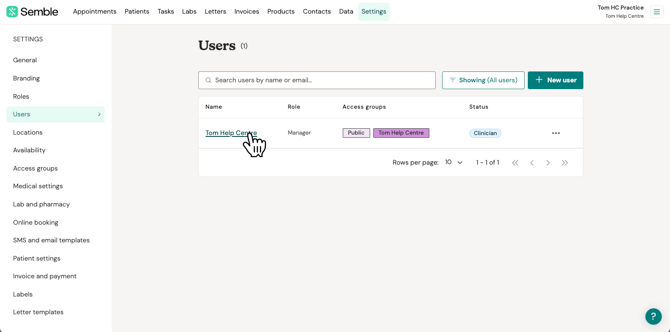
3. Scroll down to the Signature section.
4. Click Upload file, and select a suitable image from your device.
Note: Make sure the image follows the image requirements as outlined above.
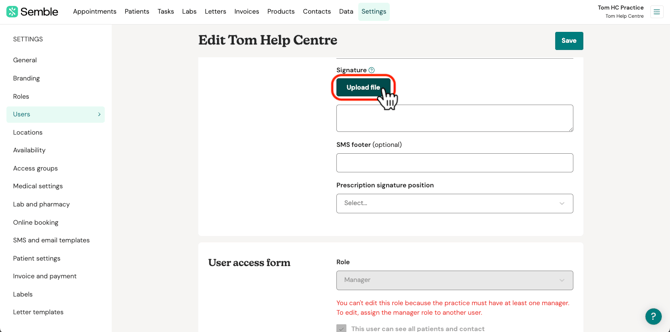
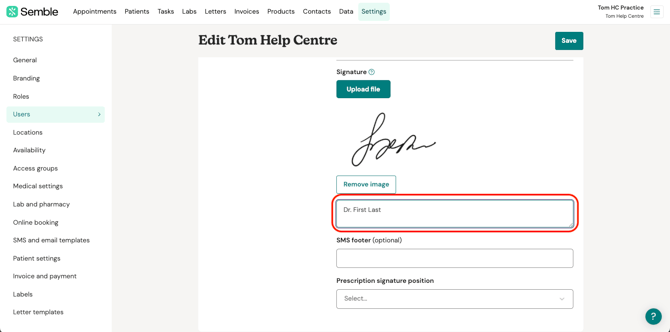
5. (Optional) Type the user's title and name in the signature box. This text will appear below the electronic signature on letters.
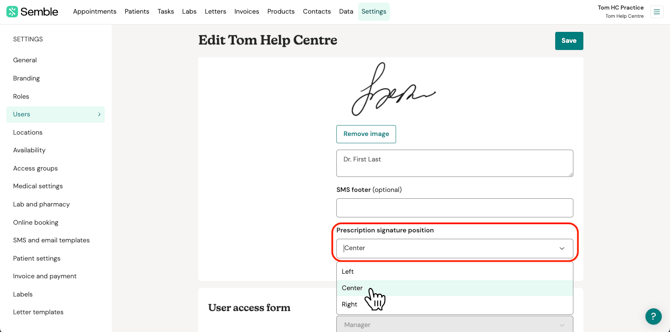
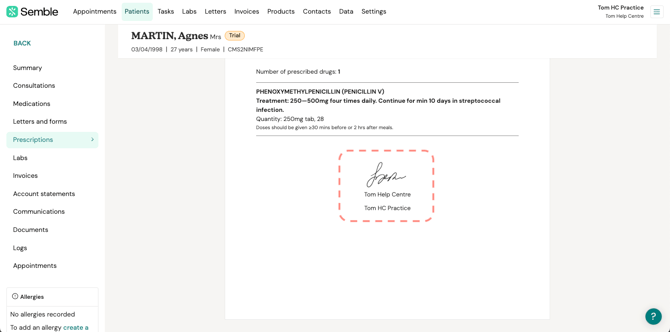
6. (Optional) Select the alignment for where on your prescriptions the signature will appear. If no alignment is selected, it will be aligned 'Left' by default.
7. Click Save in the top right-hand corner.
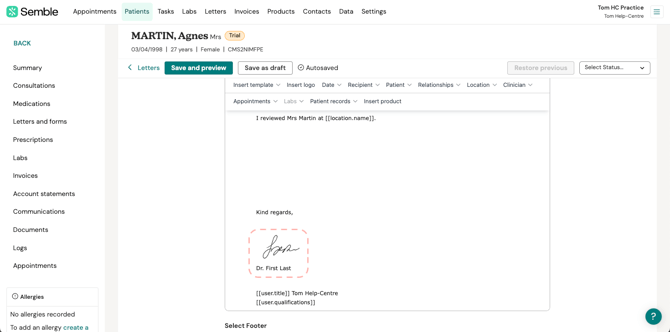
The signature appears on the user's account. You can add the signature to the following documents:
-
Letters
-
Prescriptions
Remove a signature
You can remove a user's signature at any time from the Settings page:
1. Go to the Users tab.
2. Select the user who you want to remove a signature for.
3. Scroll down to the Signature section.
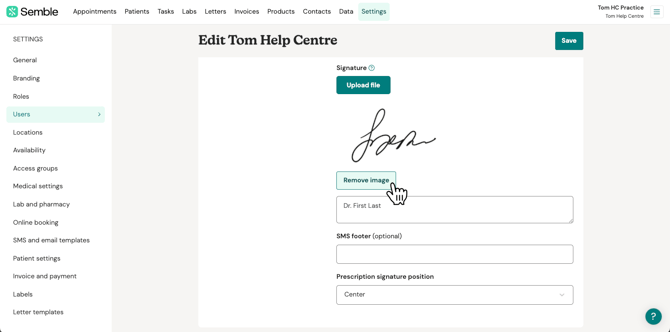
4. Click Remove image.
5. (Optional) Delete any text that is in the signature box.
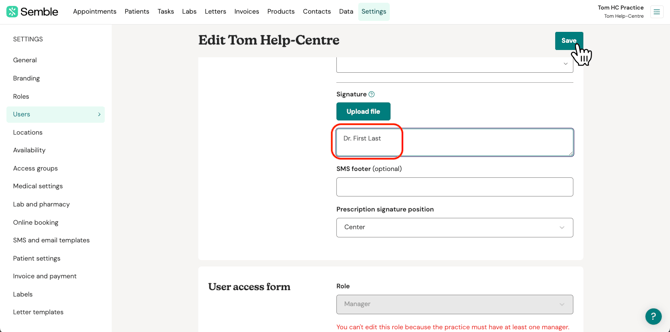
6. Click Save in the top right-hand corner.
The signature is removed from the user's account. You can upload another signature at any time, by following the steps above.