
Semble's Reporting section gives you access to pre-built reports across four categories: Income and Finance, Appointments and Services, Practice Productivity, and Clinical Data.
This article covers every available report, its filters, and all available columns.
In this article
How to use filters and columns
Managing The Size of My Export
Linked articles:
Semble Data: Monitor and Analytics
Navigating to Reports
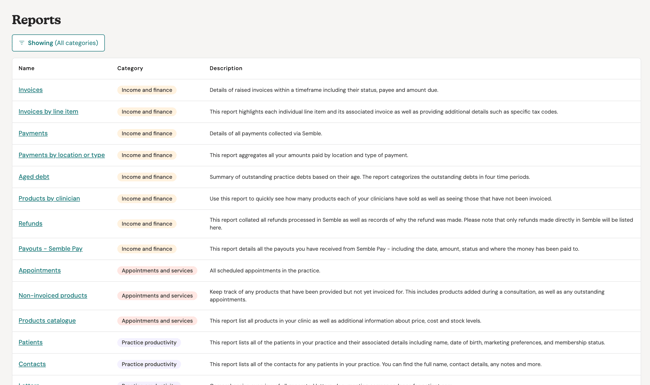
The Reporting tab in Semble gives you access to a wide range of reports to help you track performance, monitor financial health, and gain insights into day-to-day activity within your practice. Simply click on the desired report to view the relevant data.
Note: Reports are updated every 30-45 minutes, allowing you to engage with data from the most recent hour.
The 'Last Updated' timestamp at the top right corner of your screen included in each report serves as a valuable indicator of how current the data is.
Any alterations made after this timestamp will not be reflected in the report.
Overview of Reports
Filter by Report Category
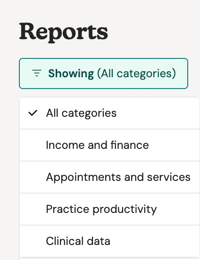
To help you quickly find the data you need, reports are organised into four main categories. Use filters to only see the reports within the chosen categorie!:
- Income & Finance – Track revenue, outstanding balances, invoice summaries, and more to manage your practice’s financial health.
- Appointments & Services – Get an overview of booking trends, cancellations, service performance and more.
- Practice Productivity – Review practice activity and view patient details, contact information, letter records, and more to gain deeper insights.
- Clinical Data – Access insights on prescriptions, labs, medical records, and other clinical information recorded during consultations.
Report Previews
Each report is displayed in a list format with a brief description of what the report includes. Simply click on the desired report to view the relevant data!
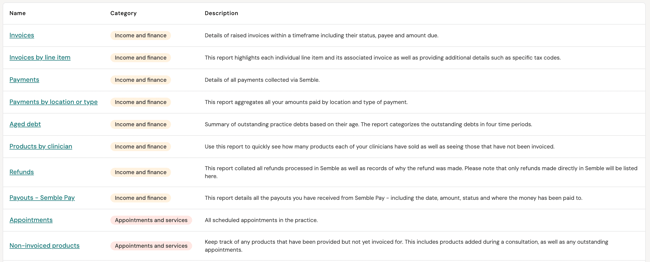
This makes it easier to:
- Identify the most relevant report for your needs.
- Quickly understand what kind of data each report provides.
- Compare different reports to find the one that gives you the clearest insight.
Whether you're tracking performance KPIs, reviewing clinical activity, or reconciling financial records, the Reporting section brings clarity and structure to your data.
How to use filters and columns
Filter The Report
To refine your report data:
- Click the Filters button in the top right corner of the report

- A filter panel will open on the right-hand side of your screen
- Select your filtering criteria from the available options:
- Date filters – Choose specific date ranges
- Columns – Choose which columns you'd like to see on your report
- Other criteria – Additional filters relevant to the specific report
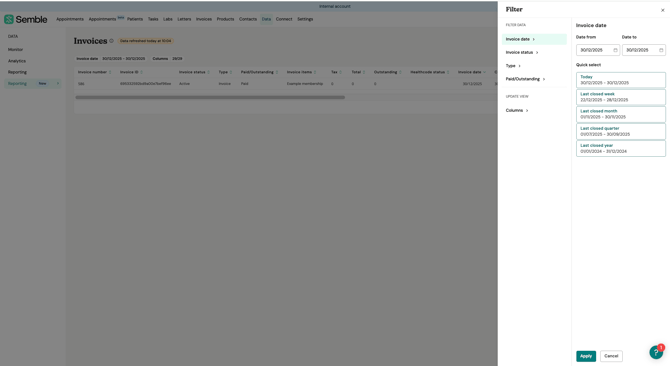
- Click Apply to refresh your report with the selected filters
Note: The available filter options will vary depending on which report you're viewing.
View Active Filters
Once you've applied filters, they appear as filter pills at the top of your report table. These pills show you at a glance which filters are currently active.

To remove a filter:
1. Click on the filter from the top of your report
2. A window will open on the right hand side, untick the box on any filter to remove that specific filter from your report
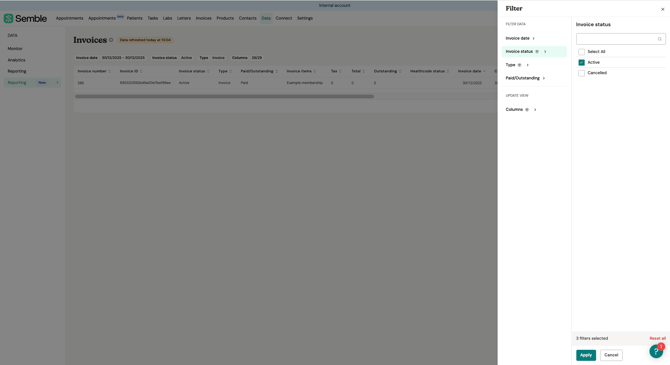
3. Click Apply to refresh your report with the selected filters
Select a Date Range
When generating a report, you can choose from three date filter options: Today, Last Closed Week, Last Closed Month, Last Closed Quarter, Last Closed Year or you can manually add your custom range.
Update Columns
To customise which columns appear in your report:
- Click the Filters button to open the filter panel
- Scroll to the UPDATE VIEW section
- Click on Columns
- Select or deselect the columns you want to display
- Click Apply to update your report view
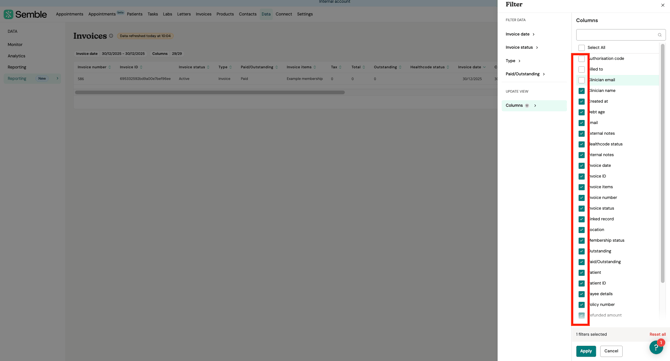
This allows you to focus on only the data points most relevant to your analysis.
Note: Some columns may be marked as Aggregated data. This indicates that the column will summarise values based on the other columns included in the report, providing totals or grouped calculations.
Reset Filters
The “Reset all” button at the bottom of the screen clears all applied filters and returns them to their default settings:
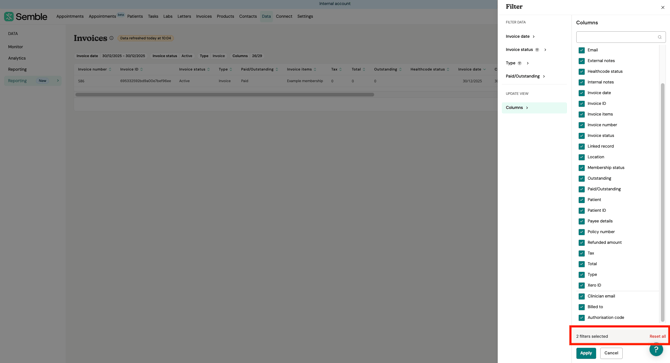
Navigate Through Your Data
View Row Count
At the bottom of each report, you'll see information about the total number of rows in your data:
- The display shows "Rows per page: [number]" – indicating how many rows are visible on the current page.

Navigate Between Pages
Use the pagination controls at the bottom of the report:
- First page icon (⏮) – Jump to the first page
- Previous icon (◀) – Go to the previous page
- Next icon (▶) – Go to the next page
- Last page icon (⏭) – Jump to the last page
You can also adjust the "Rows per page" dropdown to show more or fewer rows on each page (e.g., 10, 25, 50, 100 rows per page).

Save custom reports
You can save the filters you frequently use in reports to create a new custom report. Configure and save the report once, and then use this the next time you need to find the same set of data.
It's not possible to save a custom report for the four 'aggregated reports'.
These are; Aged debt, Product by clinician, Payment by type and location, and Prescribed drugs aggregated.
To create a custom report, you must have the right access permissions enabled through your user Role. Find out more here.
Note: You can save up to 5 custom reports. If you would like to save a new report configuration, but have no custom reports remaining, you must deleted a saved configuration first.
1. Open the report you need to configure.
2. Click on Filters in the top-right corner for the report.
3. Select your filter criteria available from the options. See steps here.
4. Click Apply to refresh the table with the selected filters.
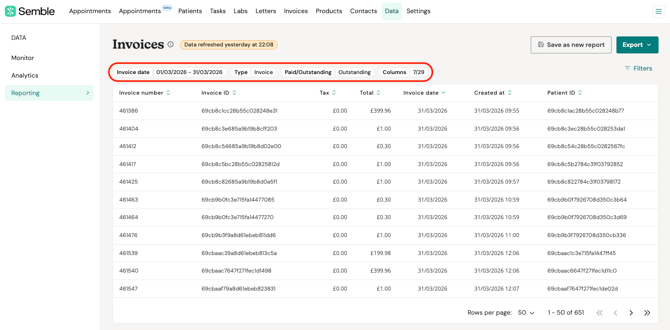
5. To save this configuration for next time, click on Save as new report.
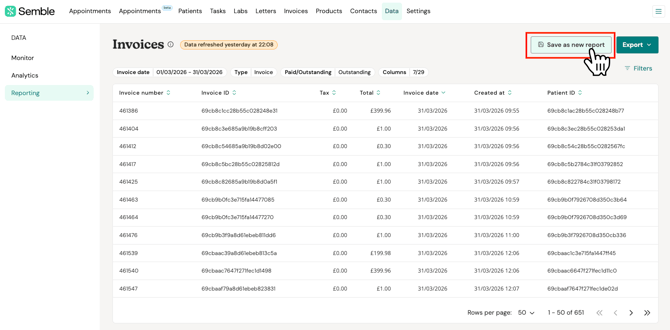
6. Give your custom report a name, category and description (the description is optional).
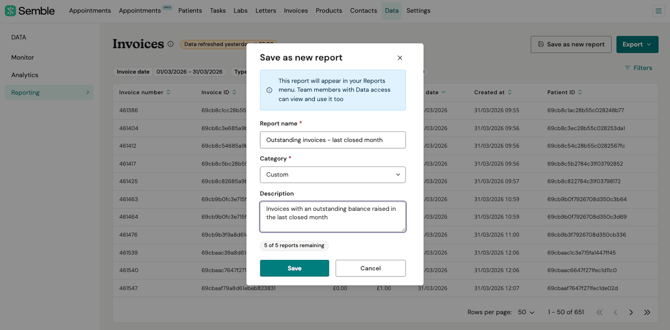
7. Click on Save. You will now find your custom report in the Reporting tab alongside all of the other reports.
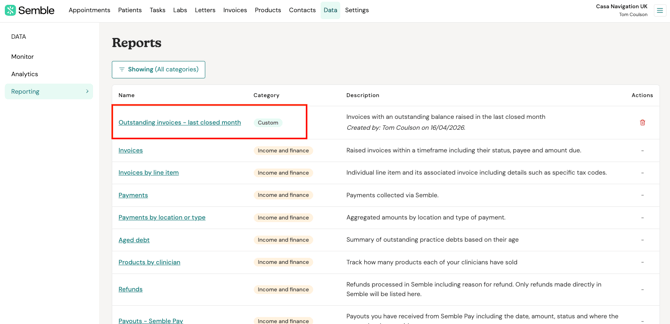
Note: Once saved, you cannot edit the filters or details of your custom report. If you need to change anything, you should delete the report and then save a new one.
Delete a saved report
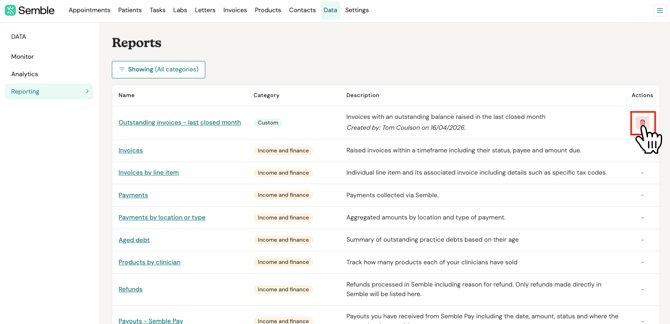
1. Click on the delete icon to the right of your custom report.
2. Click on Delete report to confirm the deletion.
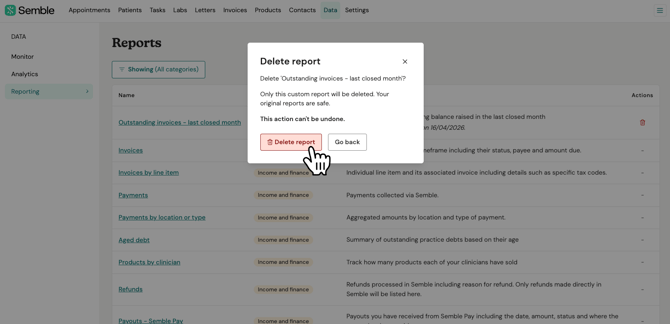
3. Your report will be removed from the list of reports.
Managing The Size of My Export

It's essential to note that our reporting system has a limitation regarding the number of rows that can be generated in a single report.
Currently, the maximum number of rows that can be included in an exported report is 30,000. This limitation is in place to ensure optimal performance and prevent potential issues related to excessive data processing and rendering.
Managing data with the limitation
Given the maximum row limit per report, it's important for users to be mindful of their data selection and filtering criteria when generating reports. Here are some tips on managing data within this limitation:
- Refine Date Ranges: Narrow down the date range of your report to focus on specific time periods of interest. This can help reduce the volume of data and ensure that the report stays within the row limit.
- Utilise Filters: Apply relevant filters to your report to narrow down the dataset based on specific criteria such as regions, categories, or product lines. Filters can help streamline the data and prevent unnecessary rows from being included in the report.
- Break Down Reports: If your dataset exceeds the maximum row limit, consider breaking down your reports into smaller segments. Generate multiple reports with different date ranges or filtering criteria to capture the desired data without exceeding the row limit.
- Export Raw Data: For detailed analysis beyond the row limit, consider exporting raw data directly from the platform's database or data export functionalities. This allows for deeper analysis using external tools or software capable of handling larger datasets.
Details of Reports
TIP: This article covers all available reports. To jump straight to the report you need, use Ctrl + F (Windows) or Cmd + F (Mac) to search for the report name on this page.
| Category | Report |
|---|---|
| Income and Finance | Invoices |
| Invoices by line item | |
| Payments | |
| Payments by location or type | |
| Aged debt | |
| Products by clinician | |
| Refunds | |
| Payouts – Semble Pay | |
| Payout details – Semble Pay | |
| Appointments and Services | Appointments |
| Non-invoiced products | |
| Products catalogue | |
| Practice Productivity | Patients |
| Contacts | |
| Letters | |
| Tasks | |
| Users | |
| Patient relationships | |
| Clinical Data | Medical records |
| Labs | |
| Prescribed drugs | |
| Prescribed drugs aggregated | |
| Refreshed Calendar (Beta) | Availability (beta) |
| Utilisation (beta) |
Income and Finance reports
Invoices
Description: Raised invoices within a timeframe, including their status, payee, and amount due.
Filters: Invoice date · Invoice status · Type · Paid/Outstanding
Available columns:
- authorisation_code — Insurer authorisation code linked to the invoice
- billed_to — The party the invoice was billed to
- clinician_email — Email address of the treating clinician
- clinician_name — Name of the treating clinician
- created_at — Date and time the invoice was created
- debt_age — Age of any outstanding debt
- email — Patient email address
- external_notes — Notes visible on the invoice
- healthcode_status — Healthcode submission status
- internal_notes — Internal notes on the invoice
- invoice_date — Date of the invoice
- invoice_id — Unique system ID for the invoice
- invoice_items — Products included on the invoice
- invoice_number — Invoice number
- invoice_status — Current status of the invoice (e.g. Draft, Sent, Paid)
- linked_record — Related record in Semble
- location — Clinic location
- membership_status — Patient membership status
- outstanding — Outstanding balance
- paid_outstanding — Breakdown of paid versus outstanding amounts
- Patient — Patient name
- patient_id — Unique patient ID
- payee_details — Details of the payee
- policy_number — Insurance policy number
- refunded_amount — Amount refunded
- tax — Tax amount
- total — Total invoice amount
- type — Invoice type (e.g. Self Pay, Insured)
- xero_id — Xero reference ID
- customer_metadata — Custom data populated via the Semble API using the
customer_metadataendpoint. Only available to practices using the API. (optional) - date_shared — Date invoice was shared with the patient (optional)
- is_automatically_generated — Whether the invoice was auto-generated (optional)
- clinical_pathway_id — Associated clinical pathway ID (optional)
- invoice_account — Linked invoice account (optional)
Invoices by line item
Description: Individual line items and their associated invoices, including details such as specific tax codes.
Filters: Invoice date · Product name · Product type
Available columns:
- authorisation_code — Insurer authorisation code
- billed_to — Party billed
- clinician_email — Clinician email
- clinician_name — Clinician name
- external_notes — External notes on the invoice
- healthcode_status — Healthcode submission status
- internal_notes — Internal notes
- invoice_date — Invoice date
- invoice_id — Unique invoice ID
- invoice_items — Products on the invoice
- invoice_number — Invoice number
- invoice_status — Invoice status
- invoice_total — Total invoice value
- item_code — Product/item code
- line_item_id — Unique ID for this line item
- linked_record — Related Semble record
- location — Clinic location
- patient_id — Patient ID
- patient_name — Patient name
- payee_details — Payee information
- payment_amount — Amount paid
- payment_date — Date of payment
- policy_number — Insurance policy number
- product_cost — Cost price of the product
- product_name — Name of the product
- product_price — Sale price of the product
- product_type — Type of product
- quantity_sold — Quantity of this item
- service_date — Date the service was delivered
- tax_name — Tax category name
- tax_rate — Tax rate applied
- total_outstanding — Outstanding amount
- total_paid — Total amount paid
- total_sold — Total value sold
- type — Invoice type
Payments
Description: All payments collected via Semble.
Filters: Payment date · Type · Payment source · Clinician name
Available columns:
- amount — Payment amount
- billed_to — Party billed
- clinician_email — Clinician email
- clinician_name — Clinician name
- invoice_date — Associated invoice date
- invoice_id — Invoice ID
- invoice_number — Invoice number
- invoice_status — Invoice status
- linked_record — Related Semble record
- location — Clinic location
- patient_id — Patient ID
- patient_name — Patient name
- payment_comments — Comments added to the payment
- payment_date — Date payment was received
- payment_id — Unique payment ID
- payment_source — How the payment was taken (e.g. Debit card, cash, stripe,..)
- payment_type — Payment method (e.g. card, bank transfer)
- refund_amount — Amount refunded
- refund_date — Date of refund
- refund_id — Refund ID
- refund_reason — Reason for refund
- semble_pay_fee — Semble Pay processing fee
- stripe_charge_id — Stripe charge reference
- stripe_payment_id — Stripe payment reference
- type — invoice type (eg. Invoice, Payment on account, Credit note)
- payment_terminal_id — Terminal ID (optional)
- payment_terminal_name — Terminal name (optional)
- payments_card_brand — Card brand used (optional)
- payments_card_last4 — Last 4 digits of card (optional)
- payments_card_expiry — Card expiry date (optional)
Payments by location or type
Description: Aggregated payment amounts broken down by location and payment type.
Filters: Payment date · Location · Payment type
Available columns:
- amount — Total payment amount
- location — Clinic location
- payment_type — Payment method
- payment_date — Date of payment (optional)
Aged debt
Description: A summary of outstanding practice debts grouped by how long they have been outstanding.
Filters: Invoice date
Available columns:
- between_30_and_60_days — Debt outstanding between 30–60 days
- between_60_and_120_days — Debt outstanding between 60–120 days
- billed_to — Party billed
- invoice_numbers — Invoice numbers with outstanding balances
- less_than_30_days — Debt outstanding under 30 days
- more_than_120_days — Debt outstanding over 120 days
- payee_details — Payee contact details
- payee_email — Payee email address
- total_outstanding — Total outstanding balance
- invoice_date — Invoice date (optional)
Products by clinician
Description: Track how many products each clinician has sold within a given period.
Filters: Service date · Invoiced?
Available columns:
- clinician_email — Clinician email
- clinician_name — Clinician name
- invoiced — Whether the product has been invoiced
- linked_record — Related Semble record
- marked_as_billed — Whether marked as billed
- product_labels — Labels applied to the product
- product_name — Product name
- product_price — Product price
- product_type — Product type
- quantity — Quantity sold
- sales_account — Sales account category
- total_price — Total value
- service_date — Date of service (optional)
Refunds
Description: All refunds processed in Semble, including the reason. Only refunds made directly in Semble are listed here.
Filters: Refund date · Location · Refund reason
Available columns:
- amount — Refund amount
- billing_to — Party billed
- clinician — Treating clinician
- invoice_date — Invoice date
- invoice_number — Invoice number
- linked_record — Related Semble record
- location — Clinic location
- outstanding — Outstanding balance after refund
- Patient — Patient name
- patient_email — Patient email
- patient_id — Patient ID
- payment_id — Original payment ID
- refund_comment — Comment on the refund
- refund_date — Date of refund
- refund_reason — Reason for refund
- stripe_refund_id — Stripe refund reference
- type — Type of refund (eg. Invoice, Payment on Account, Credit note)
Payouts – Semble Pay
Description: Payouts received from Semble Pay, including date, amount, status, and destination account.
Filters: Initiated · Status
Available columns:
- amount — Payout amount
- estimated_arrival — Estimated arrival date of the payout
- external_account — Bank account the payout was sent to
- fee — Semble Pay fee deducted
- initiated — Date the payout was initiated
- linked_transactions — Transactions included in the payout
- payout_id — Unique payout ID
- status — Payout status
Payout details – Semble Pay
Description: The individual transactions that make up each Semble Pay payout, including payments, refunds, and associated fees.
Filters: Date · Type · Payout ID
Available columns:
- date — Transaction date
- description — Transaction description
- fee — Fee associated with the transaction
- gross — Gross transaction amount
- payout_id — Payout ID this transaction belongs to
- total — Net total after fees
- type — Transaction type (e.g. Payment, Refund)
Appointments and Services
Appointments
Description: All appointments scheduled in your practice.
Filters: Start time · Clinician name · Appointment type · Status
Available columns:
- dna — Whether the patient did not attend
- end_time — Appointment end time
- has_been_invoiced — Whether the appointment has been invoiced
- invoice_id — Associated invoice ID
- invoiced_amount — Amount invoiced
- linked_record — Related Semble record
- location — Clinic location
- location_room — Specific room at the location
- marked_as_billed — Whether marked as billed
- patient_email — Patient email
- patient_id — Patient ID
- patient_name — Patient name
- patient_visit_duration — Duration of the patient visit
- policy_number — Insurance policy number
- product_type — Appointment product type
- reference — Appointment reference
- start_time — Appointment start time
- status — Appointment status
- time_in_consultation — Time spent in consultation
- time_in_waiting_room — Time spent in waiting room
- customer_metadata — Custom data populated via the Semble API using the
customer_metadataendpoint. Only available to practices using the API. (optional) - clinical_pathway_id — Associated clinical pathway (optional)
- location_id — Location ID (optional)
Non-invoiced products
Description: Products that have been provided to patients but have not yet been invoiced. Use this report to identify billing gaps.
Filters: Service date · Product type
Available columns:
- clinician_email — Clinician email
- clinician_name — Clinician name
- clinician_title — Clinician title
- gmc_number — Clinician GMC number
- invoiced — Whether the product has been invoiced
- item_id — Unique item ID
- item_source — Source of the item (e.g. appointment, consultation)
- linked_record — Related Semble record
- marked_as_billed — Whether marked as billed
- patient_email — Patient email
- patient_id — Patient ID
- patient_name — Patient name
- product_labels — Labels on the product
- product_name — Product name
- product_price — Product price
- product_type — Product type
- service_date — Date the service was delivered
Products catalogue
Description: A full list of all products in your practice, with pricing, cost, and stock level information.
Filters: Product type · Is appointment · Supplier name
Available columns:
- cost — Cost price of the product
- duration — Duration (for appointment products)
- is_appointment — Whether the product is an appointment type
- item_code — Product code
- linked_record — Related Semble record
- name — Product name
- pathway — Associated pathway
- price — Sale price
- product_id — Unique product ID
- product_type — Product type
- requires_confirmation — Whether the product requires confirmation
- requires_payment — Whether payment is required at booking
- sales_account — Sales account category
- serial_number — Serial number (for physical products)
- status — Product status (active/inactive)
- stock_level — Current stock level
- supplier_name — Supplier name
- tax_name — Tax category
- tax_rate — Tax rate applied
Practice Productivity reports
Patients
Description: All patients in your practice and their associated details, including name, date of birth, marketing preferences, and membership status.
Filters: Created on · DOB month · Marketing preferences · Labels · Patient status · Archived
Available columns:
- access_groups — Access groups the patient belongs to
- address — Patient address
- archived — Whether the patient record is archived
- archived_date — Date the record was archived
- archived_reason — Reason for archiving
- city — City
- comments — Notes on the patient record
- company — Company name
- country — Country
- created_on — Date the patient record was created
- custom_patient_ids — Custom patient ID fields
- date_of_birth — Date of birth
- email — Email address
- email_preferences — Patient email communication preferences
- ethnicity — Ethnicity
- first_name — First name
- gender — Gender
- invoice_to — Who invoices are addressed to
- labels — Labels applied to the patient record
- last_name — Last name
- last_updated — Date the record was last updated
- linked_record — Related Semble record
- marketing_preferences — Marketing consent
- membership_name — Membership plan name
- membership_start_date — Membership start date
- membership_status — Current membership status
- occupation — Occupation
- patient_blocked — Whether the patient is blocked
- patient_deceased — Whether the patient is deceased
- patient_id_short — Short patient ID
- patient_status — Patient status (active/inactive)
- patient_system_id — System-generated patient ID
- phone_number — Phone number
- phone_number_list — All phone numbers on record
- phone_number_type — Type of phone number (mobile, home, etc.)
- postcode — Postcode
- practice_id — Practice ID
- privacy_policy_preferences — Privacy policy consent
- religion — Religion
- sex — Sex
- sms_marketing_preferences — SMS marketing consent
- status — Record status
- title — Title
- warning_flag — Whether a warning flag is set on the record
- dob_month — Month of birth (optional)
Contacts
Description: All contacts in your practice, including their full name, contact details, medical speciality, and more.
Filters: Created on · City · Medical speciality · Record status
Available columns:
- address — Contact address
- city — City
- company — Company or organisation
- contact_id — Unique contact ID
- country — Country
- created_on — Date the contact was created
- email — Email address
- full_name — Full name
- is_clinician — Whether the contact is a clinician
- linked_record — Related Semble record
- medical_speciality — Medical speciality
- phone_number — Phone number
- postcode — Postcode
- record_status — Status of the contact record
- title — Title
- is_payor — Whether the contact is a payor (optional)
- invoice_recipient — Whether set as an invoice recipient (optional)
- billing_frequency — Billing frequency (optional)
- customer_metadata — Custom data populated via the Semble API using the
customer_metadataendpoint. Only available to practices using the API. (optional)
Letters
Description: A comprehensive overview of all letters generated in Semble.
Filters: Created on · Created by · Status · Draft · Record status
Available columns:
- clinician_id — Clinician ID
- clinician_name — Clinician name
- copied_in_recipients — Any recipients copied in
- created_by — User who created the letter
- created_on — Date the letter was created
- draft — Whether the letter is a draft
- last_updated — Date last updated
- letter_id — Unique letter ID
- linked_record — Related Semble record
- location — Clinic location
- patient_id — Patient ID
- patient_name — Patient name
- recipient — Primary recipient
- record_status — Record status
- shared_at — Date the letter was shared
- shared_by — User who shared the letter
- status — Letter status
- subject — Letter subject
- time_awaiting_correction — Time the letter spent awaiting correction
- time_awaiting_review — Time the letter spent awaiting review
- time_to_complete — Total time to complete the letter
Tasks
Description: A summary of tasks and activities, including status, priority, and assignment. Useful for tracking administrative workload.
Filters: Created on · Created by · Assigned to · Priority · Status · Record status
Available columns:
- actual_time_taken — Actual time taken to complete the task
- assigned_to — User the task is assigned to
- comments — Comments on the task
- created_by — User who created the task
- created_on — Date the task was created
- date_of_birth — Patient date of birth (if linked)
- due_date — Task due date
- email — Patient email (if linked)
- expected_duration — Expected time to complete the task
- linked_record — Related Semble record
- overdue_amount — Number of days the task is overdue
- patient_id — Patient ID
- patient_name — Patient name
- priority — Task priority
- record_status — Record status
- status — Task status
- task_id — Unique task ID
- task_name — Task name
- time_saved — Time saved (if applicable)
- type — Task type
Users
Description: All users in your practice, including role, clinician status, and whether 2FA has been activated.
Filters: Created on · Is clinician · Role · Validated · Record status
Available columns:
- created_on — Date the user was created
- email — User email
- first_name — First name
- healthcode_identifier — Healthcode clinician identifier
- healthcode_site_id — Healthcode site ID
- healthcode_user_level — Healthcode user level
- healthcode_webservice_id — Healthcode webservice ID
- invited — Whether the user has been invited
- is_clinician — Whether the user is a clinician
- last_name — Last name
- last_updated — Date the record was last updated
- linked_record — Related Semble record
- medical_speciality — Medical speciality
- pronoun — Pronouns
- qualifications — Qualifications
- record_status — Record status
- registration — Professional registration number
- role — User role in Semble
- title — Title
- two_fa — Whether two-factor authentication is active
- user_id — Unique user ID
- validated — Whether the user account is validated
- gender — Gender (optional)
- minimum_treatment_age — Minimum patient age the clinician treats (optional)
- customer_metadata — Custom data populated via the Semble API using the
customer_metadataendpoint. Only available to practices using the API. (optional)
Patient relationships
Description: Details of patient relationships, including information about a patient's insurer, referring clinician, and GP.
Filters: Created at · Relationship type · Relationship company · Record status
Available columns:
- clinician_speciality — Speciality of the linked clinician
- created_at — Date the relationship was created
- insurer_authorization_code — Authorisation code from the insurer
- insurer_policy_number — Insurer policy number
- patient_id — Patient ID
- patient_name — Patient name
- record_status — Record status
- relationship_company — Company associated with the relationship
- relationship_email — Email of the related contact
- relationship_id — Unique relationship ID
- relationship_name — Name of the related contact
- relationship_phone — Phone number of the related contact
- relationship_type — Type of relationship (e.g. GP, insurer, next of kin)
Clinical Data reports
Medical records
NOTE: Because each row represents one record entry, a single consultation may appear across multiple rows if it contains multiple entries (for example, one row per medication, one per problem, etc.).
Description: Every medical record in your practice, including clinician name, record date, SNOMED coding, and more. Each record is returned as one row.
IMPORTANT: This report includes the full content of consultation notes (via the record_text column) and patient questionnaire responses (via the record_custom_question and record_custom_answer columns, as well as record_questionnaire_id). This means the report may contain sensitive clinical information. Ensure access to this report is restricted appropriately within your practice.
Filters: Created on · Clinician name · Sex
Available columns:
- allergy_comments — Comments on the allergy entry
- allergy_name — Name of the allergy
- allergy_severity — Severity of the allergy
- clinician_name — Clinician name
- created_by — User who created the record
- created_on — Date the record was created
- examination — Examination type
- examination_comments — Comments from the examination
- examination_value — Examination result value
- gender — Patient gender
- injection_date — Date of injection (if applicable)
- invoiced — Whether the record has been invoiced
- labels — Labels applied to the record
- linked_record — Related Semble record
- marked_as_billed — Whether marked as billed
- medication_batch_number — Batch number of medication administered
- medication_comments — Comments on the medication
- medication_dispensed — Whether medication was dispensed
- medication_dosage — Medication dosage
- medication_expiry_date — Medication expiry date
- medication_name — Name of the medication
- medication_quantity — Quantity of medication
- medication_repeat — Whether it is a repeat prescription
- medication_repeat_duration — Duration of repeat
- medication_repeat_duration_units — Units of repeat duration
- medication_repeat_frequency — Frequency of repeat
- patient_id — Patient ID
- patient_name — Patient name
- price — Price of the product in the record
- product_comments — Comments on the product
- product_fasting — Whether fasting was required
- product_id — Product ID
- product_record_comments — Record-level product comments
- product_sample_date — Sample date for the product
- record_custom_answer — Patient's answer to a questionnaire question
- record_custom_question — Questionnaire question text
- record_diagram — Name of the diagram inserted into the record
- record_diagram_comments — Comments on the diagram
- record_family_history — Family history entry
- record_family_history_comments — Comments on the family history entry
- record_family_history_relationship — Relationship type for the family history entry
- record_id — Unique record ID
- record_medical_history — Medical history entry
- record_medical_history_comments — Comments on the medical history
- record_medical_history_since_date — Date since the medical history condition began
- record_presenting_complaint — Presenting complaint
- record_problem — Problem entry
- record_problem_heading — Problem heading
- record_problem_heading_significance — Significance of the problem heading
- record_problem_heading_since_date — Date since the problem began
- record_problem_heading_type — Type of problem heading
- record_problem_significance — Significance of the problem
- record_problem_since_date — Date since the problem was identified
- record_problem_type — Type of problem
- record_social_history — Social history entry
- record_social_history_comments — Comments on the social history
- record_text — Full text of the consultation note
- sex — Patient sex
- snomed_concept_id — SNOMED CT concept ID
- snomed_term — SNOMED CT term
- title — Patient title
- record_questionnaire_id — ID of the associated questionnaire
Labs
Description: Lab orders raised in Semble and results, if received from the lab provider.
Filters: Order date
Available columns:
- address — Patient address
- city — Patient city
- clinician_name — Ordering clinician
- comments_to_lab — Comments sent to the lab
- country — Patient country
- date_of_birth — Patient date of birth
- date_results_shared — Date results were shared with the patient
- email — Patient email
- ethnicity — Patient ethnicity
- fasting — Whether fasting was required
- gender — Patient gender
- interim_results_only — Whether only interim results were received
- lab_provider — Lab provider name
- linked_record — Related Semble record
- order_date — Date the lab order was placed
- order_number — Lab order number
- patient_full_name — Patient full name
- patient_id — Patient ID
- phone_number — Patient phone number
- phone_number_list — All patient phone numbers
- postcode — Patient postcode
- product_code — Lab product code
- product_comments — Comments on the product
- product_labels — Labels on the lab product
- product_name — Name of the lab test
- religion — Patient religion
- results_received — Whether results have been received
- sample_date — Date the sample was taken
- sex — Patient sex
- shared_by — User who shared the results
- shared_comments — Comments added when sharing results
- status — Order status
Prescribed drugs
Description: Prescriptions raised in your practice, including prescription numbers, medication names, prescribing clinicians, and more.
Filters: Prescription date · Medication name · Medication repeat · Prescribing clinician · Record status
Available columns:
- date_prescription_shared — Date the prescription was shared
- drug_category_class — Drug category or class
- linked_record — Related Semble record
- medication_comments — Comments on the medication
- medication_dosage — Medication dosage
- medication_duration — Duration of the prescription
- medication_duration_unit — Unit of the duration
- medication_name — Medication name
- medication_quantity — Quantity prescribed
- medication_repeat — Whether it is a repeat prescription
- medication_repeat_frequency — Repeat frequency
- order_number — Order number
- order_provider — Provider the order was sent to
- patient_email — Patient email
- patient_id — Patient ID
- patient_name — Patient name
- prescribing_clinician — Clinician who prescribed
- prescription_date — Date of prescription
- prescription_number — Prescription number
- record_status — Record status
- shared_by — User who shared the prescription
- shared_comments — Comments when sharing
Prescribed drugs aggregated
Description: A simplified version of the Prescribed drugs report, grouped by medication name. Useful for understanding prescribing patterns across your practice.
Filters: Prescription date
Available columns:
- count_of_medication — Total number of times the medication was prescribed
- drug_category_class — Drug category or class
- medication_name — Medication name
- prescription_date — Prescription date (optional)
Refreshed Calendar reports (Beta)
NOTE: If you do not see these reports in your Reporting section, your practice may not yet be on the refreshed calendar. Contact Semble support for more information.
The following reports are only available to practices using the refreshed calendar in Semble. They are currently in beta.
Availability (beta)
Description: A detailed view of clinician and resource availability set up in Semble, including scheduled slots, unavailability blocks, recurrence rules, and exclusions.
Filters: Type · Recurrence type · Created at · Record status
Available columns:
- availability_comment — Comment added to the availability slot
- clinician_id — Unique clinician ID
- clinician_name — Clinician name
- created_at — Date the availability was created
- days_of_week — Days of the week the availability applies to
- end_date — End date of the availability
- end_time — End time of the availability slot
- exclusions — Any dates excluded from a recurring availability
- location_id — Location ID
- location_name — Location name
- location_room_id — Room ID within the location
- location_room_name — Room name
- record_type — Whether the record is an availability or unavailability block
- recurrence_frequency — How often the slot recurs (e.g. every 1 week)
- recurrence_interval — Interval between recurrences
- recurrence_type — Type of recurrence (e.g. weekly, monthly)
- resource_availability_id — Unique ID for the availability slot
- resource_type — Type of resource (e.g. clinician, room)
- start_date — Start date of the availability
- start_time — Start time of the availability slot
- unavailability_type — Type of unavailability block (if applicable)
- updated_at — Date the availability was last updated
- record_status — Record status (optional)
Utilisation (beta)
Description: A breakdown of how clinician and room time is being used across your practice. Shows available, booked, unbooked, and unavailable minutes per clinician and location — useful for understanding capacity and identifying scheduling gaps.
Filters: Date · Day name
Available columns:
- available_minutes — Total working time set for the clinician or room that day. Overlaps are merged so no time is counted twice.
- booked_minutes — Total duration of active appointments, excluding cancelled and out-of-office. Overlapping appointments are not merged.
- booked_utilization_pct — Percentage of available time that is booked
- clinician_id — Clinician ID
- clinician_name — Clinician name
- date — Date
- day_name — Name of the day (e.g. Thursday)
- day_of_week — Day of the week as a number
- location_id — Location ID
- location_name — Location name
- location_room_id — Room ID
- location_room_name — Room name
- net_bookable_minutes — The actual time available for booking. Calculated as available minutes minus effective unavailable minutes.
- over_capacity_minutes — Booked time that falls outside any working-hours window — for example, appointments booked when no availability was set.
- time_period — Time period grouping
- unavailable_minutes — Total time marked as unavailable that day. Overlaps are merged.
- unbooked_minutes — Net bookable minutes that have not yet been booked
Optional columns (not shown by default):
- effective_unavailable_minutes — The portion of unavailable time that falls within working hours
- deduplicated_booked_minutes — The true booked time with overlapping appointments merged — reflects actual time used
- cancelled_minutes — Total duration of cancelled appointments
- ooo_minutes — Time blocked as out-of-office. Not counted towards booked time or utilisation.
- booked_during_unavail_minutes — Booked time that overlaps with time marked as unavailable
- unavail_annual_leave_minutes — Unavailability due to annual leave
- unavail_clinical_admin_minutes — Unavailability due to clinical admin
- unavail_general_admin_minutes — Unavailability due to general admin
- unavail_induction_minutes — Unavailability due to induction
- unavail_mandatory_training_minutes — Unavailability due to mandatory training
- unavail_one_to_one_meeting_minutes — Unavailability due to one-to-one meetings
- unavail_other_minutes — Other unavailability
- unavail_other_paid_leave_minutes — Unavailability due to other paid leave
- unavail_sickness_minutes — Unavailability due to sickness
- unavail_site_engagement_minutes — Unavailability due to site engagement
- unavail_study_leave_minutes — Unavailability due to study leave
- unavail_team_meeting_minutes — Unavailability due to team meetings
Frequently asked questions
Can I save a custom version of a report?
Yes. Apply your preferred filters and column selections, then click Save as new report. The saved view will appear in your reports list.
Can I export any report?
Yes. All reports can be exported as a CSV file using the Export button in the top right of each report.
How up to date is the data in reports?
Report data is refreshed every 45 minutes. The timestamp shown at the top of each report (for example, Data refreshed today at 08:22) shows the last refresh time.
Who can access reports?
Access to reports is controlled by the user's role in Semble. If you cannot see a report, speak to your practice administrator to check your permissions.
Why does the Medical records report contain so many rows?
The Medical records report returns one row per record entry. A single consultation may contain multiple entries (for example, multiple medications, problems, or questionnaire responses), so it may appear across several rows. Filter by a specific clinician or date range to narrow down the data.