
<img alt="" src="https://secure.text6film.com/205005.png?trk_user=205005&amp;trk_tit=jsdisabled&amp;trk_ref=jsdisabled&amp;trk_loc=jsdisabled" height="0px" width="0px" style="display:none;">
Skip to content
  • There are no suggestions because the search field is empty.

Overview of Medical Settings

Understanding your medical settings is essential for tailoring Semble to your practice's specific needs. These settings control how patient records are structured, what information appears in consultation notes, and how prescriptions are managed.

To access and modify your medical settings:

  1. Go to Settings from the main navigation menu

  2. Select the Medical settings tab


In this article:

Patient Summary Settings

Consultation Settings

Enabled Record Types

Prescription Settings

Lab Settings


Patient Summary Settings

The Patient Summary section controls which categories of information appear on your patient summary pages and how they're displayed.

You can enable or disable individual categories using the toggles in this section. Changes take effect immediately for all users.
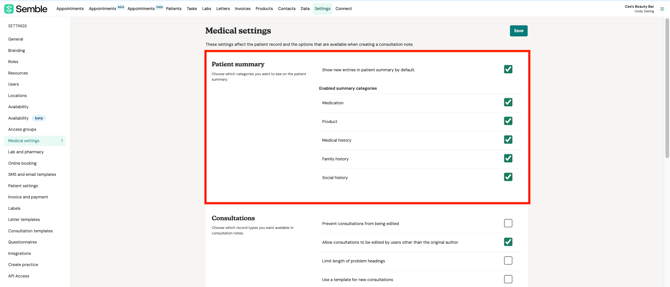
Screenshot 2025-07-18 at 16.11.18

Once enabled, the categories will look like the below on the patient's summary:
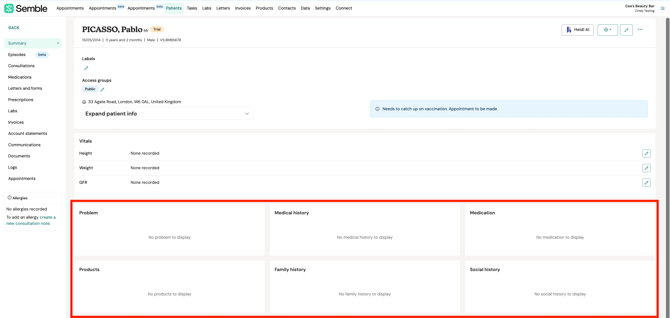
Screenshot 2025-07-18 at 16.11.53


Consultation Settings

These settings determine how consultation notes are created, edited, and displayed.

Each setting below can be toggled on or off independently to match your practice's workflow requirements.
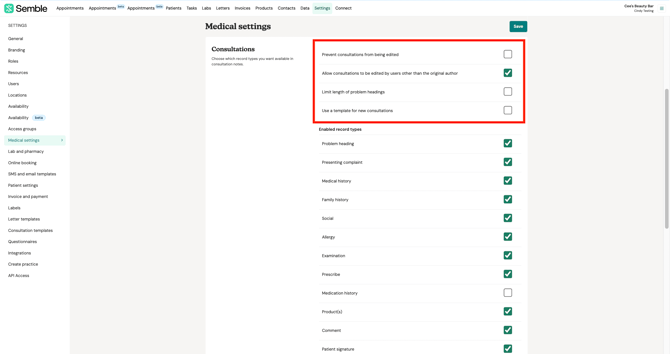
Prevent consultations from being edited - Locks consultation notes once saved to maintain record integrity
Allow consultations to be edited by users other than the original author - Permits collaborative editing of consultation notes
Limit length of problem headings - Restricts the character count for problem heading entries
Use a template for new consultations - Applies a predefined template to all new consultation notes
Screenshot 2025-07-18 at 16.14.48

Enabled Record Types

You can select which record types are available when creating consultation notes:

Problem heading - Primary medical issues being addressed

Presenting complaint - Patient's description of their symptoms

Medical history - Records of past medical conditions, surgeries, and treatments
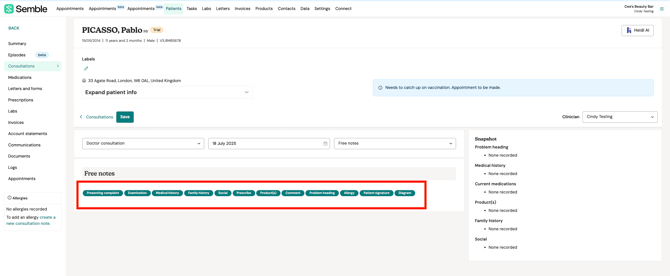
Family history - Information about hereditary conditions and family medical background
Social - Lifestyle factors including smoking status, alcohol consumption, exercise habits, and social circumstances
Allergy - Records of known allergies and adverse reactions
Examination - Physical examination findings and observations
Prescribe - Medications prescribed to the patient
Medication history - Historical record of medications the patient has taken
Product(s) - Labs, treatments, or products provided to the patient
Comment - Additional notes and observations
Patient signature - Electronic signatures captured during consultations

 Screenshot 2025-07-18 at 16.23.26

NOTE: Disabling a record type will remove it from the consultation note interface for all users.


Prescription Settings

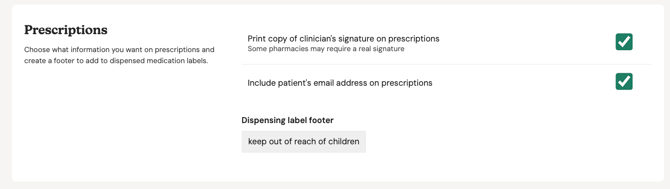
Semble's Prescription Settings allow administrators to control prescription output, patient information display, and dispensing label customisation.

Configure how prescriptions are created, displayed, and processed in your practice. Use the options below to customise prescription behaviour for your team.

 
Print copy of clinician's signature on prescriptions - Includes the prescribing clinician's signature on printed prescriptions
Include patient's email address on prescriptions - Adds patient contact information to prescriptions

Dispensing Label Footer - Create custom footers for medication labels when dispensing drugs in your practice
Screenshot 2025-08-07 at 14.35.05


Lab Settings

Default sample date to current date - Automatically sets lab sample dates to today's date when creating lab orders. Toggle this on to save time and reduce manual date entry. - Automatically sets lab sample dates to today's date when creating lab orders
Screenshot 2025-07-18 at 16.15.22
