
Note: To set up the integration, you must have a role assigned to you that gives you the relevant permissions.
In this article:
Submit a Prescription to Welbeck Pharmacy
Prerequisites
Please note: If the below requirements are not completed, you will not be able to access or use the pharmacy integration.
-
Be a registered Welbeck clinician
You must be officially registered as a clinician with Welbeck.
-
Ensure your GMC number is set up and matches:
Your GMC number must be entered in your Semble user settings and must match the GMC number registered in the Welbeck system.
To check or add your GMC number:
Go to Settings > Users > Select your user profile > Add your GMC number
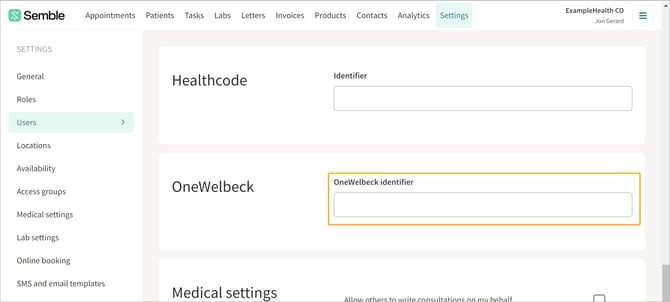
-
Contact Semble Support to enable the integration
Email our support team at support@semble.io to have the integration enabled on your account. Our team will handle the installation.

Please note: If these requirements are not completed, you will not be able to use the pharmacy integration.
Once our team has completed the installation, you can set up the integration in your practice settings following the steps below.
Set Up Welbeck Pharmacy
When you have met the requirements for the Welbeck Pharmacy integration, you can set it up from the Settings page in Semble:
1. Go to the Lab and pharmacy settings tab.
2. Scroll down to the Pharmacy settings section, then click Add pharmacy account.

-
Provider: Select Welbeck Pharmacy
-
Name: Enter the name of your practice
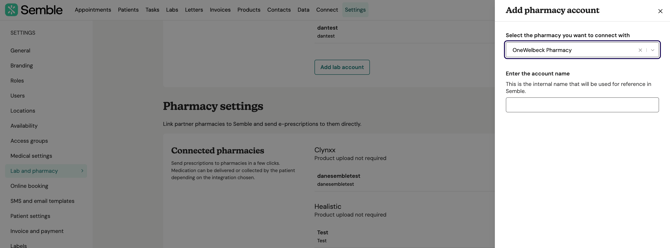
3. Click Save button to confirm.
The integration is set up, and you can now submit a prescription to Welbeck.
Create a Prescription
NOTE: Any user with the appropriate role can create consultation notes that include medication details.
However, only users designated as "clinicians" can create the actual prescriptions.
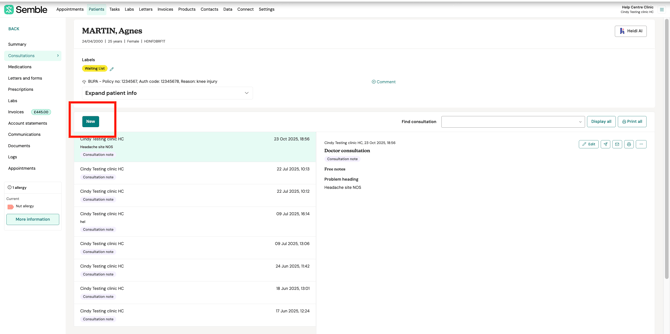
1. Create a new consultation note for your patient.
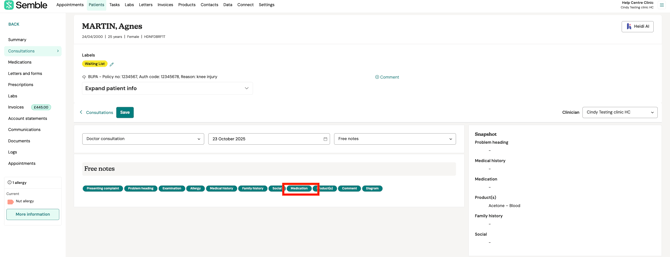
2. Click the Medication tag at the bottom of the notes.
3. Select the medication you want to prescribe.
Note:
When the OneWelbeck Pharmacy integration is installed, a custom OneWelbeck drug list is added to your practice alongside the standard Semble drug list.
You can prescribe from either list, depending on your needs.
Medications from the OneWelbeck list can be easily identified as they will display “by OneWelbeck” next to the medication name.
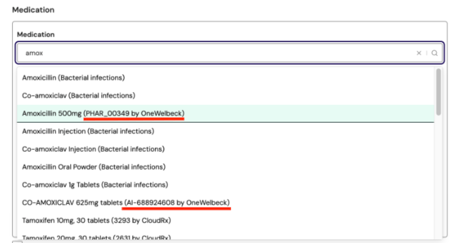
⚠️Note: When prescribing from the Welbeck drug list, contraindications and dosage information are not displayed within Semble.
Please ensure you verify this information independently before prescribing.
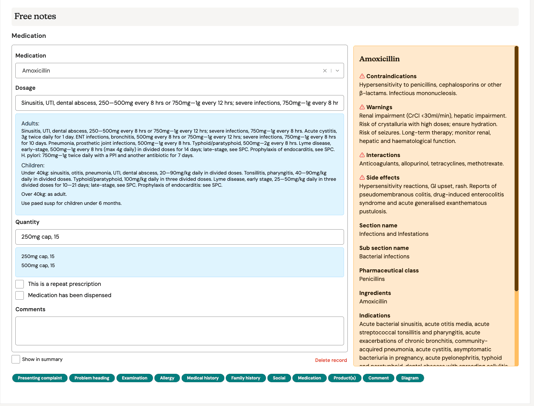
4. Enter the rest of the prescription details.
-
Dosage: Enter the dosage as indicated
-
Quantity: The quantity field must contain only numbers. If you enter anything other than a number (e.g., text, symbols, or ranges), OneWelbeck will reject the prescription.
-
(Optional) Medication has been dispensed: Tick this box to enter the batch number and expiration details
-
(Optional) Comments: Type any additional comments you have for the patient
-
Show in summary: Choose whether you want this prescription to appear on the patient's record or not
5. (Optional) If this is a repeat prescription please follow the steps outlined here.
6. Click Save.
The prescription will appear in the Prescriptions tab in the patient record.
Submit a Prescription to Welbeck Pharmacy
When you have fully set up Welbeck Pharmacy for your practice, you can submit a prescription at any time:
1. Create a prescription
2. Click the pharmacy integration icon:
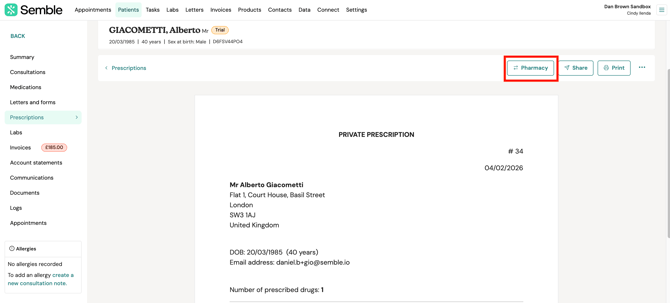
3. Select OneWelbeck Pharmacy from the dropdown menu.
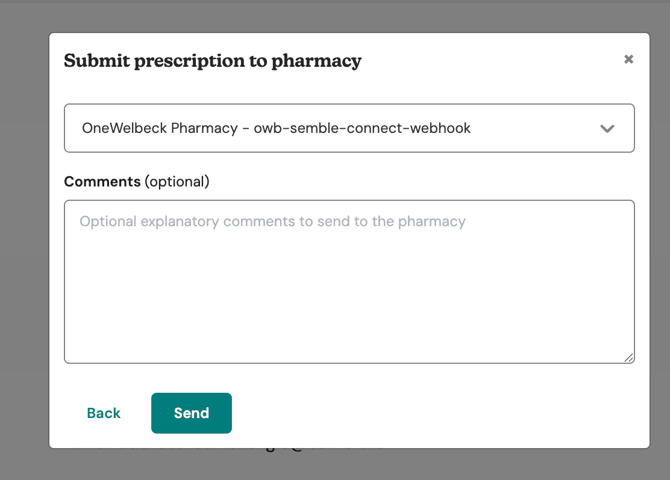
Note: There are no cost implications on our end. However, kindly check the provider's help centre or contact the provider in terms of what they may/may not charge you.
Cancel a Prescription
If anything is incorrect or missing, please email Welbeck Pharmacy directly at Pharmacy@onewelbeck.com or call on 020 8015 8924, and they'll resolve it as quickly as possible.
Troubleshooting
If you encounter an error when submitting a prescription to Welbeck Pharmacy, see below for common error messages and how to resolve them.
Error from OneWelbeck Pharmacy: Error Type: Stop processing, Message: API Validation Error (404) No messages found in response.

- Cause: This error can typically mean one of two things:
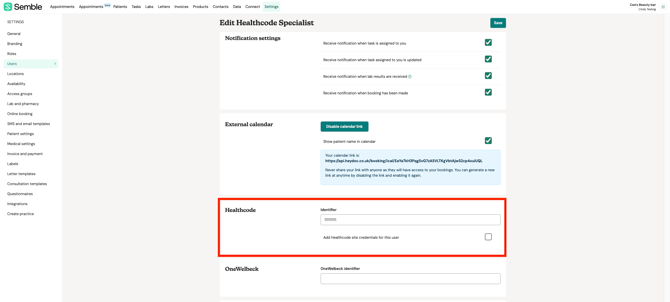
- Your Welbeck Identifier in your user settings does not include the "C" at the beginning of the number.
- The Registration Number for you or the clinician who raised the prescription is not correctly configured in your user settings.
- Solution:
- Go to Settings > Users and select the relevant user profile.
- Check that the Welbeck Identifier begins with the letter "C" (e.g., C12345). If the "C" is missing, add it and save.
- Confirm that the Registration Number is correctly entered for the clinician who raised the prescription.
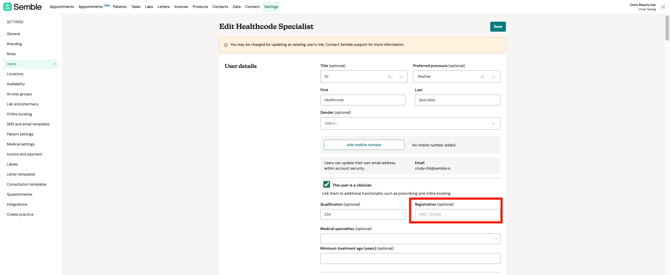
NOTE: The Registration Number field must contain the number only — do not include any prefix or label.
- ✅ Correct:
123456 - ❌ Incorrect:
GMC:123456
Error from OneWelbeck Pharmacy: [Prescriptions Query Failed] Errored Action: stop, Type: Stop processing, Step: x, Message: Drug Quantity must be numeric to submit a prescription to OWB. You entered.
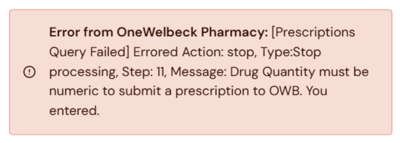
- Cause: The Quantity field in the prescription contains a non-numeric value. OneWelbeck Pharmacy requires that this field contains numbers only.
- Solution: When creating a prescription, ensure the Quantity field contains numbers only. No additional text, symbols, or descriptors should be included.
- ✅ Correct:
1 - ❌ Incorrect:
1 box,500mg,1-2 tablets
- ✅ Correct: