
Note: To set up the Onescript integration, you must have a role assigned to you that gives you the relevant permissions.
In this article:
Set up the OneScript pharmacy account
Upload the Blueco product list
Create a consultation template with screening questions
Create a consultation and prescription
Choose the pharmacy and delivery details
Linked article:
Overview of Consultation Notes
Set up the OneScript pharmacy account
When you have met the requirements for the Onescript integration, you can set it up from the Settings page in Semble:
1. Go to the Lab and pharmacy settings tab.
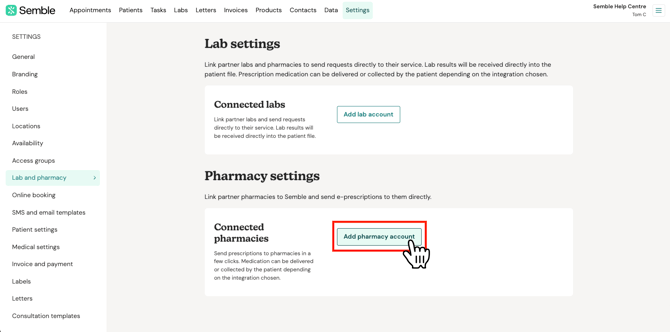
2. Scroll down to the Pharmacy settings section, then click Add pharmacy account.
3. Choose OneScript by Blueco Healthcare.
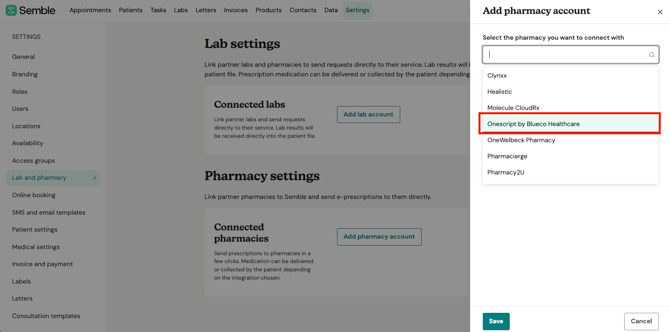
4. Enter the integration details for your practice:
Account name: Enter the name of your practice or the clinician who registered with OneScript. This name will be displayed when ordering.
ID source code: Enter the source code supplied by Blueco. Blueco uses this ID to identify your business.
If you don't know your ID Source Code, please contact Blueco Healthcare who should be able to provide it.
5. Click Save to confirm.
The integration is set up, and you can now submit a prescription to Blueco Healthcare.
Upload the Blueco product list
When you have fully set up Blueco Healthcare for your practice, you can submit a prescription at any time:
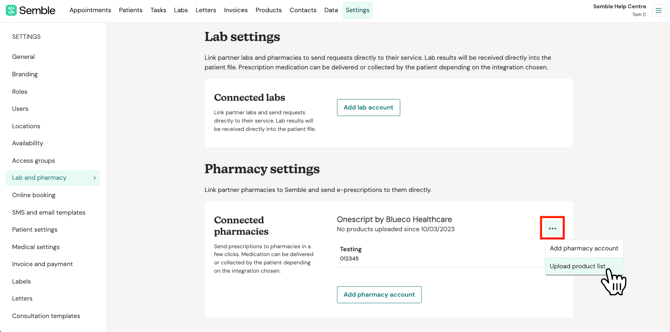
1. Open the menu for the pharmacy account.
2. Click on options [  ].
3. Select Upload product list.
The upload imports:
-
All medications that can be ordered through Onescript
-
All available shipping types
Create a consultation template with screening questions
You will need to create a dedicated consultation template before clinicians place an order. For detailed instructions on how to create a consultation template: Create a consultation template
1. From Settings, open the Consultation templates tab.
2. Click on New in the top-right coner.
3. Give the template a name, for example, Mounjaro prescription.
4. Click on Add a section, and give the section a name.
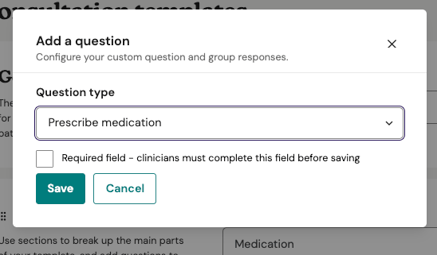
5. Click on Add a question, and select the question type as Prescribe medication. Click on Save.
6. Add the screening questions required for the Blueco order as a Custom question
7. Configure each screening question to use a yes or no response (single choice response type).
8. Click Save in the top-right corner when you have finished.
Blueco requires the screening information before it can dispense the medication.
Create a consultation and prescription
1. Open the patient record.
2. Go to Consultations, then select New consultation.
3. Choose the consultation template created for Blueco orders, for example Mounjaro prescription.
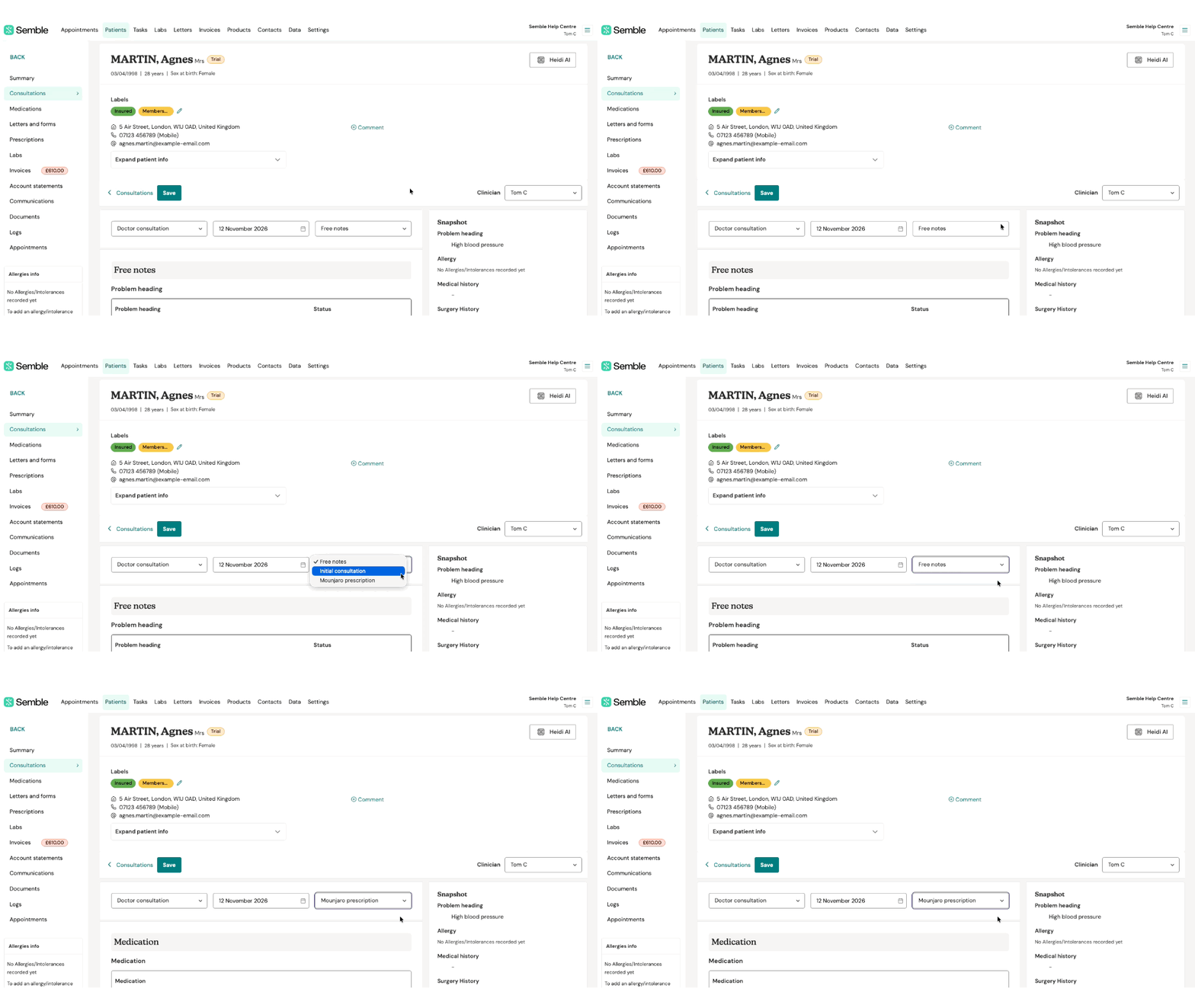
4. Select the medication product supplied by OneScript by Blueco Healthcare.
Do not select a version of the medication that is not specifically linked to Onescript. Any prescription created with the wrong product will be rejected.
5. Enter the dosage and quantity as a free-typed value.
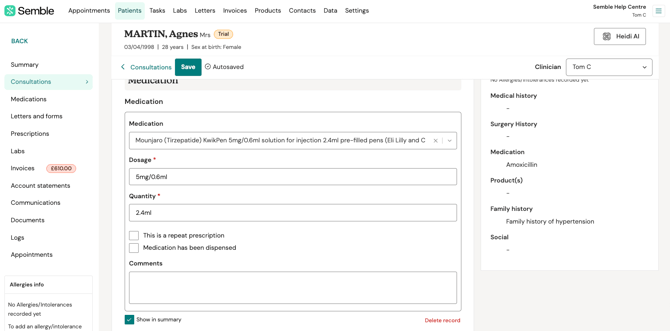
6. Complete all required screening questions.
7. Save the consultation and issue prescription as usual. For more information, please see Create a prescription.
Choose the pharmacy and delivery details
1. Send the prescription to the configured OneScript by Blueco Healthcare pharmacy account.
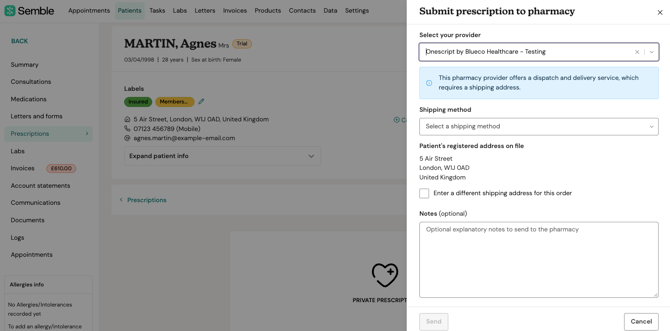
2. Select the appropriate shipping method.
Some medications are temperature-sensitive. Choose carefully the shipping method.
3. Confirm the shipping address. Semble uses the patient’s address by default, but you can free-type a different address when needed.
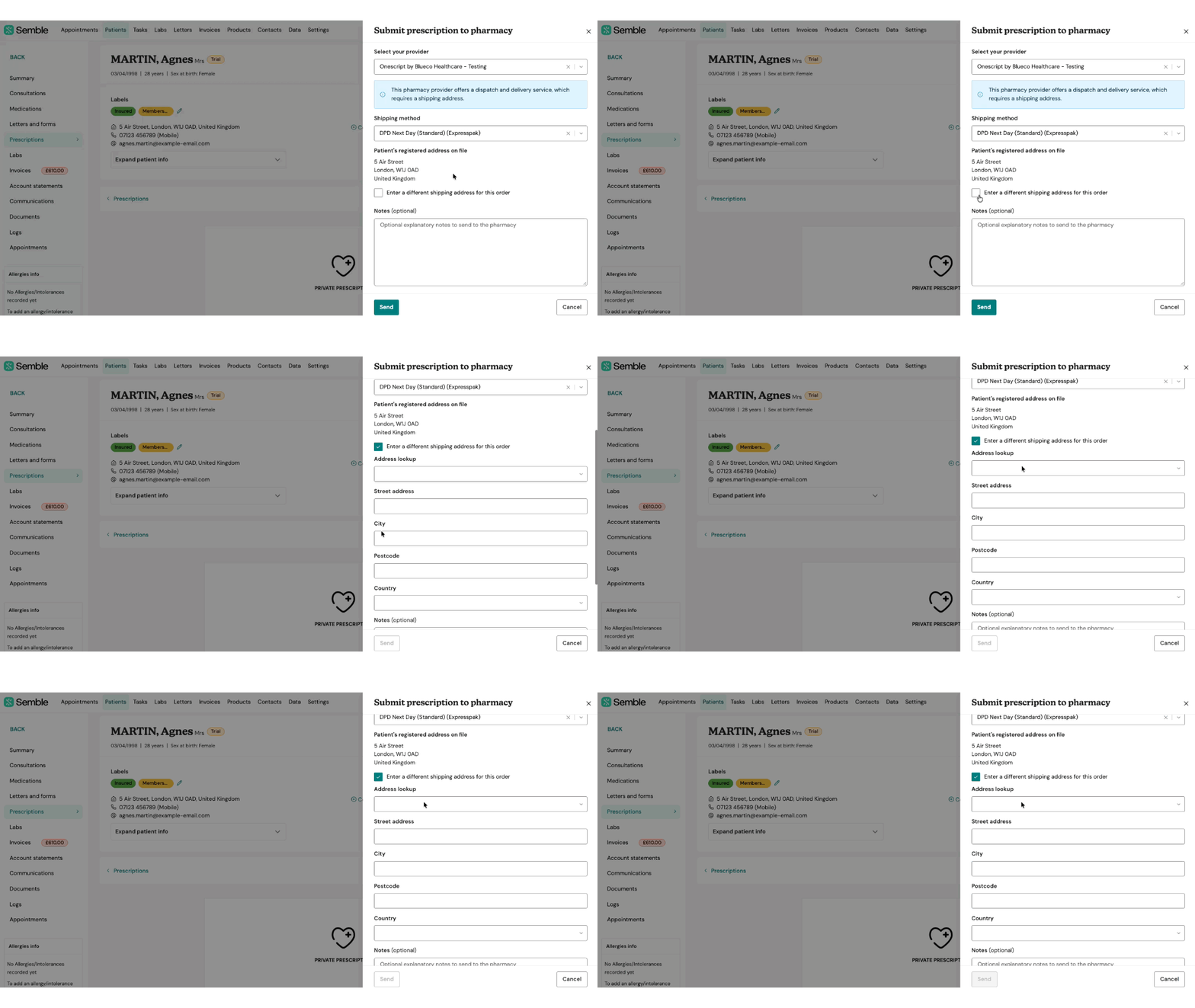
4. Add a note for the prescriber if required.
5. Click Send to share the prescription and delivery details to the pharmacy.
Check the patient record before sending.
Blueco requires specific patient details before it can accept an order. In particular, the patient record must include an email address.
If the patient email address is missing, Blueco will reject the prescription. Update the patient record, then send the prescription again once all required fields are complete.
What happens after sending
After Blueco accepts the order, Blueco confirms the prescription in its system and dispenses the medication.
Order status: Progress updates are not currently displayed in Semble. Any fulfilment updates must come from Blueco.