
In this article:
Email Notifications for Specific Events
User-Specific Notification Settings
Email Notifications for Specific Events
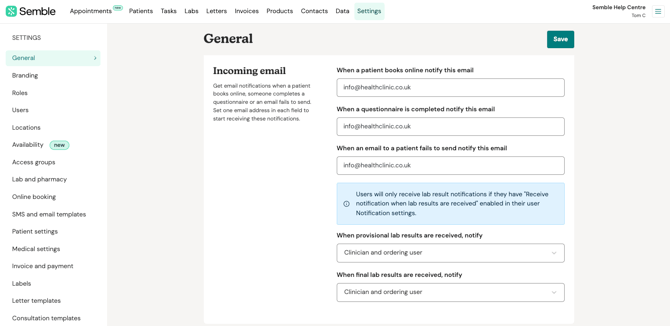
You can set up email notifications for specific actions by entering the desired email addresses in the corresponding fields from your General Settings:
-
When a patient books/cancels online: Notifications will be sent to the email address specified in the field labeled "When a patient books online notify this email."
-
When a questionnaire is completed: Use the field labeled "When a questionnaire is completed notify this email" to receive updates on completed questionnaires.
-
When an email to a patient fails to send: To be alerted about failed email attempts, enter an email address in the field labeled "When an email to a patient fails to send notify this email."
- When provisional/full lab results are received, notify: Decide who should receive email notifications for lab results. You can choose one of the following options;
- Clinician and ordering user - the clinician that issued the lab test through a consultation note, and the user who submitted the order. If the clinician and ordering user are the same person, an email will be received twice.
- Clinician only
- Ordering user only
- All users with patient access - this will only notify any users that can view patient profiles AND are set up with the right access group for that patient
- No one - email notifications for lab results are disabled
NOTE:
You can only add one email address per field.
To receive lab results, users must also enable user-specific lab notifications from their user settings. See section below.
What's the difference between 'provisional' and 'full' lab results?
Provisional lab results are when multiple markers are being measured from a test, but only some of the results for those markers have been returned by the lab.
Full lab results indicate that all tests have been completed by the lab, and the results for all markers have been returned to Semble.
User-Specific Notification Settings
In addition to email notifications, individual users can customise their preferences for specific notifications which will be sent to the email address they use to login. These can be enabled by ticking the relevant boxes in the user settings.
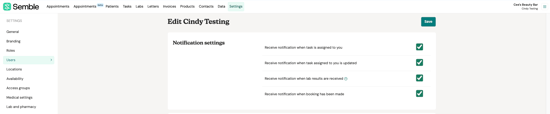
Available options include:
-
Receive notification when a task is assigned to you: Stay updated when new tasks are delegated to you.
-
Receive notification when a task assigned to you is updated: Be informed about changes or progress on tasks you are responsible for.
-
Receive notification when lab results are received: Get immediate alerts when lab results you requested are available.
-
Receive notification when a booking has been made: Know instantly when a new booking is added for you.
You can tick the options relevant for you and click Save on top.
Troubleshooting
Check your user notification settings
Make sure you have enable notifications for when lab results are received within the user's profile. You can do this by going to Settings from the top menu in Semble, then to Users in the left-hand side.
Click on the user's name to open their profile settings, and scroll down to 'Notification settings'. Click Save in the top-right corner to apply any changes made.
Whitelist Semble
Make sure that the Semble domain is whitelisted by your email provider. The following domains must be whitelisted:
-
semble.io
-
email.semble.io
You may need the Semble IP addresses to set up the whitelist. For more information, contact the Semble Customer Success team at: support@semble.io
Check Spam or Junk Folders
Your email provider may accidentally filter emails and notifications from Semble into your 'Spam' or 'Junk' folders. Check these folders and make sure that you mark Semble emails as not spam.