
The dashboard is designed specifically for healthcare professionals using Semble Pay. If you are connected with the Standard Stripe integrations, you can find more information on the Stripe Integration here.
Note: To view the Semble Pay Dashboard, you must have a role assigned to your that gives you permission to access the Integrations page.
In this article:
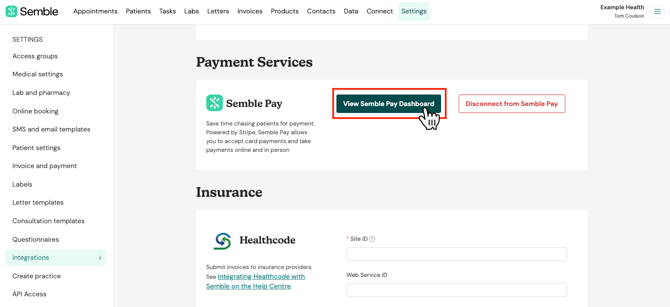
Accessing Your Semble Pay Dashboard
Note: You must have Semble Pay integrated with your Semble account to access the dashboard. If you haven't set up Semble Pay yet, please see our Overview of Semble Pay article.
Understanding the Homepage
The homepage includes:
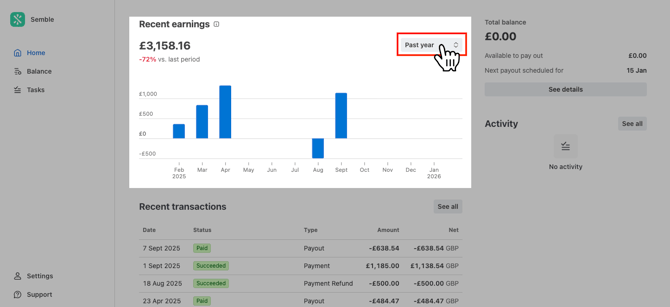
The Earnings Chart displays the net volume of your practice's charges and transfers over time, providing a clear visual representation of your revenue trends.
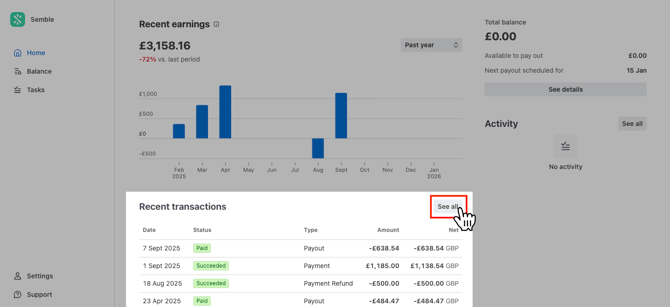
Recent transactions - your 5 most recent transactions
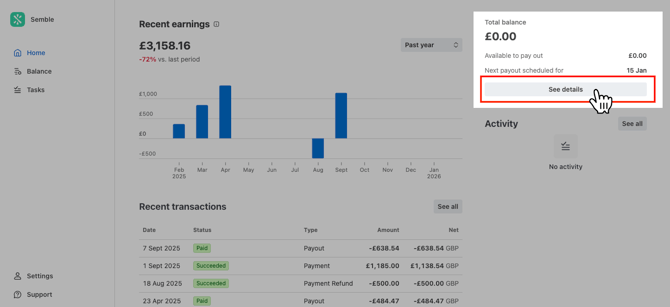
Total balance - your practice's current balance held in Stripe and information about upcoming payouts
Activity - here you will find important notifications and updates
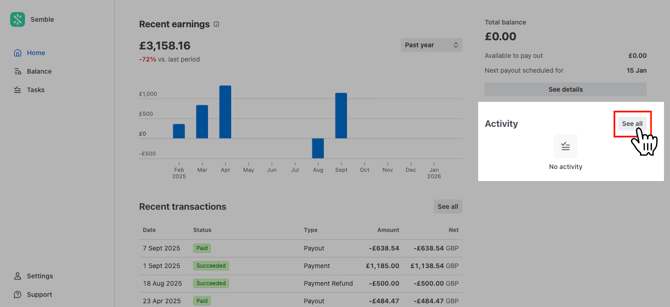
This overview on the Homepage allows you to quickly check your financial health without navigating through multiple pages. By clicking on 'See all/details', you will be taken to a more detailed view of each section.
Total Balance and Payouts
The Total Balance component is one of the most important sections of your dashboard, showing your current financial position and upcoming payout information.
What you'll see:
- Total balance – The total funds available in your Semble Pay account
- Available now – Funds currently available for payout (for more information on when payouts are made, please see the Payouts section in our Semble Pay FAQ page).
- Next payout – The date and amount of your next scheduled payout
- Destination – The bank account where funds will be sent
For more detailed information about payouts and to view your complete payout history, go to the 'Reviewing Payouts' section of this article.
Reviewing the Balance Page
What you'll see:
- All transactions processed through Semble Pay
- Transaction date, status and amount
- A brief description of each transaction
Note: Only successful transactions appear in this list. Failed transactions are not displayed in the Semble Pay Dashboard. For internal visibility on failed transactions, please contact Semble Support at support@semble.io.
The filters will allow you to view all transactions, or filter to specific dates, availability or by type.
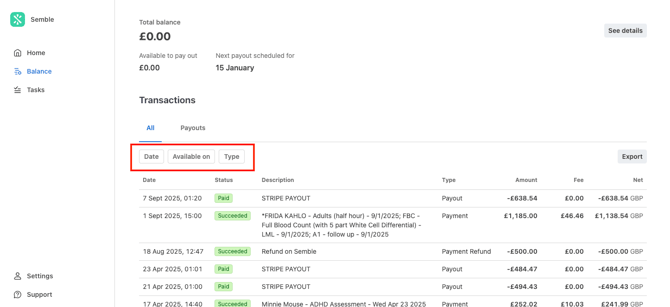
Date - you can filter to view only more recent transactions, a specific date, or transactions made within a date range.
Available on - this allows you to view transactions based on when the funds are made available to you through a payout.
Type - you can filter to view payments made to you, refunds made back to a patient, or payouts into your nominated bank account.
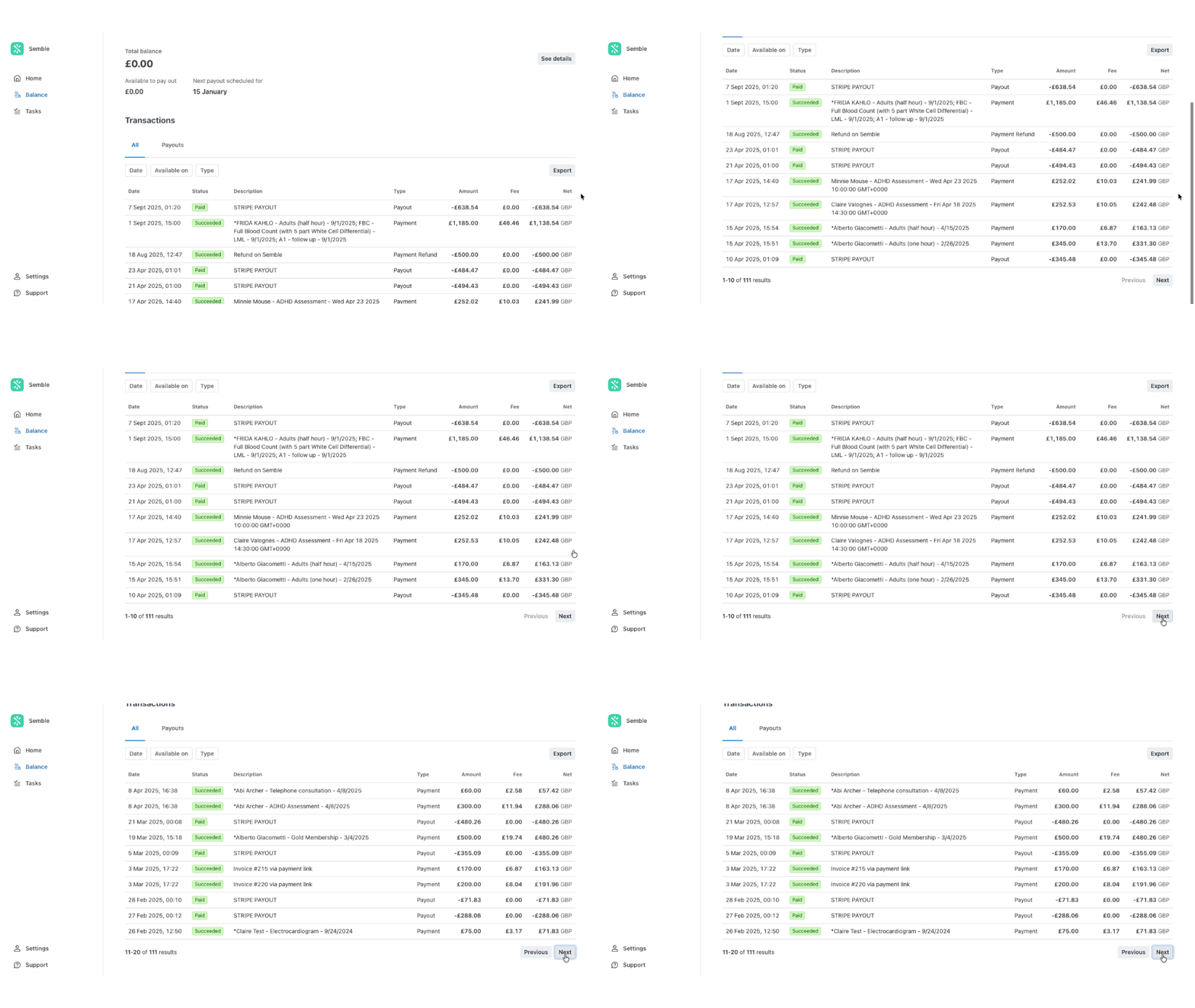
The table will show you 10 transactions per page. You can navigate between pages by scrolling to the bottom of the table and selecting 'Next' or 'Previous'.
Reviewing Payouts
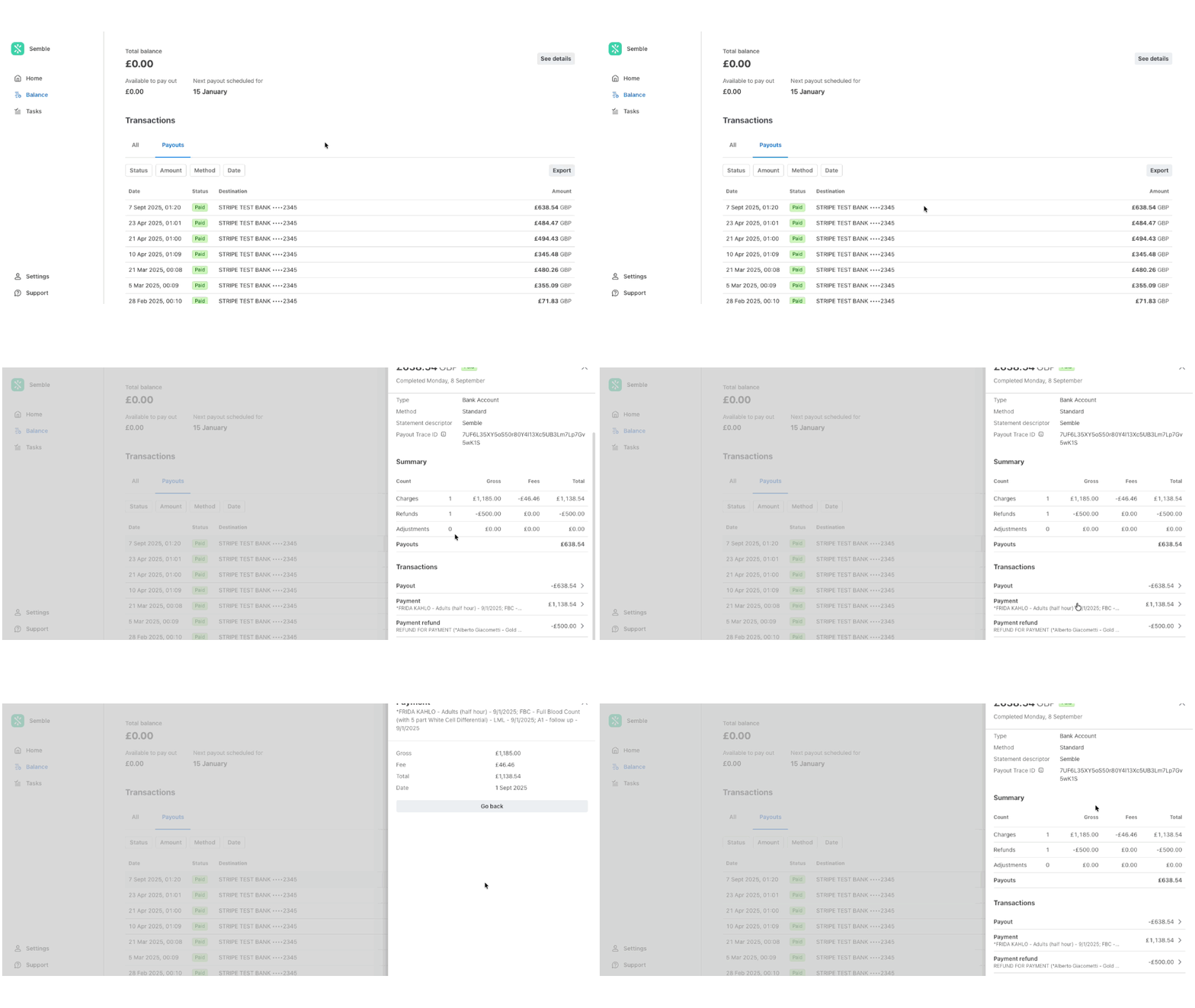
To view more information on all payouts that have been made to you, you can toggle to the 'Payouts' tab inside the Balance page.
This will filter out all payments made to you and give you a clearer view of the funds that have been transferred to your bank account.
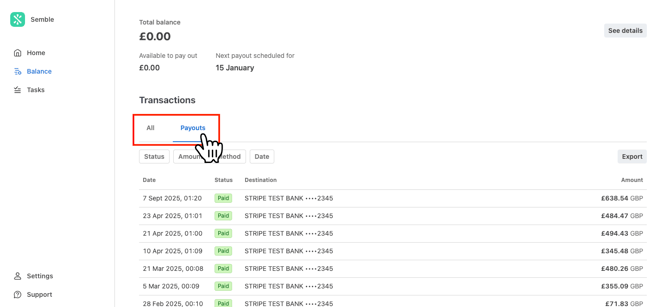
By clicking on one of the payout transactions , you will be able to see more detail about the transfer, as well as a list of payments included in the payout and the total fees charged.
To learn more about fees collected for transactions with Semble Pay, please see the Cost & Fees section in the Semble Pay FAQ article.
Exporting Transaction Data
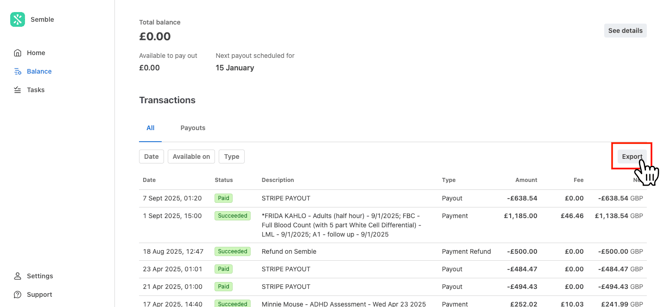
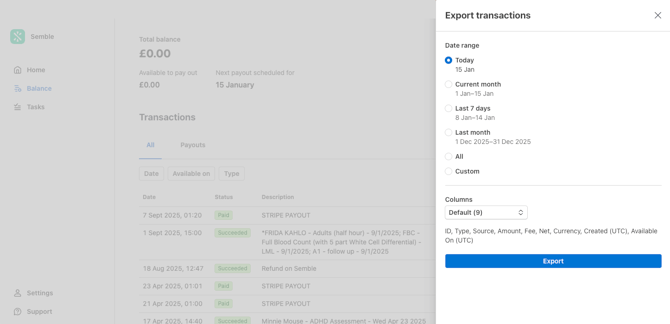
The Semble Pay Dashboard allows you to export transaction and payout data for accounting, record-keeping, and reconciliation purposes.
Activity Hub
Note: Check your Activity Hub regularly to ensure you don't miss important account updates or required actions that could affect your payouts.
Account Settings
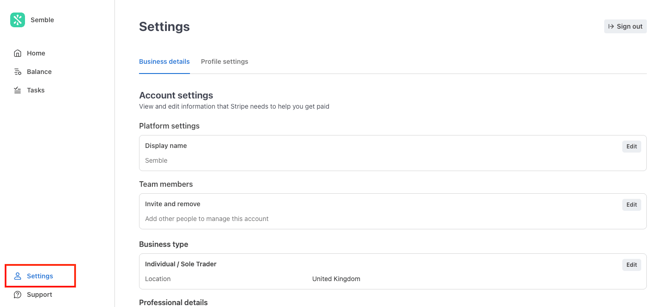
To access your account settings, click on Settings from the left-hand menu on any page in your Semble Pay Dashboard (visible in the bottom-left corner of every screen).
What you can manage:
- Display name - How your business name is displayed to patients on receipts
- Team members – Invite or remove additional users to view the dashboard
- Business type - How your business is categorised within Stripe
- Professional details - Add your business website and industry
- Personal details – Account owner details
- Public details - Update the statement descriptor, as well as the support email address and/or phone number shown to patients on receipts sent via Stripe (Semble Pay)
- Payout details – The bank account you would like your payouts to be transferred to
Managing Users in your Semble Pay Dashboard
You can add/remove user access in your settings to allow others to be able to access the same Semble Pay Dashboard. If you are the main account holder for your Semble Pay account and you leave, you can also transfer ownership to someone else.
Adding users
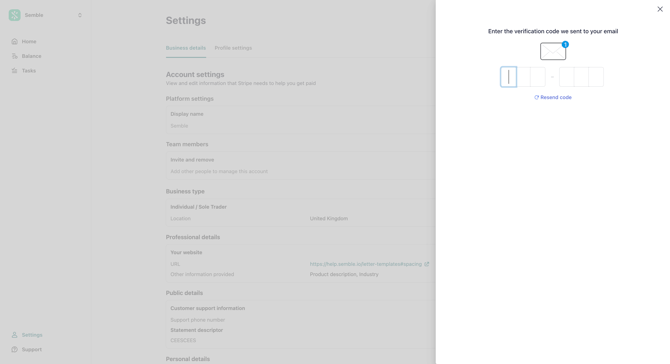
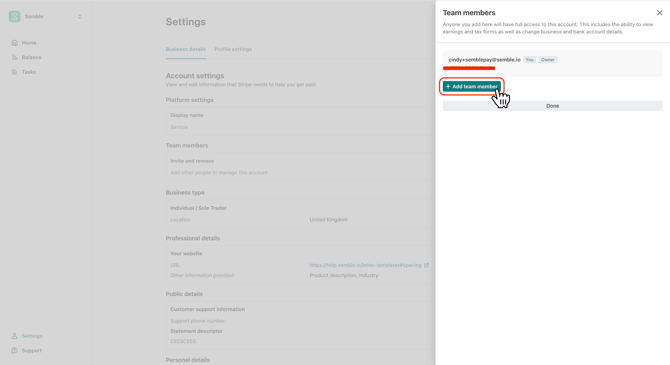
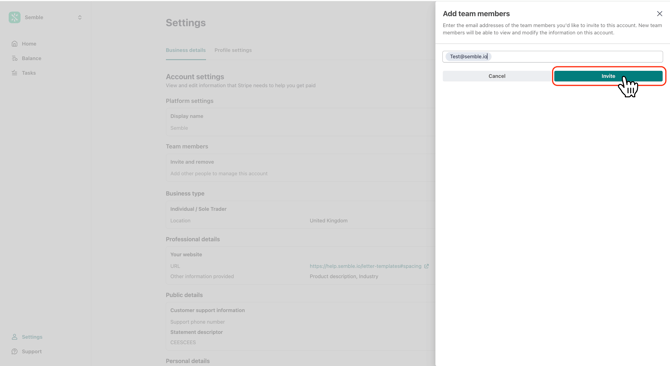
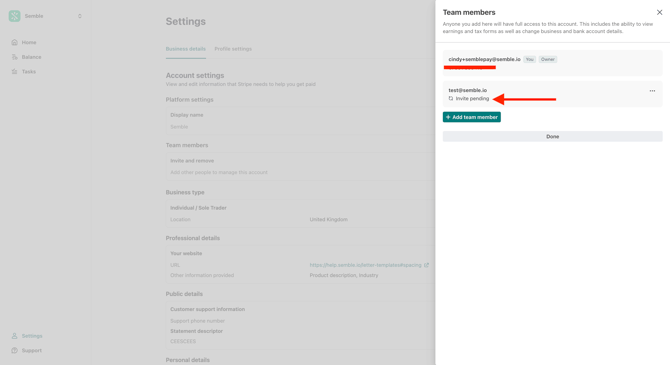
If you need more users to have access to your Semble Pay Dashboard, you can add them to have access through their own, unique login.
Removing users
Any users that have been added can also be removed if you no longer want them to be able to login with their own credentials.
1. From Settings, find Team members and select Edit. You will be sent a verification code to authorise access before making changes.
2. Once verified, click on the three dots next to the user you would like to remove.
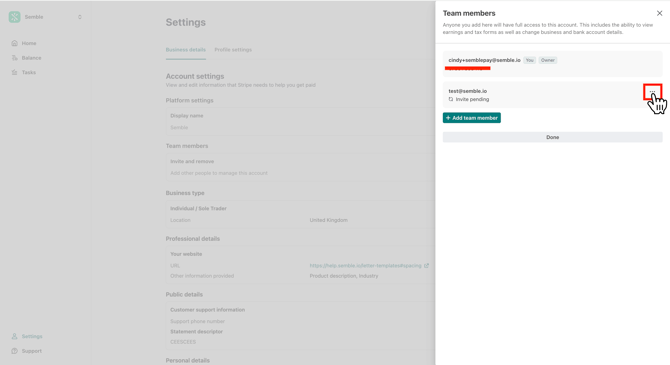
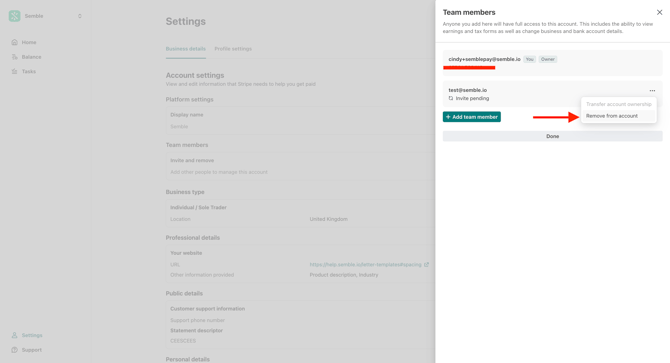
3. Select 'Remove from account'. This will immediately remove this user's access and they won't be able to log in with the email address and password they created.
Transferring ownership
If you are the main account holder for Semble Pay/Stripe and you are leaving the practice, you're able to transfer the ownership to another user to continue managing the account.
Note: You must transfer the ownership of the account before leaving. If the email address associated with your account is deactivated before ownership of your Semble Pay is transferred to another user, you may lose access.
1. From Settings, find Team members and select Edit. You will be sent a verification code to authorise access before making changes.
2. Once verified, click on the three dots next to the user you would like to transfer the ownership to.
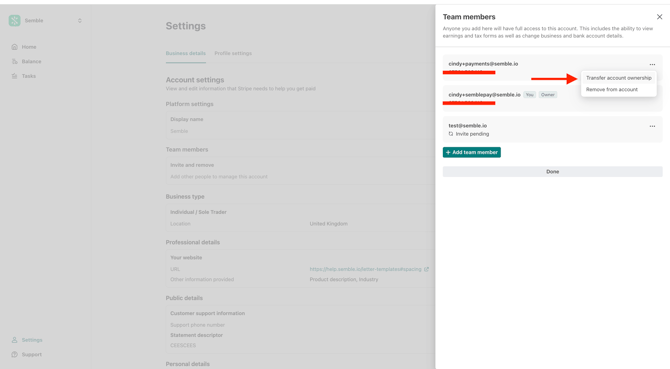
3. Select the preferred method you'd like to use to verify your identity to proceed. If you would like to use a mobile, you can scan the QR code, or you can select 'Other options' to continue on the same device.
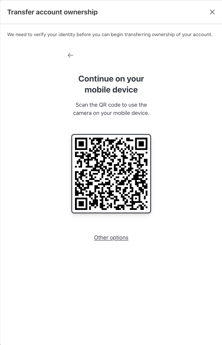
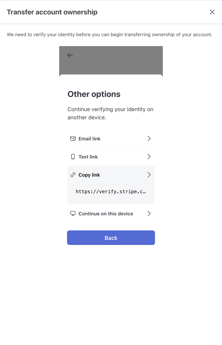
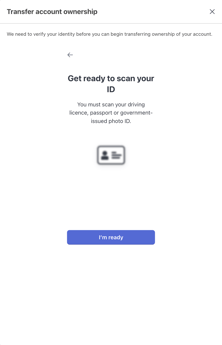
4. Once you have chosen the method you'd like to use, you can proceed to scanning your ID to verify your identity.
Please note that the exact interface you see will depend in the device and method you've selected.
If the current account owner is not longer at your practice and ownership has not been transferred, please contact our Support team at support@semble.io, proving relevant account details (Practice name, practice ID and details of the user who has left) and an explanation of the current circumstances.
Note: Any user you invite must also have appropriate permissions in their Semble user role to access the Integrations section where the dashboard link is located. For more information on managing user roles, see here.
Updating your Bank Account Details
You should ensure your bank account details are always current and accurate. Incorrect bank details will cause payout failures and delays.
Bank details are added the first time you created your Semble Pay account, but you can amend the details at any time.
Edit your current bank details
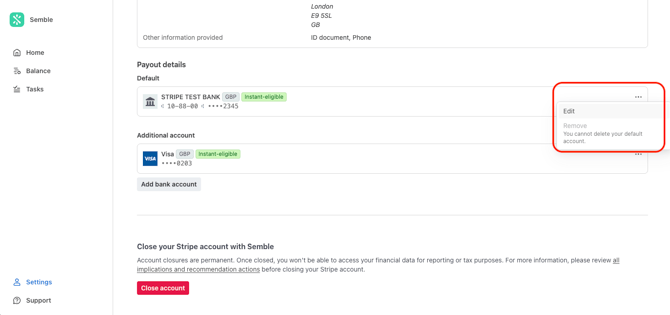
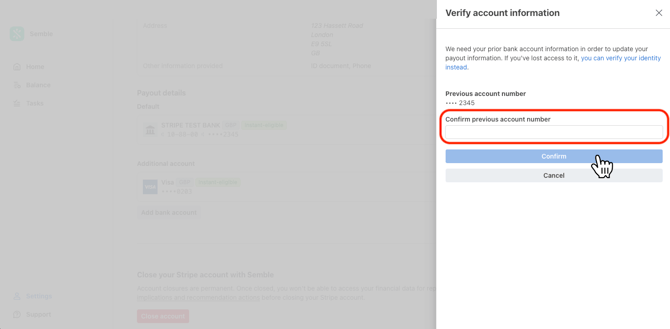
If you change the main bank account you use to receive payouts:
Add/edit/remove an additional bank account
If needed, you can nominate a secondary bank account to receive payouts. When you have more than one bank account, one will be the default and this is where payouts will be sent to, but you can easily change between accounts.
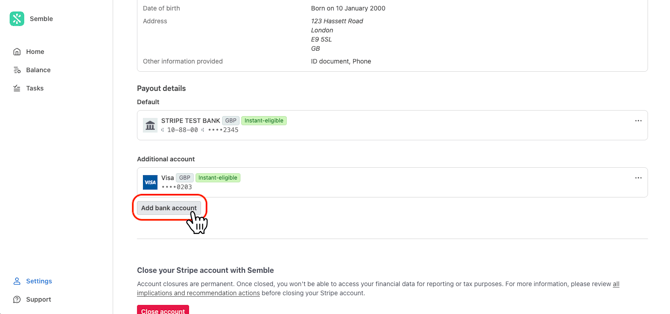
1. In Settings, scroll down to Payout deatils.
2. Click on 'Add bank account'.
3. Verify your account information by confirming the previous account number and then click Confirm.
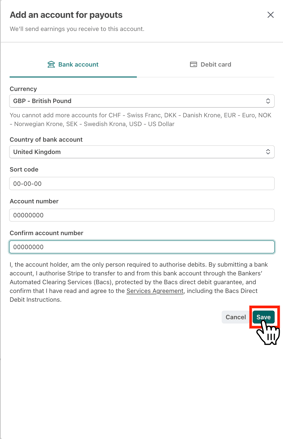
4. Enter the country, currency, sort code, account number and confirmation of your account number and then select Save.
5. Once you have added an additional account, you can manage this further by clicking on the three dots and selecting one of the following options;
a. Edit - this allows you to edit the bank account details saved.
b. Set as default - this will become the default bank account your payouts are transferred to.
c. Remove - delete the additional bank account from your account settings.
You cannot delete the default bank account. If you need to delete the bank account that is currently set as default, you must first add a new account and set it as default before deleting the old account.
Note: Bank Account Details are required for payouts. Without proper bank account information, you will experience disruptions to your scheduled payouts. Ensure all bank account details are accurate and up-to-date to maintain seamless payout processing.
Change the email address shown on receipts
The email address displayed on receipts sent to patients after payment is the same as the one provided when creating your Semble Pay account. If you need to update this email, follow the steps below:
1. Click on Settings in the top menu.
2. From the General settings page, locate the 'General email' field.
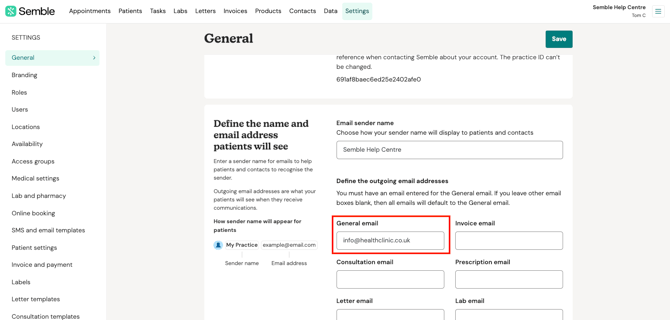
3. Enter the new email address you'd like shown on your receipts.
4. Click Save in the top-right corner to apply changes.
If the email address you'd like to appear on your receipt is already in your general settings but not updated on your receipts yet, follow the steps below:
-
Go to the General Email field.
-
Remove the current email address completely.
-
Replace it temporarily with test@test.com.
-
Click Save.
-
Then enter the correct email address again.
-
Click Save once more.