
In this article
Integrating with Welbeck
1. Go to the Settings page, then the Integrations tab at the bottom.
2. Scroll down to the Welbeck integration, and click Connect with Welbeck.

Link a Location to Welbeck
To link a location to Welbeck:
1. Go to the Settings page, then the Locations tab.
2. Select the location.

3. Select the room you want to link Welbeck to, then click Edit.

4. Scroll down to Room syncing, then tick Sync room with Welbeck.

The room can now hold bookings made with Welbeck.
Link a Clinician to Welbeck
To link a clinician to Welbeck:
1. Go to the Settings page, then the Users tab.
2. Select the user you want to link Welbeck to.

3. Scroll down to the Welbeck section, and enter their Welbeck identifier:
Note: When setting up your Welbeck integration, the “OneWelbeck identifier” field refers to the doctor’s GMC number preceeded by "C"
To ensure correct formatting, please enter your GMC number in the following format:
C + GMC number (e.g. C1234567)

4. Click Save.
Note: If you are still not sure what your Welbeck identifier is, please email info@welbeckhealth.com so that they can provide it to you.
The user can now take bookings that will be reflected on Semble and Compucare
Link a Product to Welbeck
To link a user to Welbeck:
1. Go to the Products page.
2. Select the product you want to link Welbeck to.
Note: Currently you can only link 2 products to the Welbeck integration.
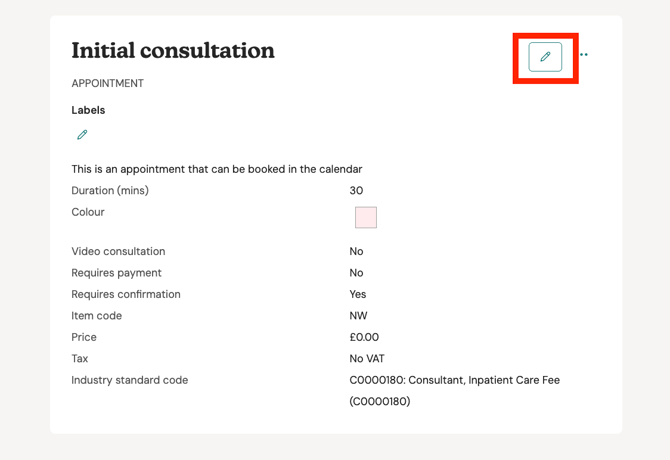
3. Click the edit icon in the top right-hand corner.
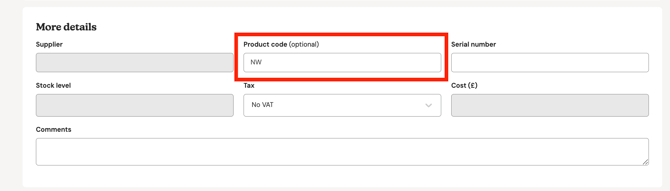
4. Scroll down to Booking options, then Product code.
5. Give the product a Product code that includes either the NW or FU identifiers:
-
NW: New appointment
-
FU: Follow up appointment
6. Click Save.
The product can now be selected when making a Welbeck booking.
Currently, the integration supports booking only two types of appointments: New Appointment and Follow-Up Appointment.
If you have additional appointment types, please note that only these two types will be synced for online bookings within the integration.
Link a Patient to Welbeck
Note: You only need to follow this step if you have a patient from Welbeck for whom you’ve ordered lab tests, but their file is not yet on Semble. In this case, you’ll need to manually create the patient record in Semble and add their Welbeck identifier. You can find this identifier on the patient's file on Compucare.
If the patient is already on Semble and has had bookings made from Compucare for them the ID will be automatically populated.
To link a patient to Welbeck:
1. Go to the Patients page.
2. Select the patient you want to link Welbeck to.

3. Click the edit icon in the top right hand corner.

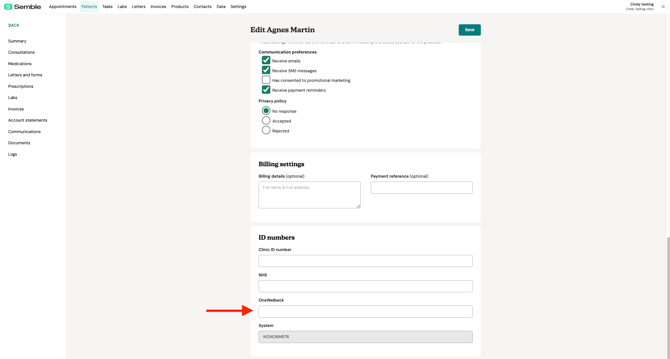
4. Scroll down to ID numbers.
5. (Optional) Enter the patient's Welbeck ID if the ID is not already entered.
Note: If the patient was booked on Welbeck, their Welbeck ID will be sent across to Semble automatically. Additionally, if the patient had an NHS number on Welbeck, this will also be sent automatically.
6. Click Save.
The patient is now linked with Welbeck.
If you have completed all of the above steps, you can now make bookings linked to Welbeck.
Book a Welbeck Appointment
Booking an appointment for a patient linked to Welbeck works exactly the same as a normal booking in the Appointments calendar.
Bookings made on Welbeck will be reflected in Semble, and vice versa, provided all the steps above have been followed correctly.
1. Click New in the top left-hand corner of your calendar.

2. Fill in the appointment details as you normally would, making sure to select the location, product, and clinician who is linked to Welbeck.

3. Click Save at the bottom of the booking window.
The booking appears in the Appointments calendar.
You can check if the booking was successfully linked to the Welbeck in the patient's summary, under the Logs tab:

Welbeck Lab Integration
Currently, it is not possible to request lab tests for Welbeck directly from Semble. Instead, you will need to request them through Welbeck's system.
-
Numerical results
These are standard lab values or measurements that are sent as numerical data.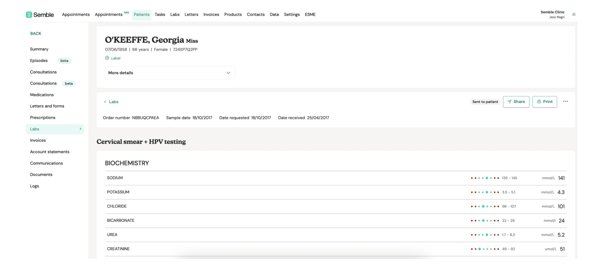
-
Imaging results (PDF format)
These results are provided as PDF attachments.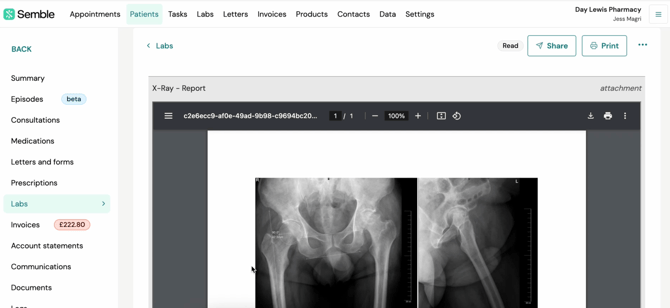
Note: You will only be able to “Share securely” imaging results with patients via Semble. Imaging results cannot be sent as email attachments. Click here to see the difference
Once the lab results are available, they can be sent to you from Compucare to Semble.
-
If a corresponding patient already exists in Semble (matched by name and ID), the results will automatically be linked to the patient's file.
-
If there is no match, the results will be categorised as unmatched. In this case, you will need to manually match them to the correct patient.
For more information on how to manage unmatched lab results, click here.
Troubleshooting
If you are experiencing issues with appointments syncing between Semble and Compucare, please check the following:
Appointments Not Syncing Correctly
-
Ensure that a product code has been added to the product associated with the appointment.
-
Without a product code, the appointment may not sync properly.
Appointment Booked on Semble But Not Appearing on Compucare
-
Verify that the slot for which the patient is booked is available on Compucare.
-
If the slot is not available, please contact the relevant department at Welbeck to create the necessary availability.
If the issue persists after checking these steps, feel free to reach out to support@semble.io for further assistance.