
Note: To set up the integration, you must have a role assigned to you that gives you the relevant permissions.
In this article:
Submit a Prescription to Healistic
Set Up Healistic
When you have met the requirements for the Healistic integration, you can set it up from the Settings page in Semble:
1. Go to the Lab and pharmacy settings tab.
2. Scroll down to the Pharmacy settings section, then click Add pharmacy account.

-
Provider: Select Healistic
-
Name: Enter the name of your practice
-
Source ID: This is provided to you by the pharmacy once you have signed up with them. You can register an account by clicking here.
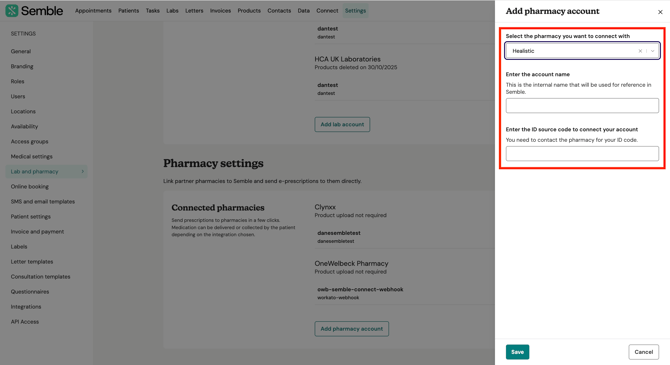
3. Click Save button to confirm.
The integration is set up, and you can now submit a prescription to Healistic.
Submit a Prescription to Healistic
When you have fully set up Healistic for your practice, you can submit a prescription at any time:
1. Create a prescription for a patient as you normally would. For information on how to do this, see here.
Repeat prescriptions
Healistic does accept repeat prescriptions.
To learn how to set up and issue a repeat prescription, please follow the step-by-step guide here:
https://help.semble.io/repeat-prescriptions
2. Click the pharmacy integration icon:
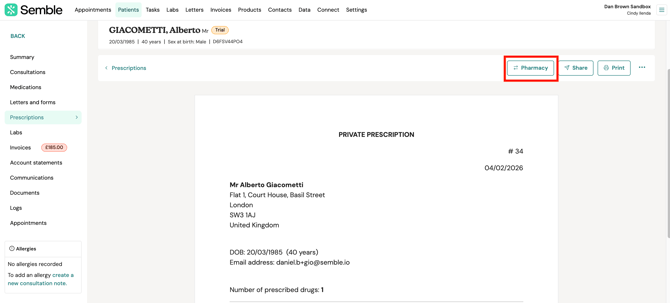
3. Select Healistic from the dropdown menu.
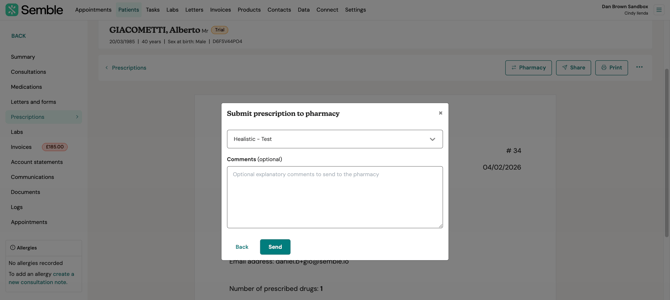
4. (Optional) Add any comments you have for the prescription.
5. Click Send. The prescription is sent to Healistic for them to process.
Note: There are no cost implications on our end. However, kindly check the provider's help centre or contact the provider in terms of what they may/may not charge you.
Cancel a Prescription
If anything is incorrect or missing, please email Healistic directly at hello@healistic.net or call on 020 3695 6288, and they'll resolve it as quickly as possible.
Patient Journey
Once a prescription has been sent to Healistic, the patient will need to complete a few steps to arrange payment and delivery.
1. Receive the secure payment link
After the prescription is sent, the patient will automatically receive a secure payment link via SMS and email. They will need to log in to the Healistic platform using this link.
2. Confirm delivery details
The patient will be asked to confirm their delivery information to ensure the medication is sent to the correct address.
3. Select a delivery slot
The patient will then choose a delivery date and time slot.
Please note: someone must be available to receive and sign for the delivery.
4. Review basket and make payment
The patient can review their prescription in their basket and proceed to payment.
They will also have the option to add over-the-counter medications if required.
5. Payment confirmation and delivery tracking
Once payment is completed, the patient will immediately receive a confirmation email with details of their payment and delivery.
They will also be able to track the delivery directly from their Healistic account.
Controlled Drugs
Controlled drugs cannot be prescribed directly from Semble.
When prescribing controlled drugs, clinicians must use Healistic’s system, which is designed to support the additional legal and regulatory requirements for these medications.
Controlled drugs (CDs) are medications that are regulated by law because they have a potential for misuse, dependence, or harm. In the UK, they are classified under the Misuse of Drugs Act 1971 and Misuse of Drugs Regulations 2001 into Schedules (1–5) based on how tightly they must be controlled.
In the UK, controlled drugs are classified into Schedules based on how strictly they need to be regulated for prescribing, storage, and supply.
Schedule 2 and 3 (CD2/CD3):
These are more strictly controlled medicines because they have a higher risk of misuse. They require stricter prescribing rules and careful record-keeping when supplied by pharmacies. Examples include strong pain medications such as Morphine and Oxycodone, as well as medicines like Buprenorphine.
Schedule 4 and 5 (CD4/CD5):
These medicines are less strictly controlled as they have a lower risk of misuse. They still require a prescription but generally involve fewer storage and record-keeping requirements. Examples include medicines such as Diazepam and some low-strength preparations containing Codeine.
Postal service
Healistic provides a pre-paid Royal Mail 1st Class postal service for physical pink prescriptions.
This service has an expected next-working-day delivery from the time the prescription is posted (via a red letterbox or Post Office).
Step 1: Digital prescription creation
The clinician creates a digital prescription for a Controlled Drug within the Healistic system.
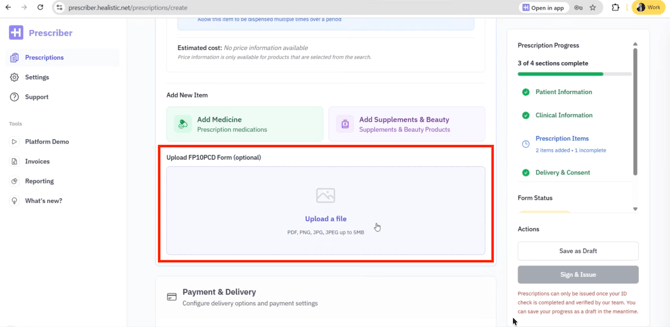
-
There is an option to upload a photo or scan of the physical pink prescription.
This step is optional but recommended, as it allows the pharmacy to:
-
Pre-validate that the prescription has been written correctly
-
Reduce the risk of delays once the physical document arrives
-
Step 2: Pharmacy acceptance
Once the pharmacy has reviewed the digital prescription:
-
The clinician receives an email confirming the prescription has been accepted
-
This confirms:
-
The medication is in stock
-
The prescription can now be posted
-
-
The patient is notified that the prescription has been created and that they will be contacted again once the physical document arrives at the pharmacy
Step 3: Physical prescription received
When the physical pink prescription arrives and is validated at the pharmacy:
-
The patient receives a secure payment link via text message and email
-
Using this link, the patient can:
-
Pay for their medication
-
Schedule delivery
-