
Overview
We're introducing a refreshed calendar and availability experience — built to give your practice greater flexibility, clearer visibility, and a more intuitive way to manage scheduling day to day.
The biggest changes are in the Appointments tab and the Availability Settings page. While these pages will look different to what you're used to, much of the core functionality remains the same, just with an updated interface and added capabilities.
We are transferring existing customers from the current calendar to the refreshed calendar in batches starting from mid-September.
Your practice will be given a transfer date, communicated via email. This date is fixed.
Between now and your transfer date, we encourage you and your teams to familiarise yourself with the changes outlined in this article, and our other pages in the Help Centre, so that you can navigate the change with confidence.
Haven't switched to the refreshed calendar yet? If you're still using the previous version of the calendar, click here to access the relevant Help Centre articles.
In this article:
What's changing in the refreshed design?
How the calendar transfer works
Getting started on Day 1 with the refreshed calendar
Information for developers and API users
Who is this guide for?
We're introducing a refreshed calendar and availability experience, designed to give your practice greater flexibility, clearer visibility, and a more intuitive way to manage scheduling.
To see whether this guide applies to you, go to the Appointments tab:
If you can see the [ ] icon next to your "Appointment" tab:
You're already using the new calendar. You don't need to complete a calendar transfer, so this guide isn't relevant to you. Instead, explore our Refreshed Calendar guides below to learn more about its features.
Overview of Appointments
Overview of Availability
Customise your Calendar View
Coming soon: Understanding the Utilisation report
You can also watch the recording of our Prepare for the Refreshed Semble Calendar webinar where we talk about the calendar changes, highlight what's new, and share tips to help you through the transfer.

Your clinic is still using the current calendar. This guide is for you. We'll let you know when your migration date has been confirmed. In the meantime, continue reading to learn what's changing, what to expect during your migration, and how to prepare your practice for the move.
You can also watch the recording of our Prepare for the Refreshed Semble Calendar webinar where we talk about the calendar changes, highlight what's new, and share tips to help you through the transfer.
Quick Start Guides
Learn the basics in just a few minutes.
Please follow this guide, hyperlinked below, to run through some of the basics on how to navigate the refreshed calendar views, book appointments in the calendar and manage your clinician/unassigned availability.
Refreshed Calendar Quick Start Guide
To navigate between sections, click on 'Get Started' in the bottom-right corner of the live demo page, and select the section you'd like to run through.
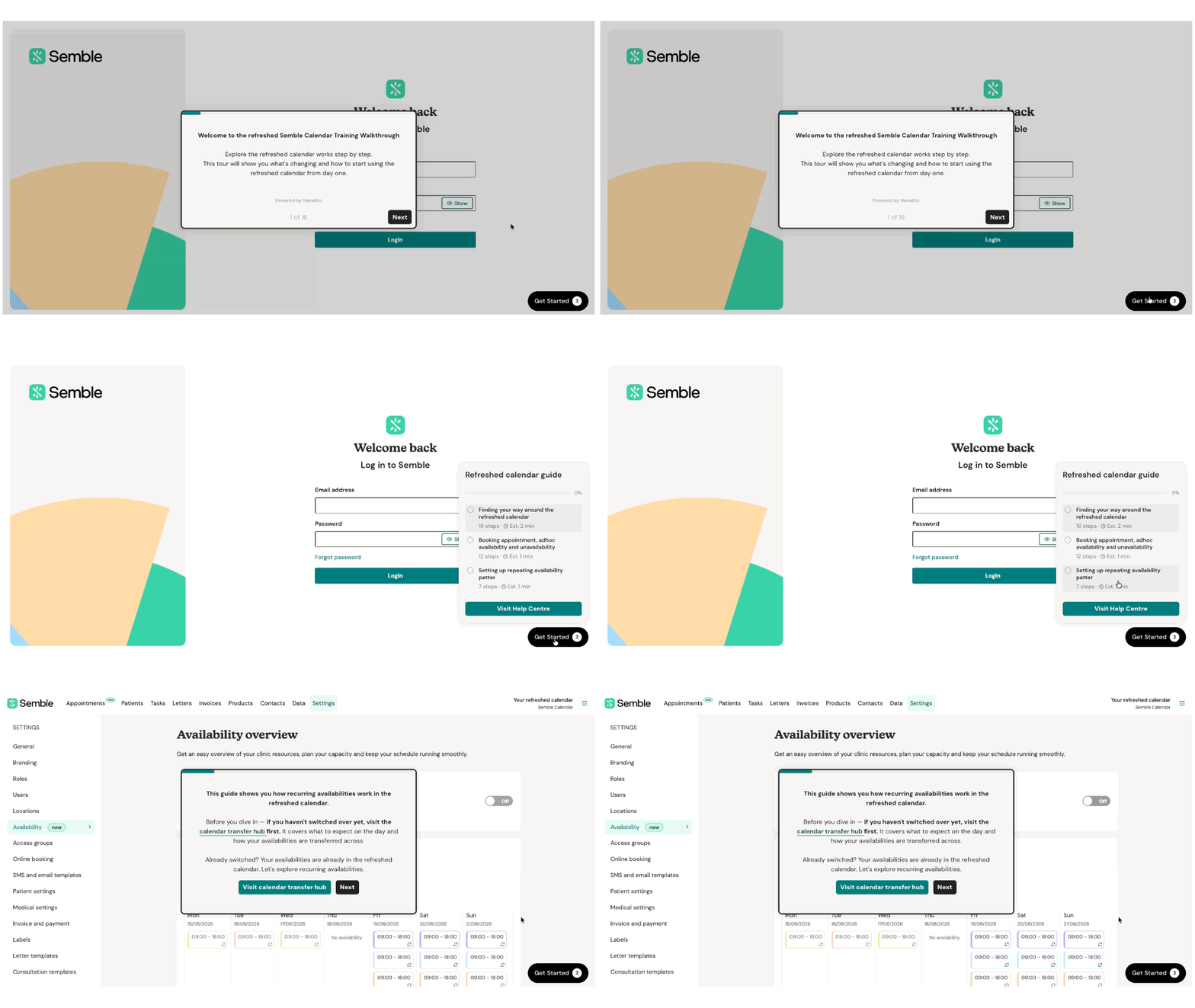
Watch a recording of the webinar here: How to prepare for the refreshed Semble calendar
What's changing in the refreshed design?
Below is an overview of some of the main changes across the Appointments tab and your Availability settings.
For more in-depth guides, please check our Help Centre pages here:
- Overview of Appointments (with refreshed views)
- Overview of Availability (with enhanced scheduling)
- Customise your Calendar View (refreshed views)
- Coming soon: Understanding the Utilisation report
No features are being removed. The refreshed calendar includes everything you use today and more features. The following features are being released progressively over the summer.
Appointments - What's changing?
1. A refreshed calendar design
The refreshed Appointments tab is designed to give you more space and reduce clicks. The layout is slightly different, but the core actions (creating, editing, and managing appointments) work in the same way.
2. Clinic View
The Clinic View has been updated to display your calendar as a timeline, which uses a horizontal layout. This makes it easier to see at a glance which clinician is seeing which patient, and in which room, across the day — giving you more clarity than before.
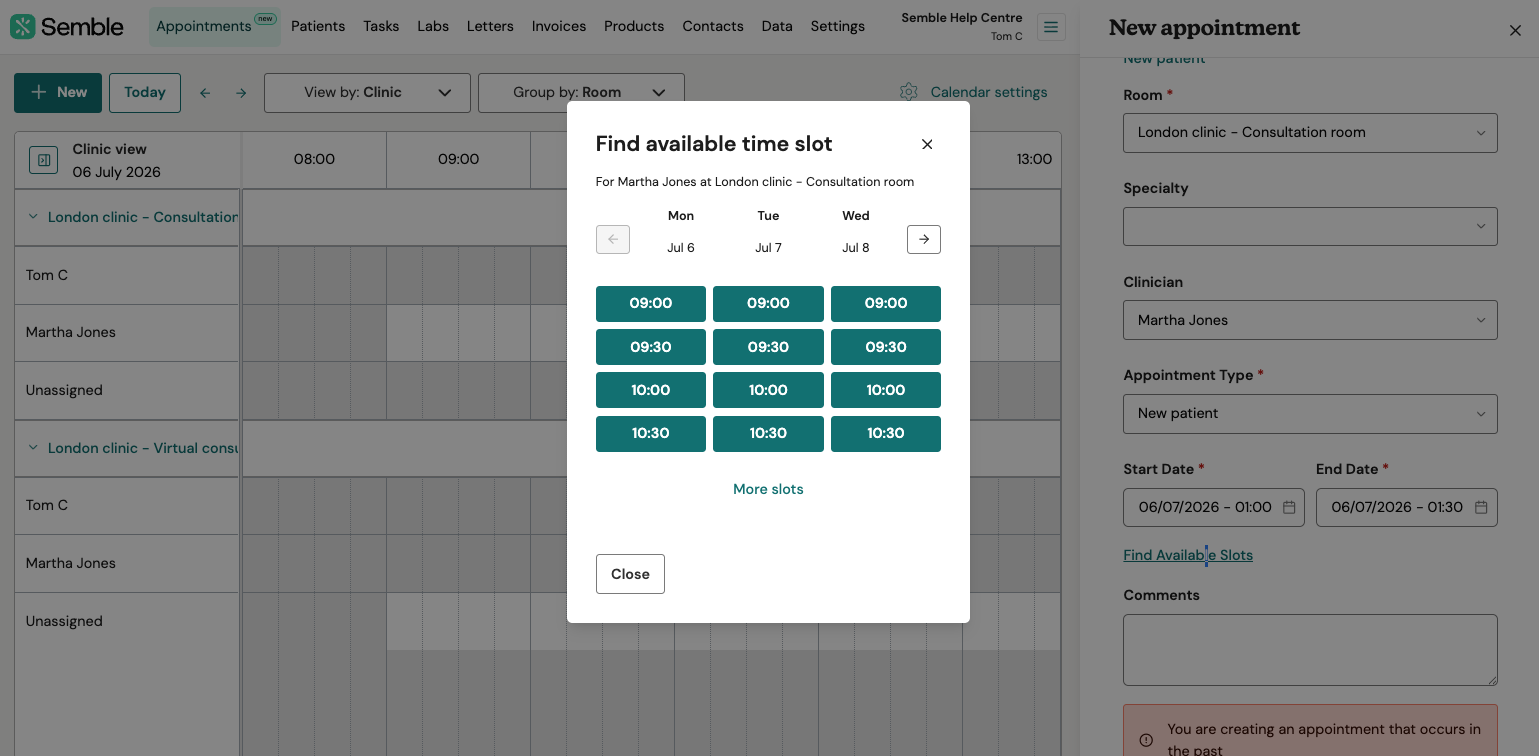
3. Find available slots
The interface for finding the next available appointment slot has been redesigned to feel more intuitive, closely mirroring the online booking experience for patients. This makes it faster to find and confirm a time.
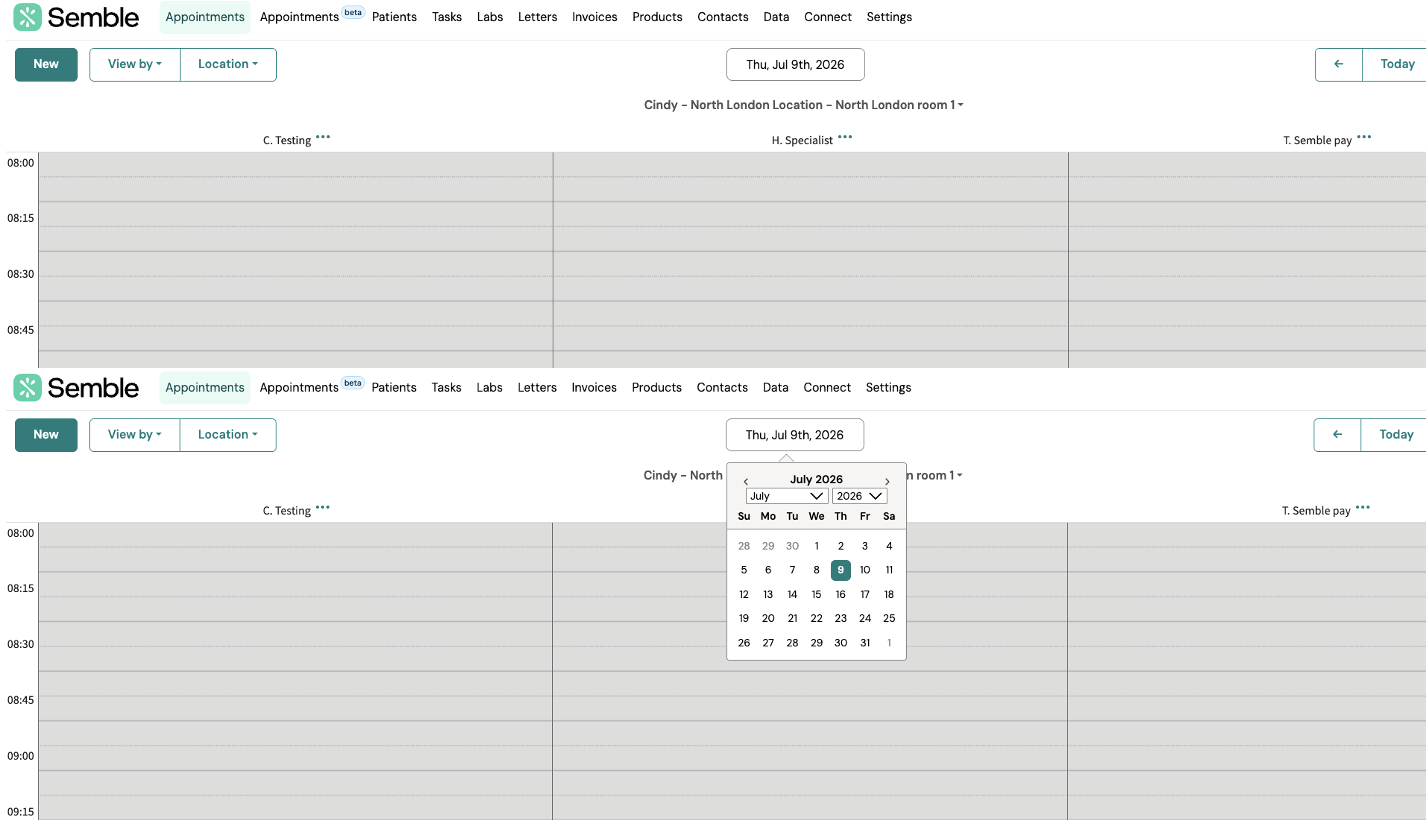
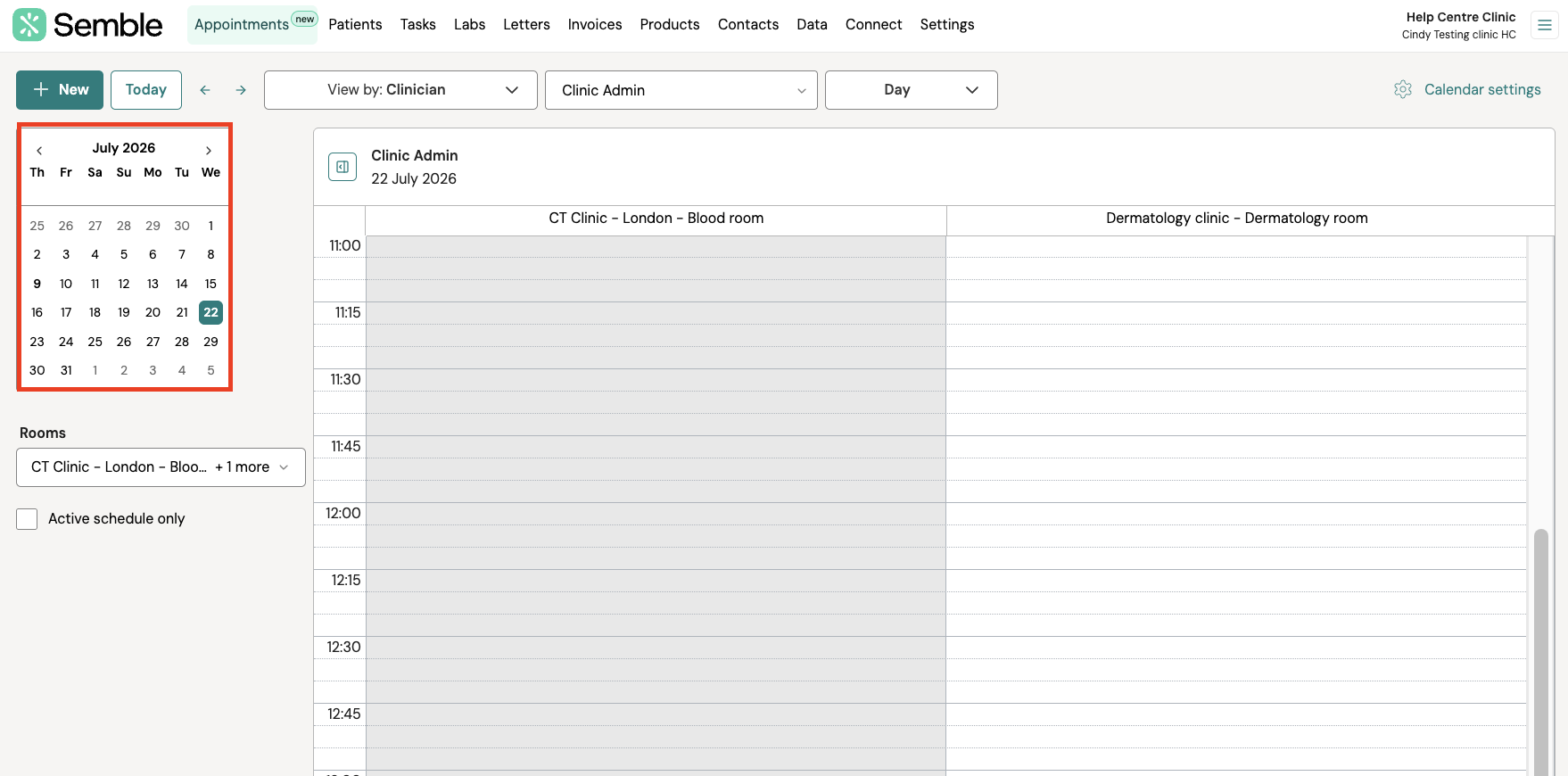
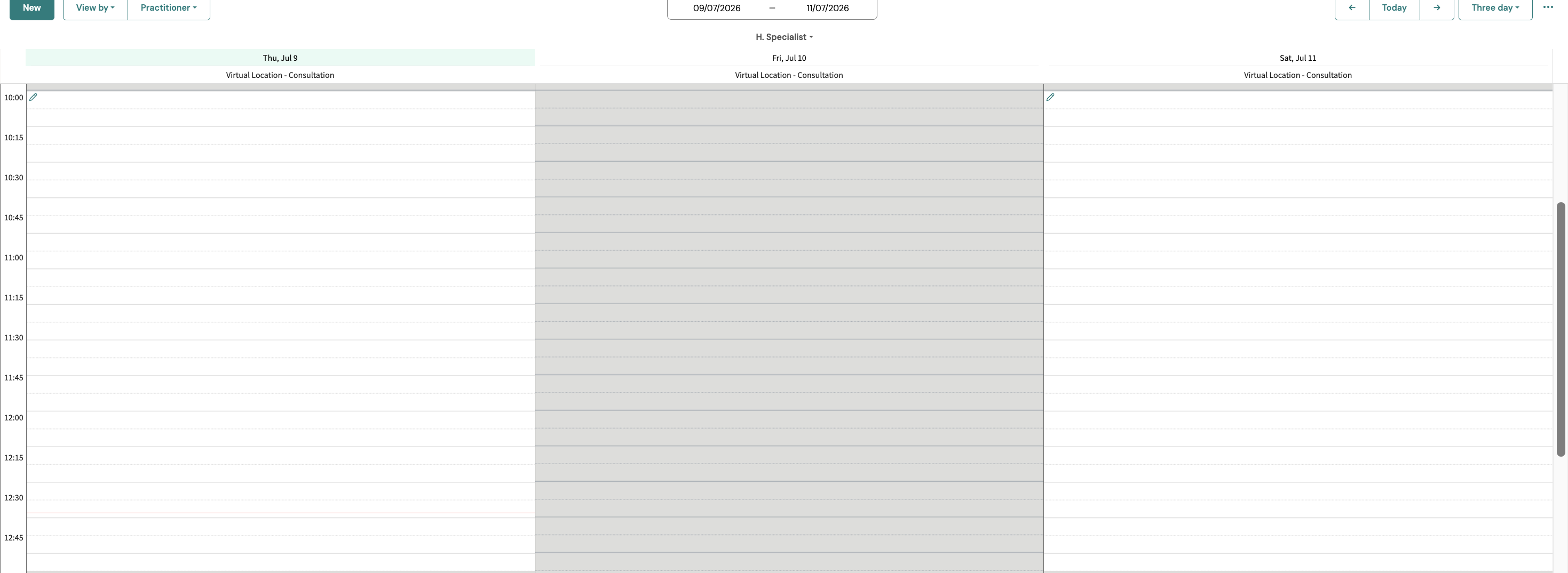
4. Sidebar date navigation
You can now select the dates you'd like to view directly from a mini calendar in the left-hand sidebar, making it quicker to jump to a specific day or period.
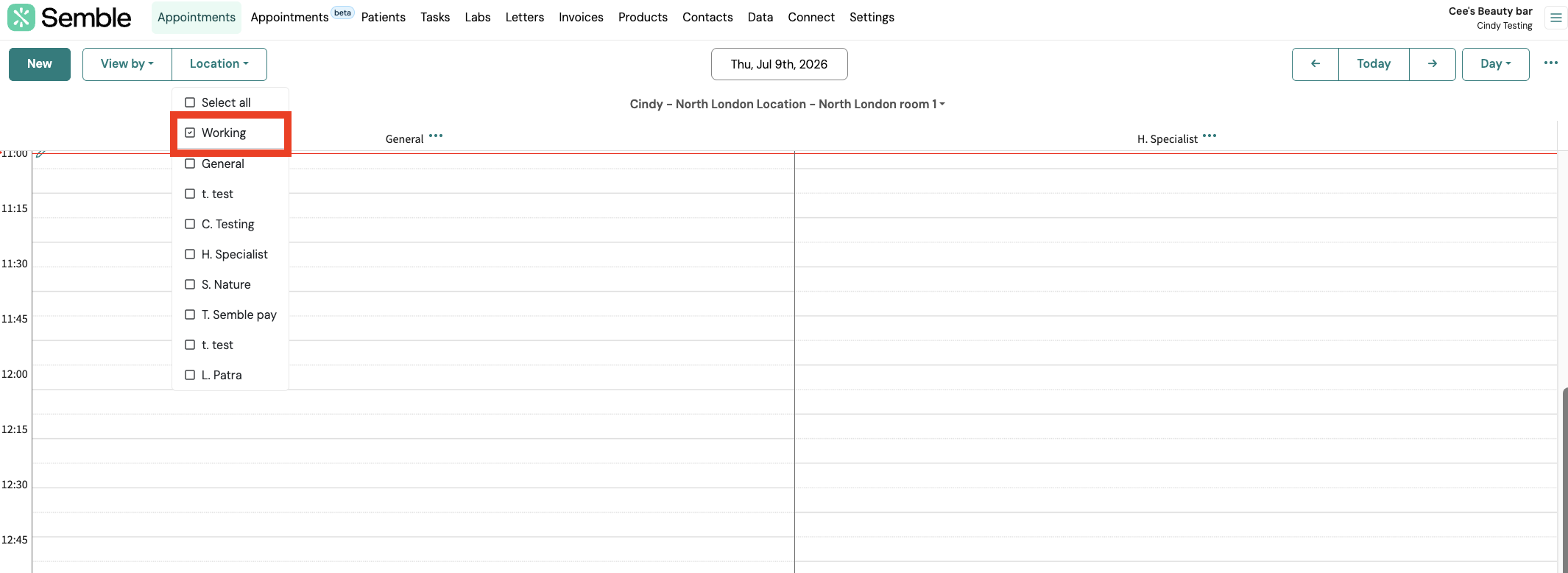
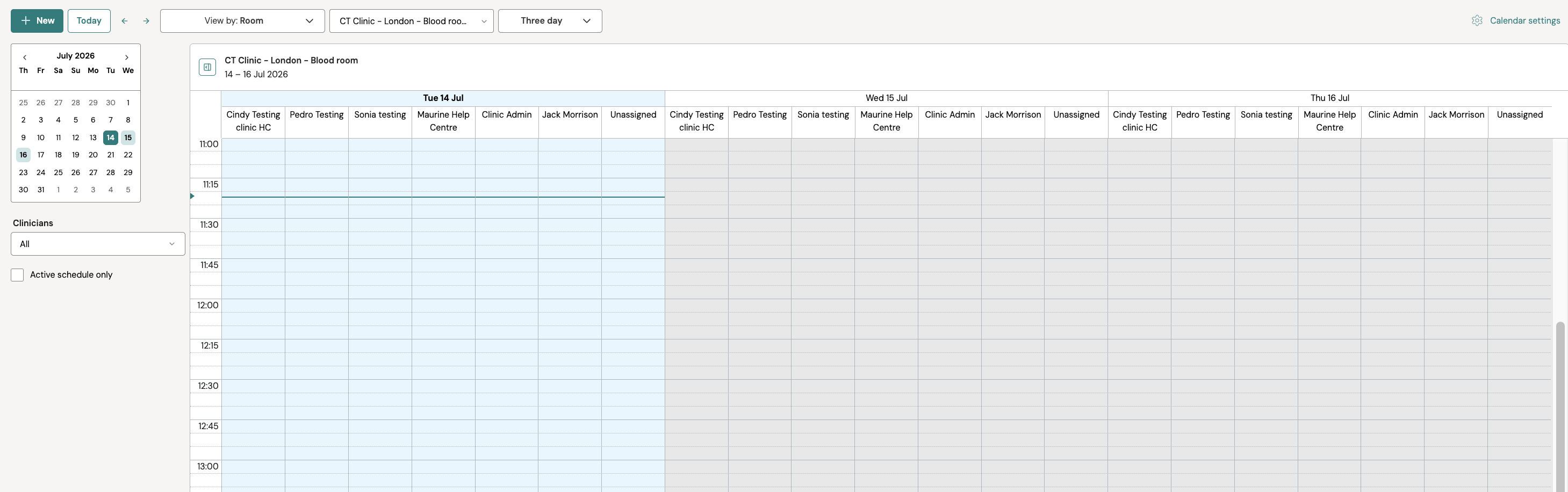
5. 'Active schedule only' filter
Instantly filter to show only clinicians with availability to help keep your view displaying only the most relevant information. This filter is only available in the Room view.
| Feature/area | Previous experience | Updated experience |
|
Clinic View |
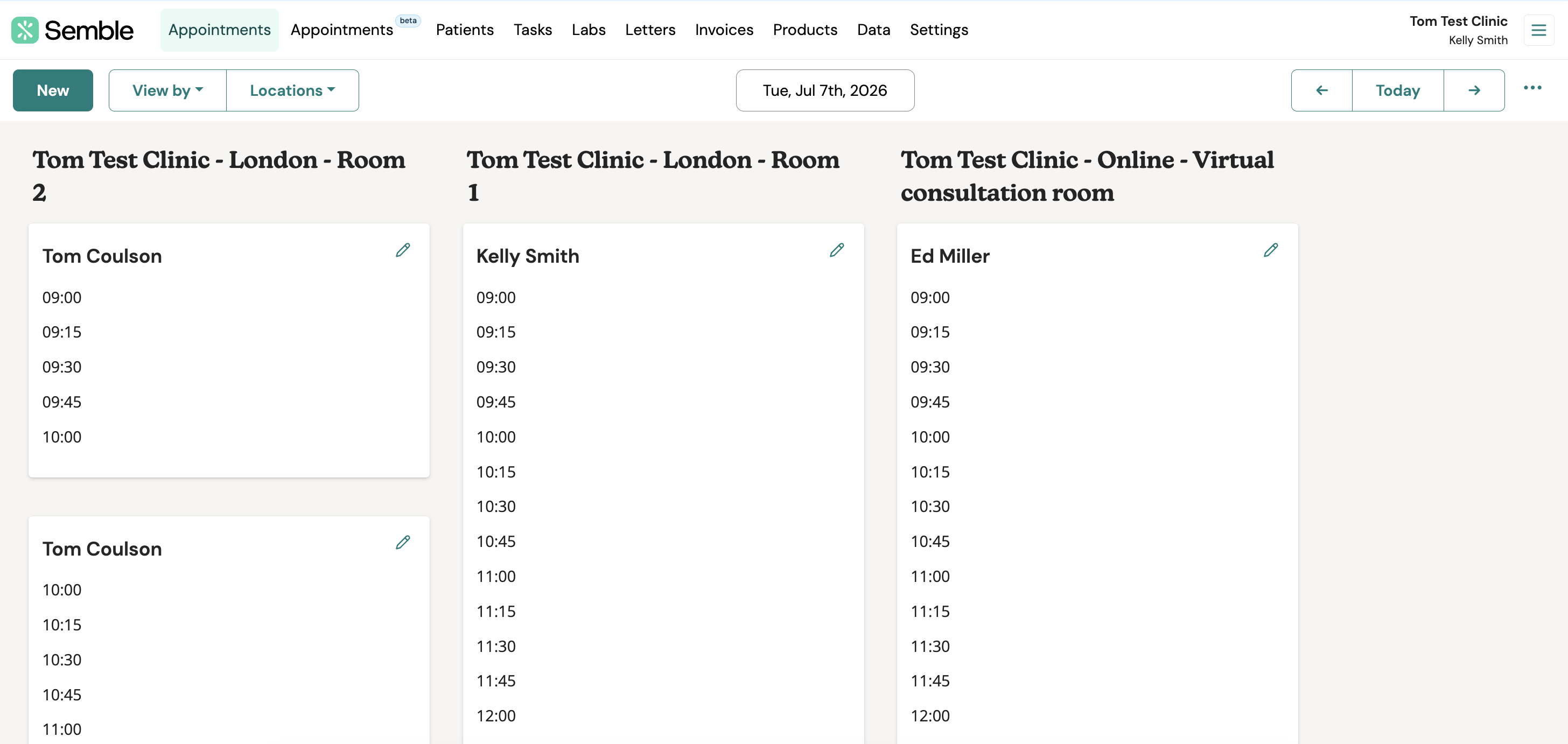
Click on image to enlarge |
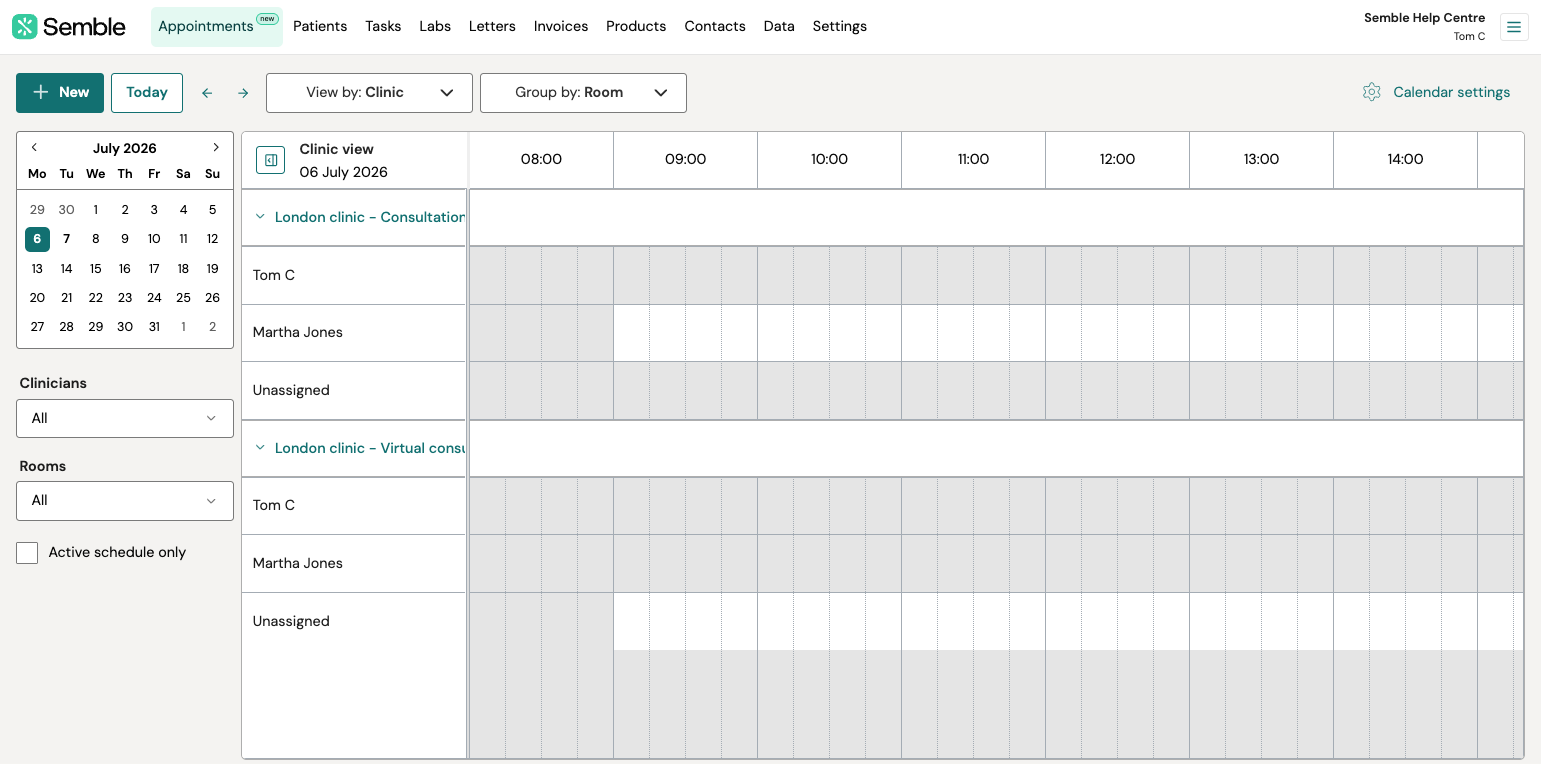
Click on image to enlarge |
|
Find available slots |
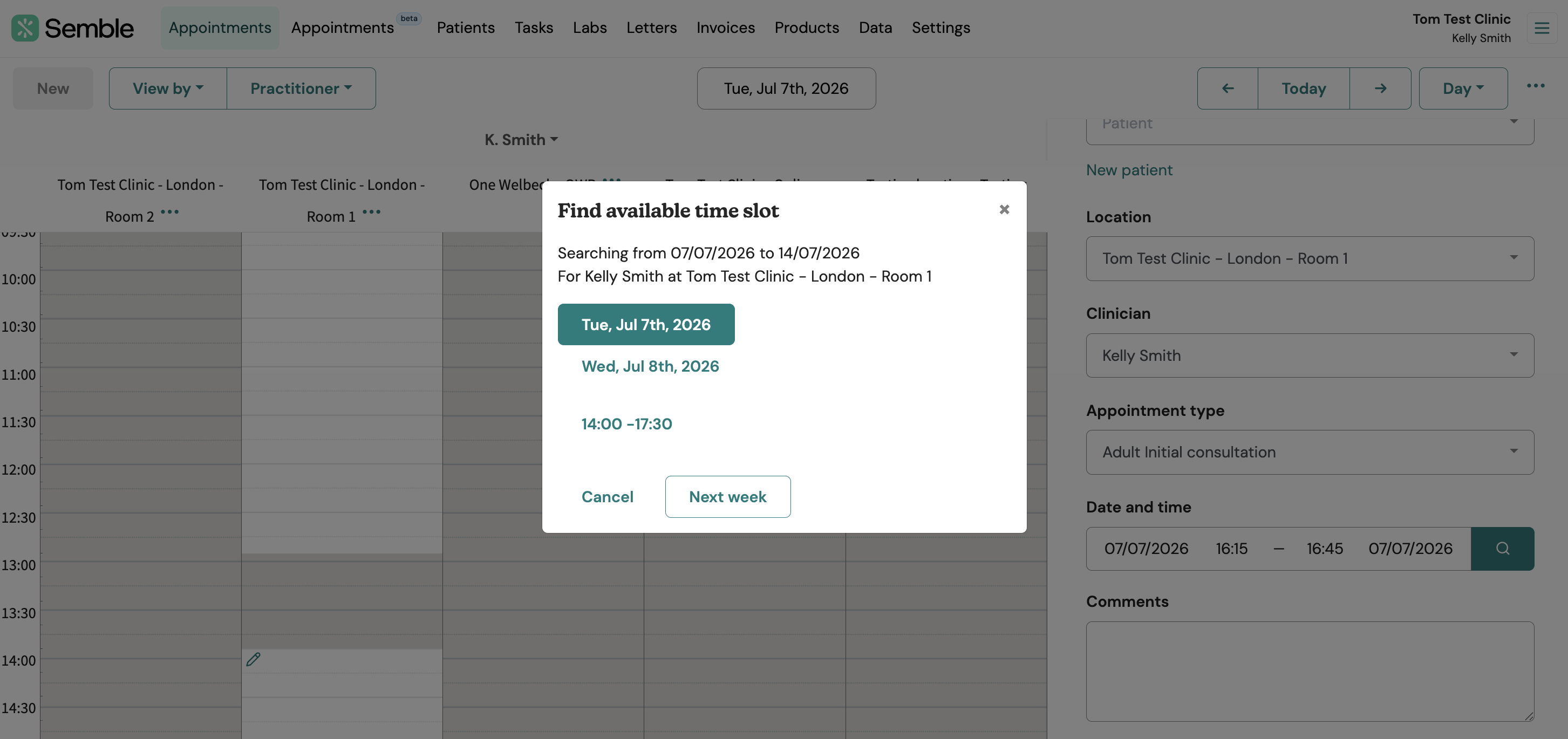
|
|
| Sidebar date navigation You can now select the dates you'd like to view directly from a mini calendar in the left-hand sidebar, making it quicker to jump to a specific day or period. |
|
Click on image to enlarge |
| 'Active schedule only' filter Instantly filter to show only clinicians with availability to help keep your view displaying only the most relevant information. |
Click on image to enlarge |
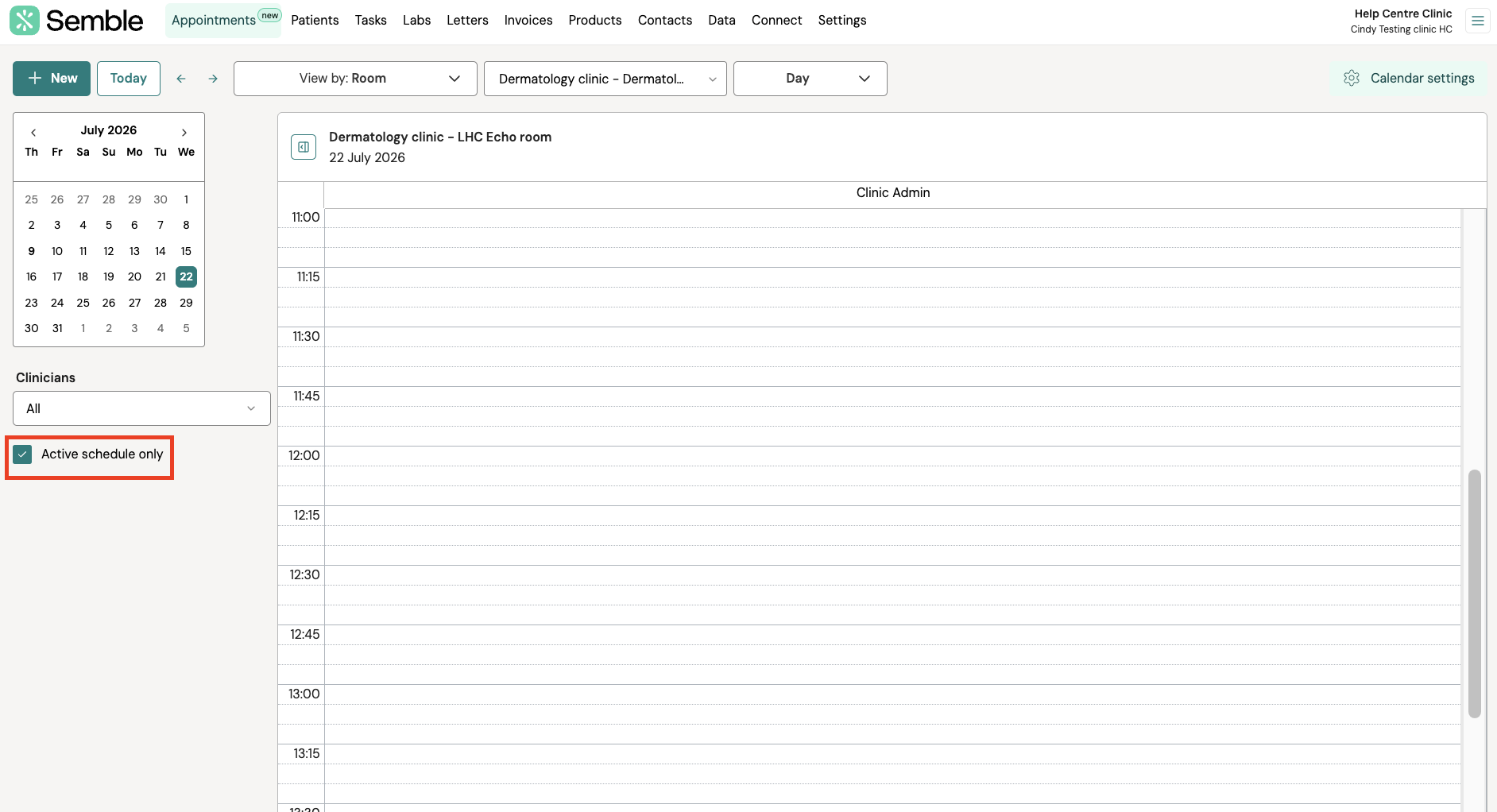
Click on image to enlarge |
Appointments - coming soon:
Note: No features are being removed. The refreshed calendar includes everything you use today, along with additional features. The features below are being released progressively over the summer and will all be available before your switch day.
1. Month view
The initial release includes day, three-day, work week, and week views. The month view will be returning in a future update.
2. Booking with multiple patients or clinicians
Support for booking appointments with multiple patients is planned, with support for multiple clinicians to follow.
3. Manually confirm appointments
The first release will not display appointments that require manual confirmation in the same way as before – they will look the same as other appointments that do not require manual confirmation. We are working on making this available again as soon as possible.
More is still to come. We'll continue to update the Help Centre as things are released.
Availability - What's changing?
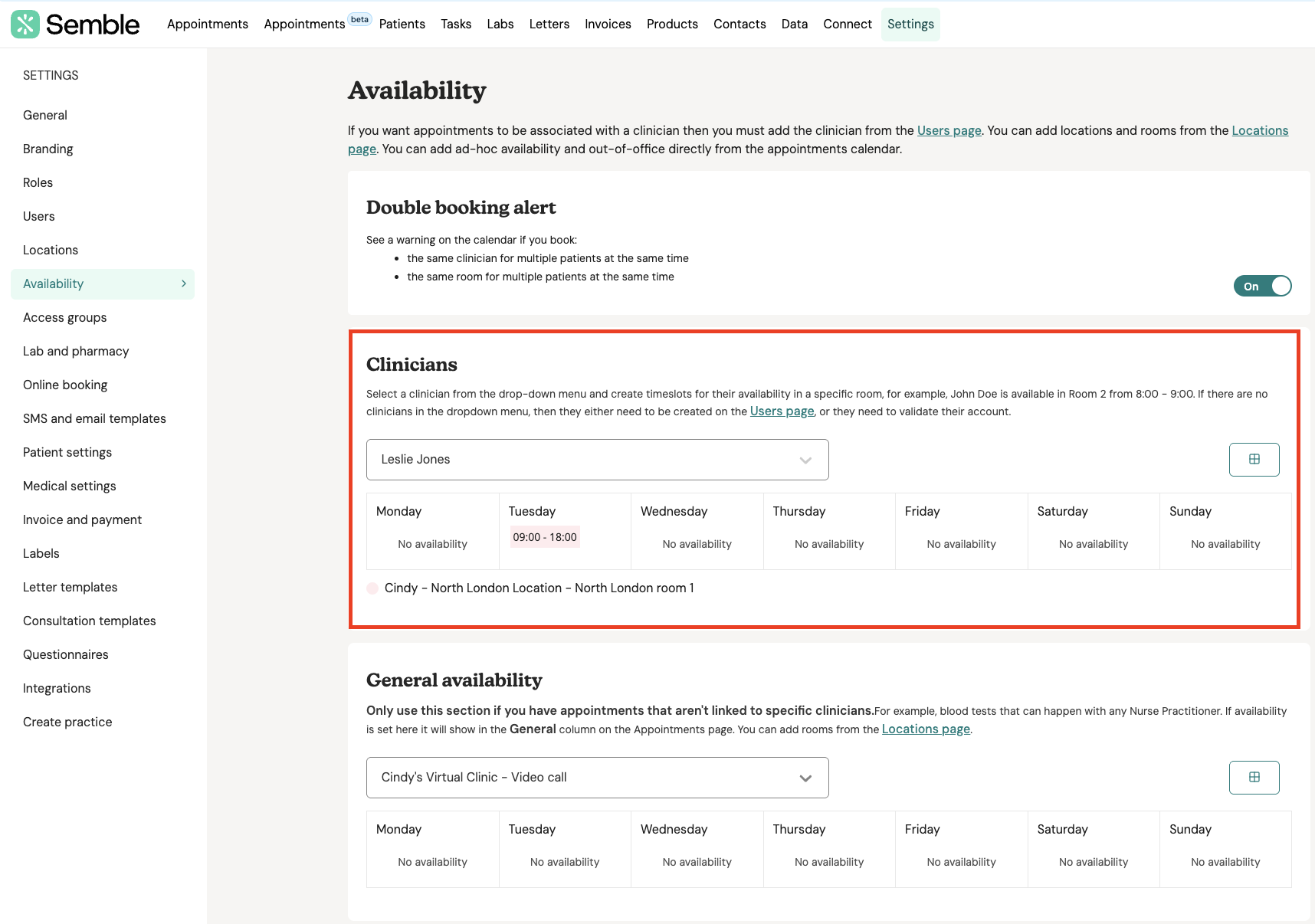
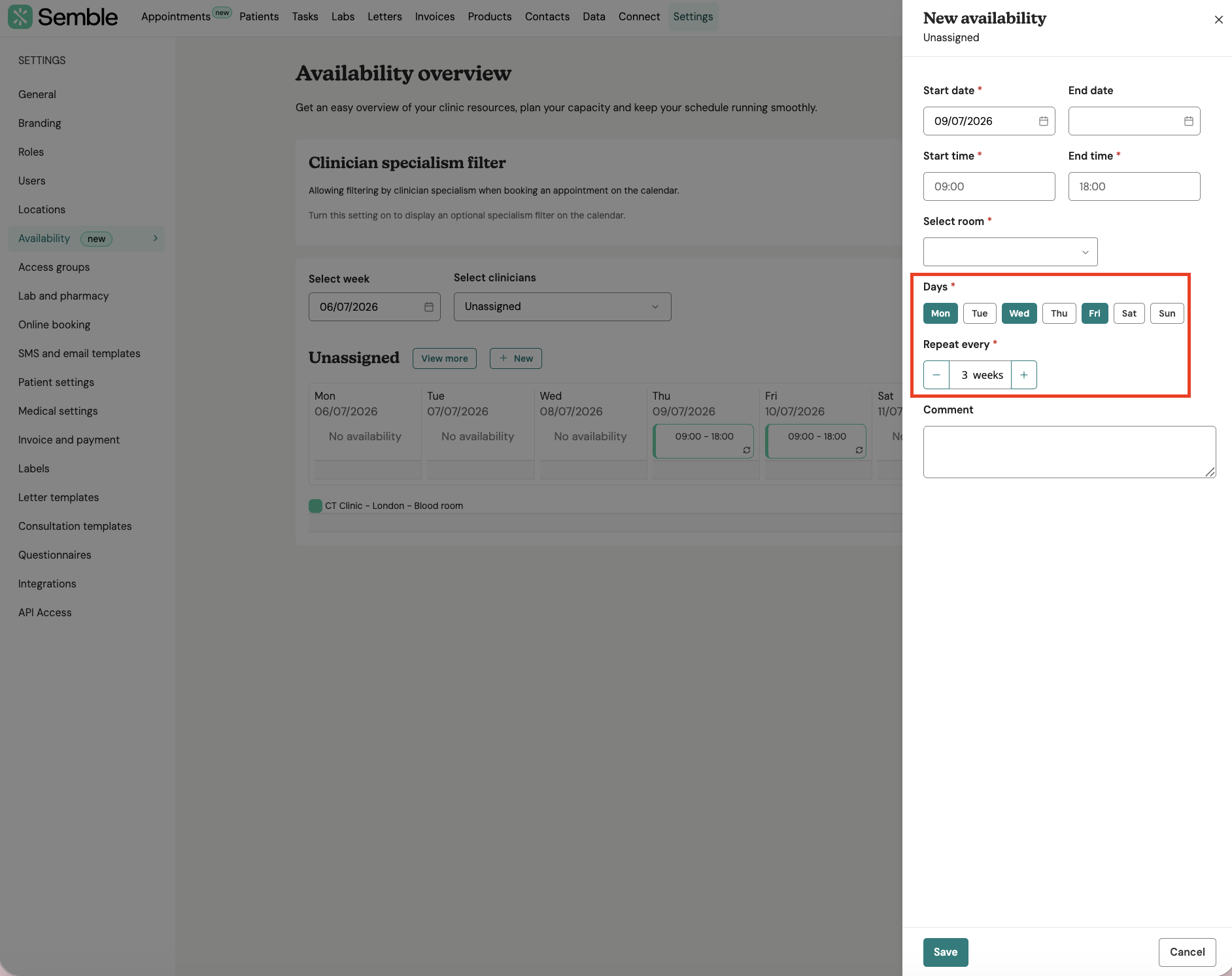
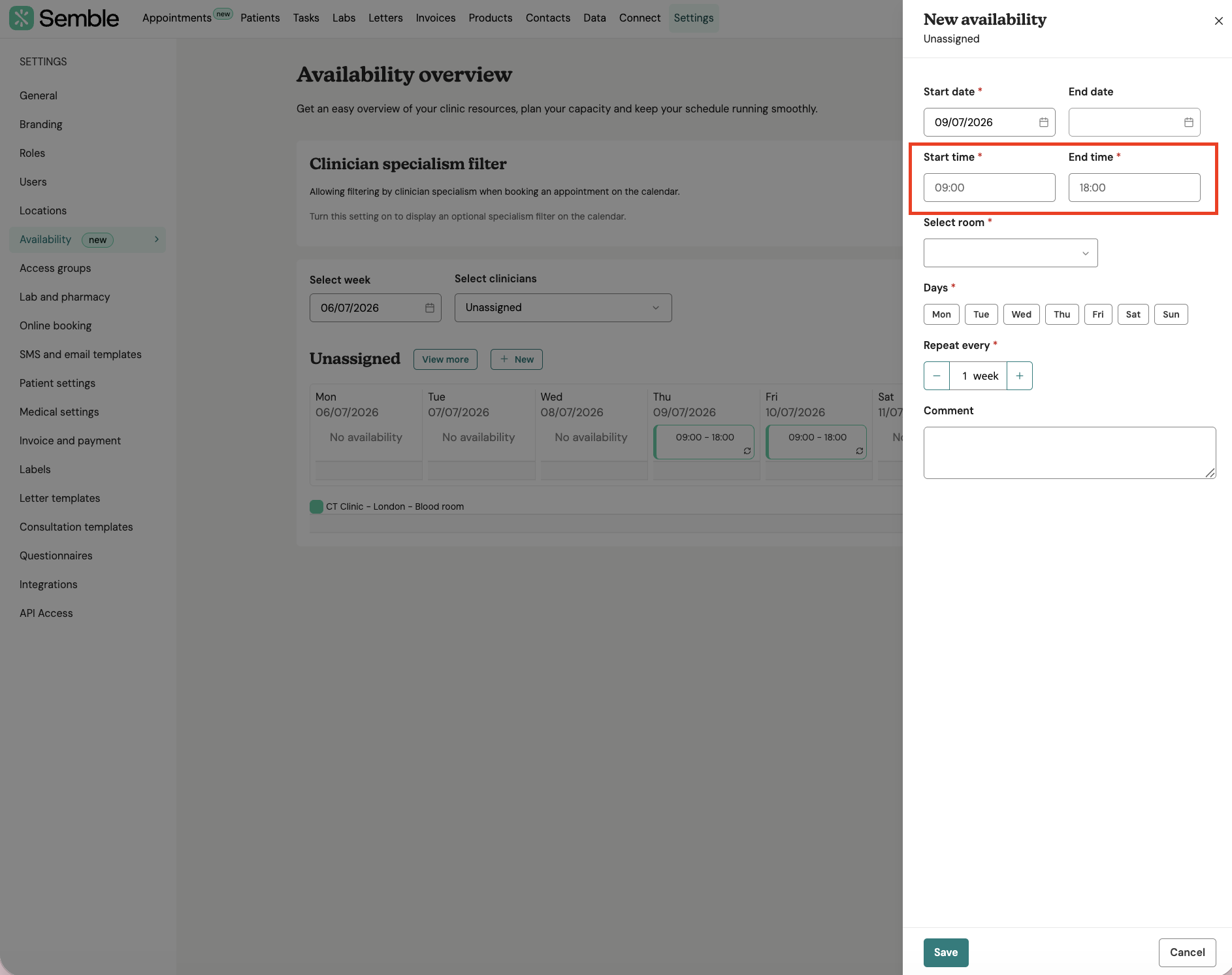
1. Alternating repeat patterns
You can now set how frequently a recurring availability series repeats.
2. Start and end dates for availability
Recurring availability can now be given a defined start and end date, allowing you to plan schedule changes in advance without manual day-to-day edits and keeping historic availability in place.
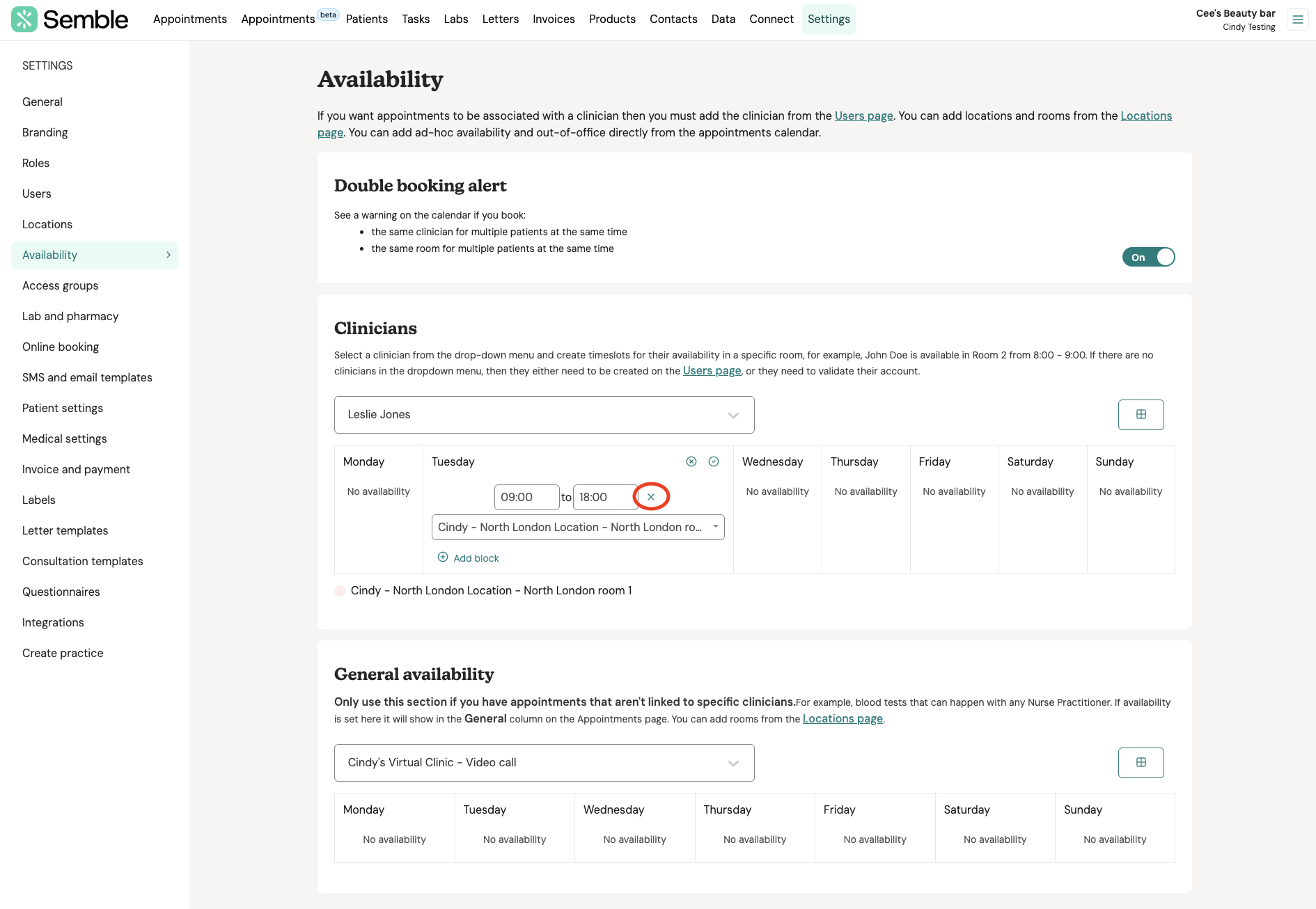
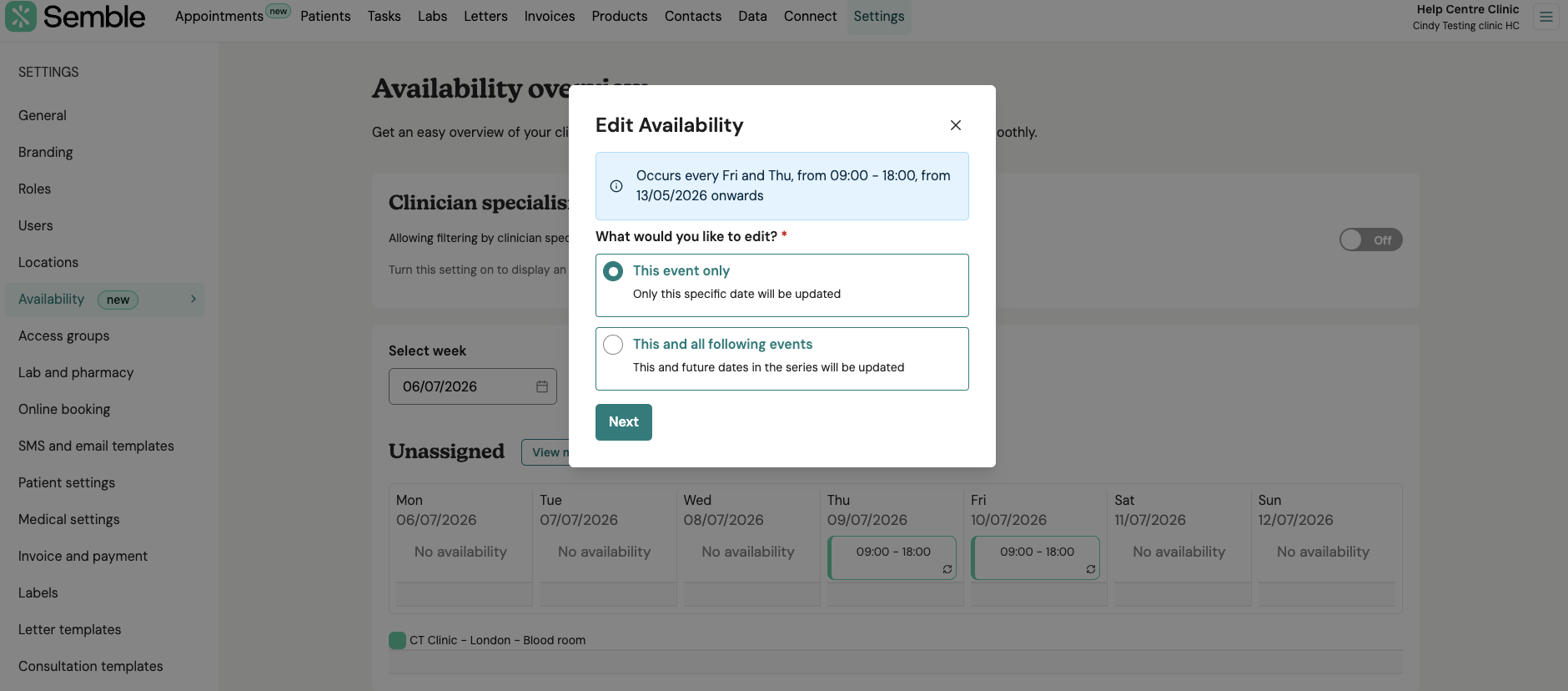
3. More flexibility when editing recurring availability
You can now choose to update a single instance, adjust the end date of a recurring availability series from a selected point forward, or update the entire series. This gives you greater control when schedules need to change.
4. Recurring unavailability
You will soon be able to set up regular recurring blocks, such as weekly meetings or daily breaks, without having to add them manually each time.
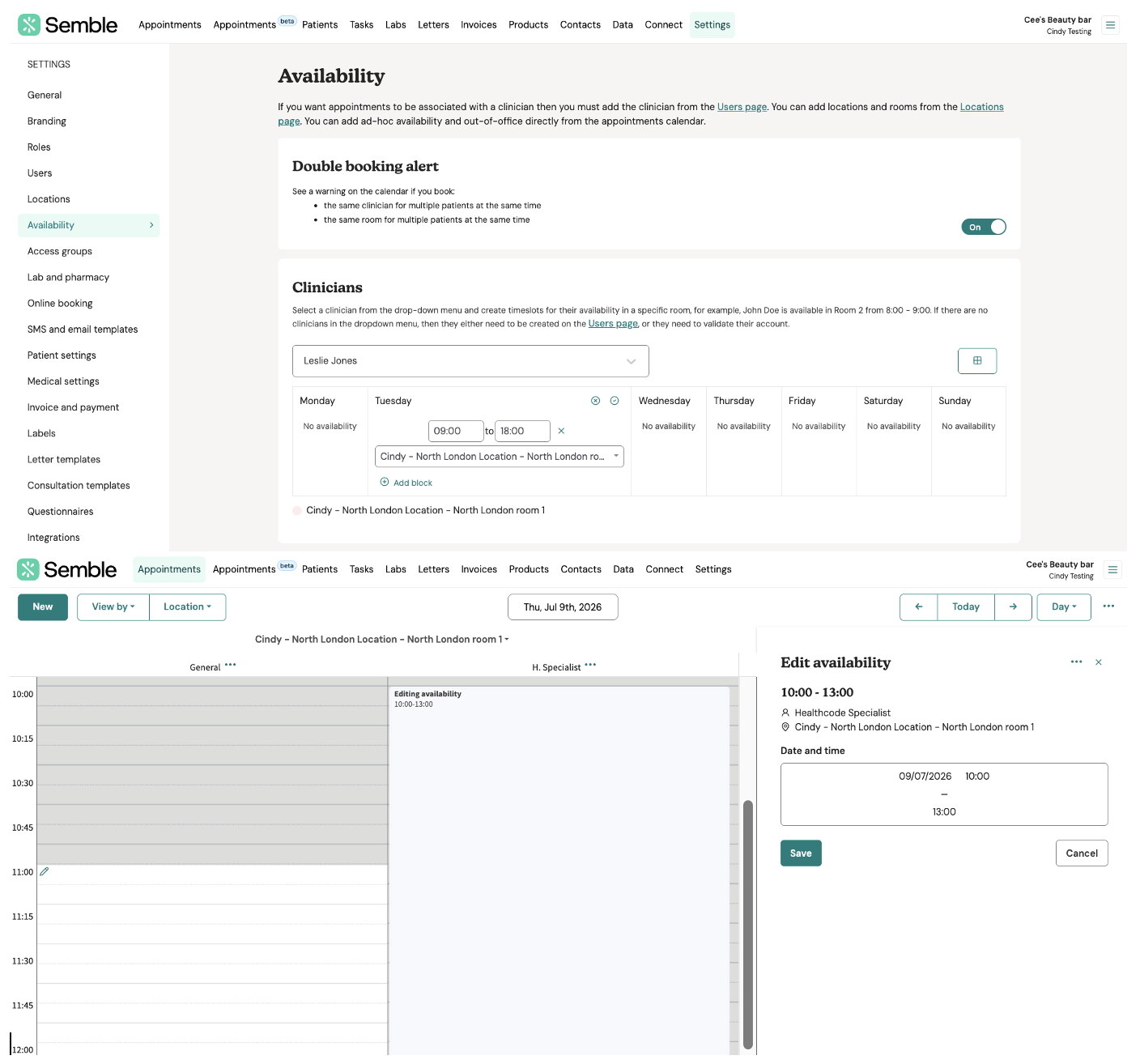
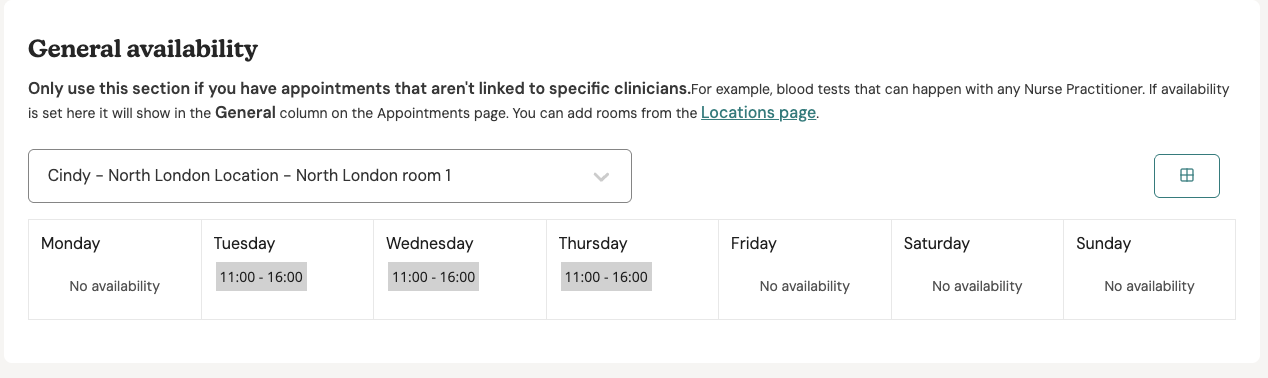
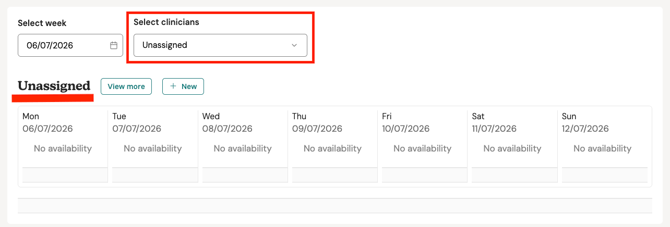
5. General availability is now called Unassigned
The label has changed, but the behaviour is exactly the same. Any availability that is not linked to a specific clinician is now referred to as Unassigned.
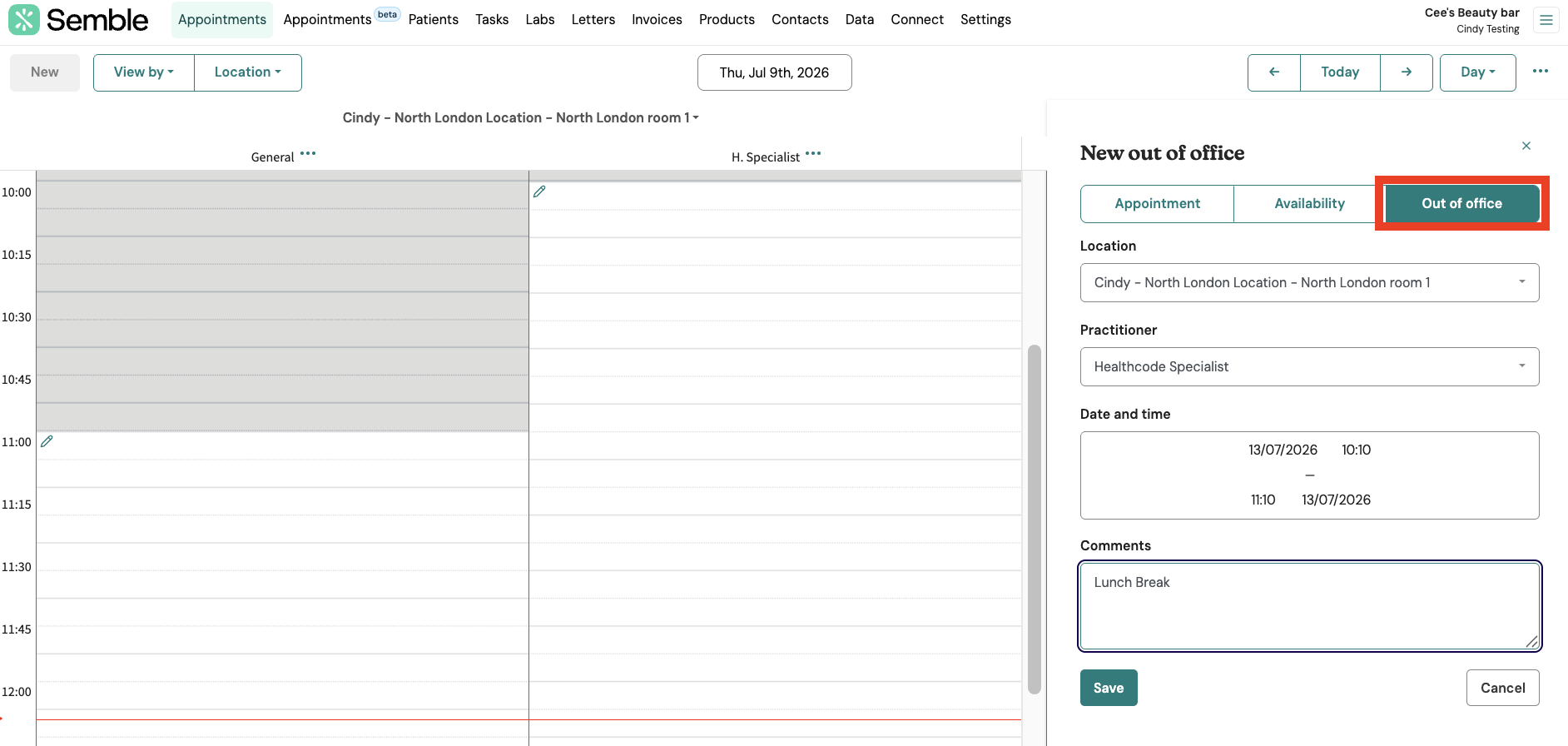
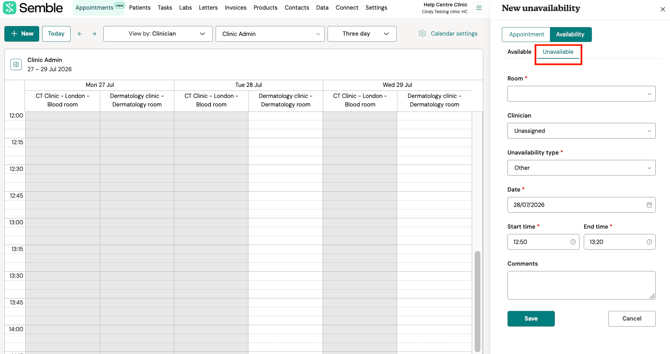
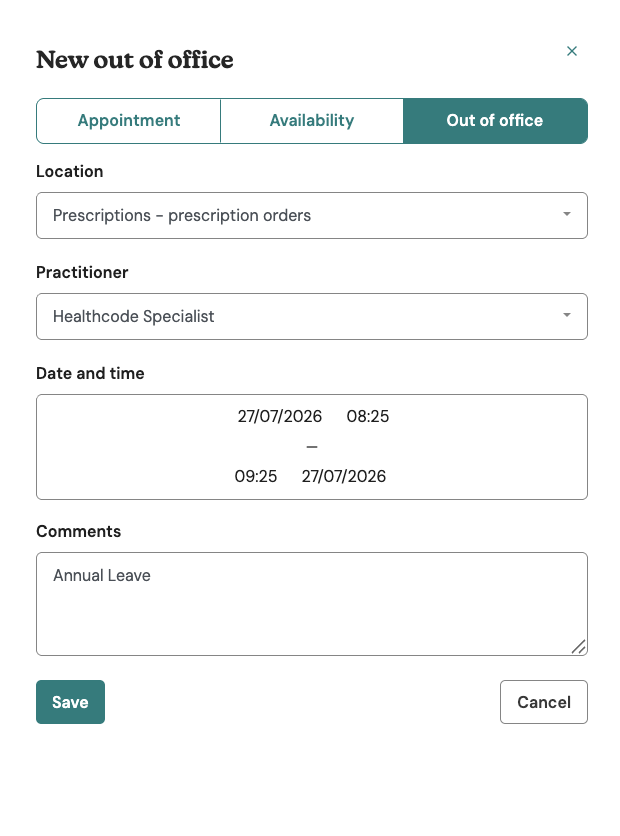
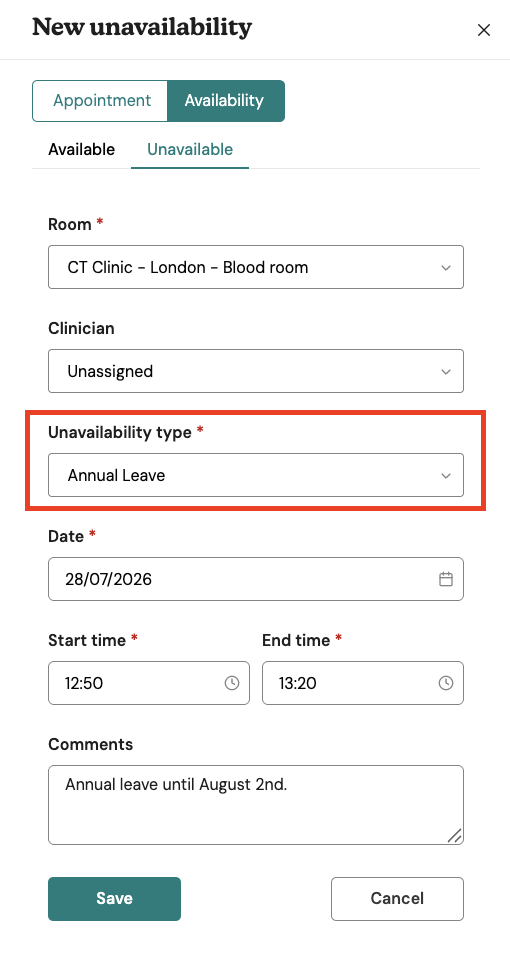
6. Out of Office has been renamed to Unavailable
The Out of Office block has not been removed — it has simply been renamed to Unavailable and it works in the same way. You can still add a comment (such as "Lunch break" or "Internal meeting"), which will appear directly on the calendar block.
7. Unavailability reasons
You will be able to categorise the reason for an unavailability block (for example, admin, meetings, or sickness). This will unlock more detailed capacity and utilisation reporting.
8. Improved room colour distinction
Room availability was previously displayed in colours that were visually similar to one another, making it difficult to distinguish between rooms at a glance. The updated colour scheme provides a clearer visual separation, so you can quickly identify which rooms have availability.
What if a feature I use a lot is coming in later release of the refreshed calendar?
The refreshed calendar launches with core scheduling, booking and rota management features, with some additional functionality following in planned releases.
To minimise disruption, we’re rolling the new calendar out in stages — moving practices with simpler scheduling needs first, while our Customer Success team reviews each batch to identify any practices that rely on functionality coming later.
How the calendar transfer works
The refreshed calendar uses the same appointments database as the calendar you use already so your appointments will stay exactly the same.
Your clinician working hours (availabilities) need to be transferred across to support the new recurring scheduling features. We handle this for you overnight before your switch day and by the time you log in, everything is set up ready for you to start your day.
There's no downtime associated with transferring your availabilities to the refreshed calendar, so your patients can book appointments online as normal.
Here's how it will work:
Our team will run a script to copy your availabilities into the refreshed calendar between 6pm the night before and 9am on the morning of the switch.
DO NOT edit or create availabilities in the current calendar between these times. Any changes made during this period won't be copied over.
1. The evening before
Our teams run a script out of hours to copy your availabilities into the refreshed calendar. DO NOT create any new availabilities during this period as they will not be transferred across.
2. In the morning
Simply log in to Semble and your refreshed calendar—with all your appointments and availabilities—will be ready, just as it was before, so you can start your day straight away.
Your readiness and switch-day checklist
Before switch day:
- Ask all active users in your account to complete the training demo, read this guide and check our Help Centre articles:
- Your switch day and overnight window is agreed with Semble to transfer your appointments and availabilities.
- Everyone to be briefed on when not to add or edit availabilities.
On your Go-Live day:
- Consider arriving a little earlier to get familiar with the new layout and clinic views.
- Report any issues to our Support team directly (support@semble.io). To avoid duplicate queries being sent from your practice, you may want to consider nominating one person to be a point of contact with us, such as a practice manager or team lead.
- When emailing our Support team, please include as much relevant information as possible. We have built a guide on what to include here.
- For practice managers: schedule time to review and update recurring availabilities. This isn't essential on day one, but it can make sure you get the most out of the new calendar and set up your team rotas efficiently.
After your Go-Live day:
-
Please continue to share feedback or report issues to us. We recommend you come back to this guide later to make sure you're kept updated on the most recent features and updates. We'll also be updating our main Help Centre guides throughout the change.
Getting started on Day 1 with the refreshed calendar
- Your last-used view is saved — pick the view that matches how you work and it'll be there next time you log in
- Look around on Day 1, make changes on Day 2 — your existing availabilities have been copied across, so there's no rush to edit anything
- Collapse the side panel for more space — click the icon next to your view name to hide the mini calendar and filters when you need a wider timeline
Views & navigation
- Pick your view by what you need to see – clinic view for the whole practice, clinician view for one person's diary, room view for a shared space
- Use the active schedule toggle to only show clinicians who have appointments and availability for that time period
- Calendar settings are now accessible from the settings icon in the refreshed calendar on the right hand side via
Availabilities
- Set a rota once, not every week – use recurring availability patterns with a start date, days of the week and repeat frequency
- Edit one day without breaking the whole rota, choose "this event only" to change a single shift while leaving the rest of the series untouched
- Use unassigned availability for locum slots, link it to a room without naming a clinician, then assign them later
- Block out leave as an unavailability, select the clinician, dates and room without having to delete availability first
Booking & appointments
- Book from the side panel — create and edit appointments without leaving the calendar view
- Hover to preview — see key appointment details instantly without clicking into the booking
- Drag and drop to reschedule — move appointments across rooms and practitioners in seconds
- Filter clinicians by speciality when booking — turn on the clinician specialism filter in Settings → Availability, then select a specialty in the booking panel to see only matching clinicians
Terminology changes
- General is now unassigned
- Out of office is covered by unavailability
- Practitioners are now clinicians
FAQs
-
Why do my availabilities need to be transferred if my appointments don't?
-
Why are some customers switching earlier, and can I jump the queue?
-
I have a question that hasn't been answered in here. Where can I get more support?
Will my patient appointment be transferred safely?
Yes. You will not lose a single booking. The new calendar uses the exact same appointment database you use today – it simply gives you a faster, updated window to view them. Because the appointments aren't actually moving, there is zero risk of them being left behind.
What happens to our current staff rotas?
Your existing clinician working hours will be securely transferred overnight before your switch day. You do not need to rebuild your schedules from scratch.
Why do my availabilities need to be transferred if my appointments don't?
Your appointments sit in a database that works with both the current and refreshed calendar, so they will remain the same. Availabilities are different. The current calendar stores them as simple time blocks eg. "Tuesday, 9–5."
The refreshed calendar needs to understand more than that for scheduling repeating patterns, so the data is stored in a different structure.
To get your existing availabilities into that new structure, we run a one-off transfer the evening before your switch day. By the time you log in, they're already there. You don't need to do anything.
Remember: Do not create, edit or delete any availability from 6pm the evening before your switch day, and 9am the morning of your switch day.
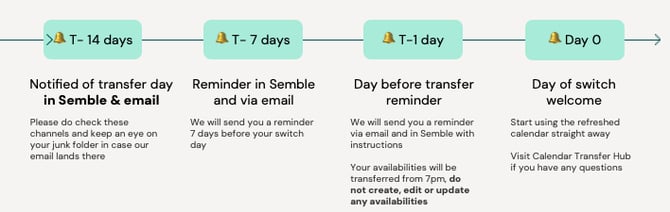
How will I know when my clinic is scheduled for the update?
Here is a timeline of the transfer and the communications you can expect from us:
We understand change is never perfectly timed, but we're not able to move individual switch dates.
Will there be downtime during clinic hours?
No. Transferring availabilities will be run out of hours by the Semble team (between 6pm and 9am). Your patients can still use online bookings to book appointments as normal. There is no downtime or impact to your business.
Please do not create, edit or update any availabilities or add any new ad-hoc availabilities during this out-of-hours period after 6pm on the evening beforw your switch, and before 9am on the day of your go-live date.
Why are some customers switching earlier, and can I bring my date forward?
Brand new Semble customers start on the refreshed calendar immediately because they do not have historical data to transfer.
We're moving customers across in batches so our teams can give every clinic the attention they need on switch day, from answering questions in real time to triaging anything that comes up. Batching lets us keep support quality high for everyone. We incorporate feedback from each batch.
Our customers from larger clinics have requested longer lead times as they have more moving parts to prepare for more staff to train, so we're giving customers longer lead times before their switch so nothing feels rushed.
Can we choose to continue using the existing calendar?
No. The updated calendar architecture is required for all future Semble updates and platform stability, so the update is mandatory for all accounts.
Something isn't working – what should I do?
If you notice anything not working, we recommend asking other people in your Practice to see if they're getting the same thing. If you spot an issue that is affecting multiple people, please report this to us by emailing support@semble.io.
When emailing us, please make sure you include the relevant information that we've outlined for you in this guide: How to get support from Semble
NOTE: If sharing screenshots, please do make sure you redact any sensitive data or personal identifiable information first. You can use the 'Hide patient names' option in your calendar settings to quickly redact this information.
How can I support my teams with this change?
We know change can be daunting, but the new layout is highly intuitive and functions very similarly to other calendars that you may be familiar – like Google or Outlook.
We recommend asking your teams to watch our Readiness Webinar (we'll link it here when it's available), and run through our Quick Start Guides above. We have also updated our Help Centre, and will continue to do so to make sure everyone has the information they need to navigate the change as easily as possible.
What should I do on the day?
There isn't anything specific you need to do for this switch. We suggest considering starting a little earlier than usual to give yourself time to explore the updated calendar experience, and become more comfortable with your processes before business hours start.
I have a question that hasn't been answered here. Where can I get more support?
This page is intended to be an induction and quick-start guide to the updated calendar, but we don't expect it to have covered everything you might be thinking of.
The next best place to go for answers would be our dedicated Help Centre pages for Appointments, Availabilities and your Calendar Views.
If you're still unsure, our Support team are on hand to answer your queries. You can email your questions to support@semble.io.
Please be patient with us, as we could be dealing with a higher volume than usual. We'll be doing our absolute best to help you as quickly as possible!
Information for developers and API users:
This section is for practices using the Semble API (for example, if you have a bespoke online booking website built in-house or by a third-part developer). If your practice does not use custom API integrations, you can skip this section.
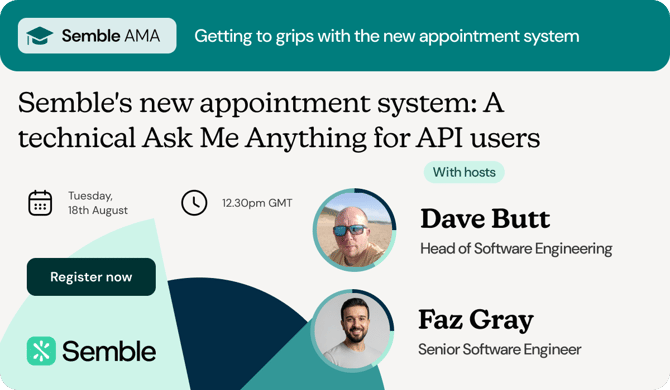
You can watch our webinar recording here: Semble's New Calendar: A Technical Q&A for API Users webinar
In this section:
Your timeline for updating API endpoints
Recommended step-by-step testing plan
What to validate in the responses
Troubleshooting and common pitfalls
What is changing?
We are introducing new availability endpoints to support the advanced recurring availability features of the refreshed calendar.
Because the data model for availabilities in the refreshed calendar has fundamentally changed, we cannot simply update the old endpoints. You must update your integrations to the new availability endpoints.
Endpoint changes – see Developer Documentation on how to get started with the new Semble Appointment System
| Action | Existing Endpoints | New Endpoints | Developer Notes |
| Fetch availability data (Read Path) |
availabilitySettings |
availabilityRules query |
Expect a different response shape. The new availabilityRules uses a new structure to handle recurring |
|
Block out time |
CreateOutOfOfficeBooking |
Input |
Out-of-office is now modelled as unavailability. Transition your write path to ensure blocks appear correctly in the Calendar UI. |
| Manage recurring staff rotas (Write Path) | availabilities |
Availabilities query will remain fully compatible with the New Semble Appointment System availabilitySlots |
The new availabilitiesSlots query will provide additional functionality, including; - Up to 4 weeks of availability data, - Availability of multiple users and rooms, - Associated user and room objects returned in the same query, - Pagination support. |
Your timeline for updating API endpoints
You do not need to wait until your clinic has switched to the new calendar to update your API endpoints. You can start developing and testing the new endpoints against the new system straight away.
In fact, we strongly advise completing your API endpoint work before your clinic's go-live date to ensure a seamless transition that allows you to take immediate advantage of the new refreshed calendar features.
What should I do, and when?
-
Right Now: Your Sandbox environment has been enabled with the new calendar and the new endpoints. Start building and testing the new endpoints immediately if you plan on using them.
-
On Switch Day: There are no breaking changes. Your existing endpoints will continue to work on the day you switch to the new calendar. You can safely switch to the new endpoints on this day if you have completed your endpoint testing. You can run both old and new endpoints in parallel to monitor performance
-
The Hard Deadline: We will permanently retire the current calendar and switch off the deprecated endpoints at the end of Q4, 2026. You must complete your transfer to the new endpoints before this date to avoid any downtime and disruptions to your business operations.
How to test the new endpoints
The new endpoints are "feature-flag gated." This means they will return errors or empty results if you try to call them on an account that does not have the refreshed calendar features enabled.
Step 1: Test in your Sandbox
We will enable the new calendar in your Sandbox environment so you can develop against the new endpoints immediately, without risking your live clinic data.
Need a Sandbox account? Request one from your Customer Success Manager or contact accountmanagement@semble.io
Need data? We can pre-populate your Sandbox with realistic test data modelled on your clinic's appointment patterns (containing no real patient information) so you can test effectively.
Step 2: Test in Production
Once your main account has switched to the new calendar, the new endpoints will be active in Production. We recommend creating dummy "Test Patients" to validate the integration. Once you’re happy with the responses, you can continue to pushing it live.
Recommended Step-by-Step Testing Plan
1. Read documentation: Familiarise yourself with the developer documentation to get started with the Semble Appointment System
2. Get Sandbox Access: Ensure the new calendar is enabled on your Sandbox and your credentials authenticate.
3. Map your calls: Map your existing endpoint calls to their new endpoint equivalents using the table above.
4. Test the Read Path first: Query availabilityRules for practitioners/rooms you know. Do not assume new field names match existing ones. Validate the response field-by-field against the new endpoint documentation.
5. Test the Write Path: Create unavailabilities via the API and confirm they appear correctly in the Calendar UI.
6. Exercise the new model: Ensure your parsing handles the new data representations, including recurring patterns, single-event edits ("this event only"), and start/end dates for temporary staff.
7. Cover edge cases: Verify your error handling for unvalidated practitioners, overlapping availabilities, auth failures, and pagination limits.
8. Run an end-to-end regression: Test your full booking flow (eg. Slot retrieval → Booking creation → Confirmation) in the Sandbox.
9. Deploy and Monitor: Keep current endpoints as a fallback in your code until you have verified new endpoints are running smoothly in Production.
What to validate in the responses
-
Field names and structure, assume they differ between the current endpoints vs the new endpoints, refer to developer documentation as reference guide
-
How recurring availabilities, series edits and start/end dates are represented
- How unassigned (unknown-clinician) availabilities appear
- Pagination, result limits, rate limits and throttling behaviour
- Error formats and status codes, plus any auth scope differences for V2
Troubleshooting and common pitfalls
-
Assuming new endpoint field names match current endpoints – they likely don't.
- Forgetting new endpoints are feature-flag gated. If the refreshed calendar isn't enabled on that account, you'll get errors or empty results.
- Testing in Production against live data instead of a Test Patient.
- Leaving updating endpoint work too close to the retirement deadline.
- Not handling the new availability model (recurring/series/start-end dates) in your parsing.
Webhooks
Webhooks for availabilities are not included in this initial release. They're on our roadmap and under evaluation. In the meantime, poll availabilityRules on a sensible schedule, cache where you can, and back off gracefully to stay within rate limits.
Using a third-party developer
If you don't have an in-house tech team, forward this section to your external developer or agency now so they can plan the work before the retirement deadline. They can request Sandbox access through your clinic's main point of contact.